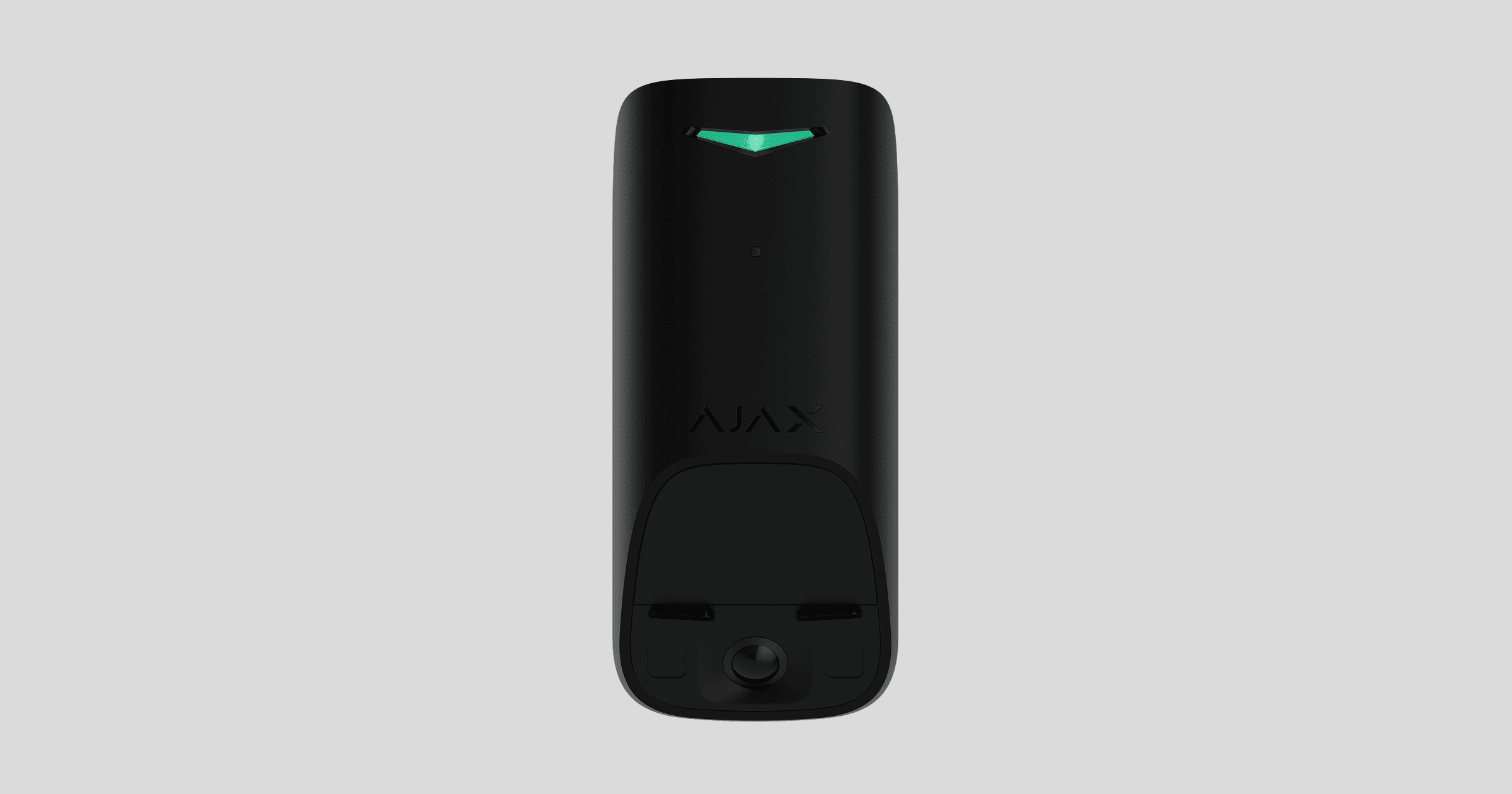
Superior MotionCam G3 (PhOD) Jeweller is a wireless PIR motion detector supporting extended photo verification possibilities and HD photo resolution. It detects movement at a distance of up to 49 ft. The device is equipped with a PIR sensor and features an anti-masking system that detects attempts to block the detector’s field of view. The device is designed for indoor use.
The device operates in an Ajax system and exchanges data with a hub via the secure Jeweller and Wings radio protocols.
Superior MotionCam G3 (PhOD) Jeweller is a device of the Superior product line. Only accredited Ajax Systems partners can sell, install, and maintain Superior products.
Functional elements
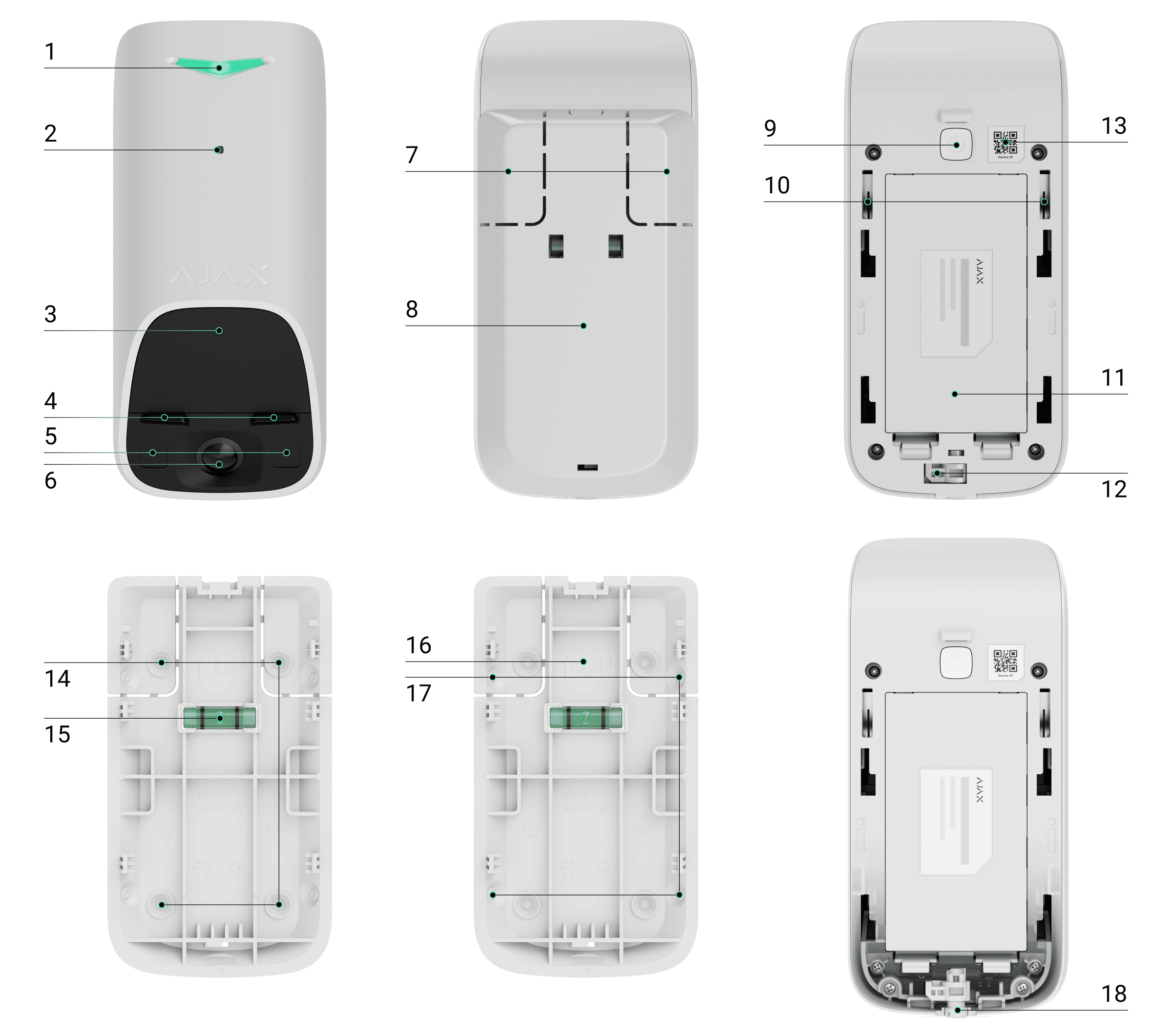
- LED indicator.
- Ambient light sensor.
- Sensitive area of the detector’s PIR motion sensor.
- Masking sensor.
- Infrared (IR) illumination. It is used to take photos in low-light conditions.
- Camera.
- Perforated parts of the mounting panel. They are necessary for a tamper button to be triggered in case of any attempt to detach the detector from the surface. Do not break them off.
- SmartBracket mounting panel. To remove the panel, slide it down.
- Power button.
- Tamper buttons.
- Battery compartment lid. To replace the batteries, open the lid.
- Latch with the tamper button on the SmartBracket’s lock.
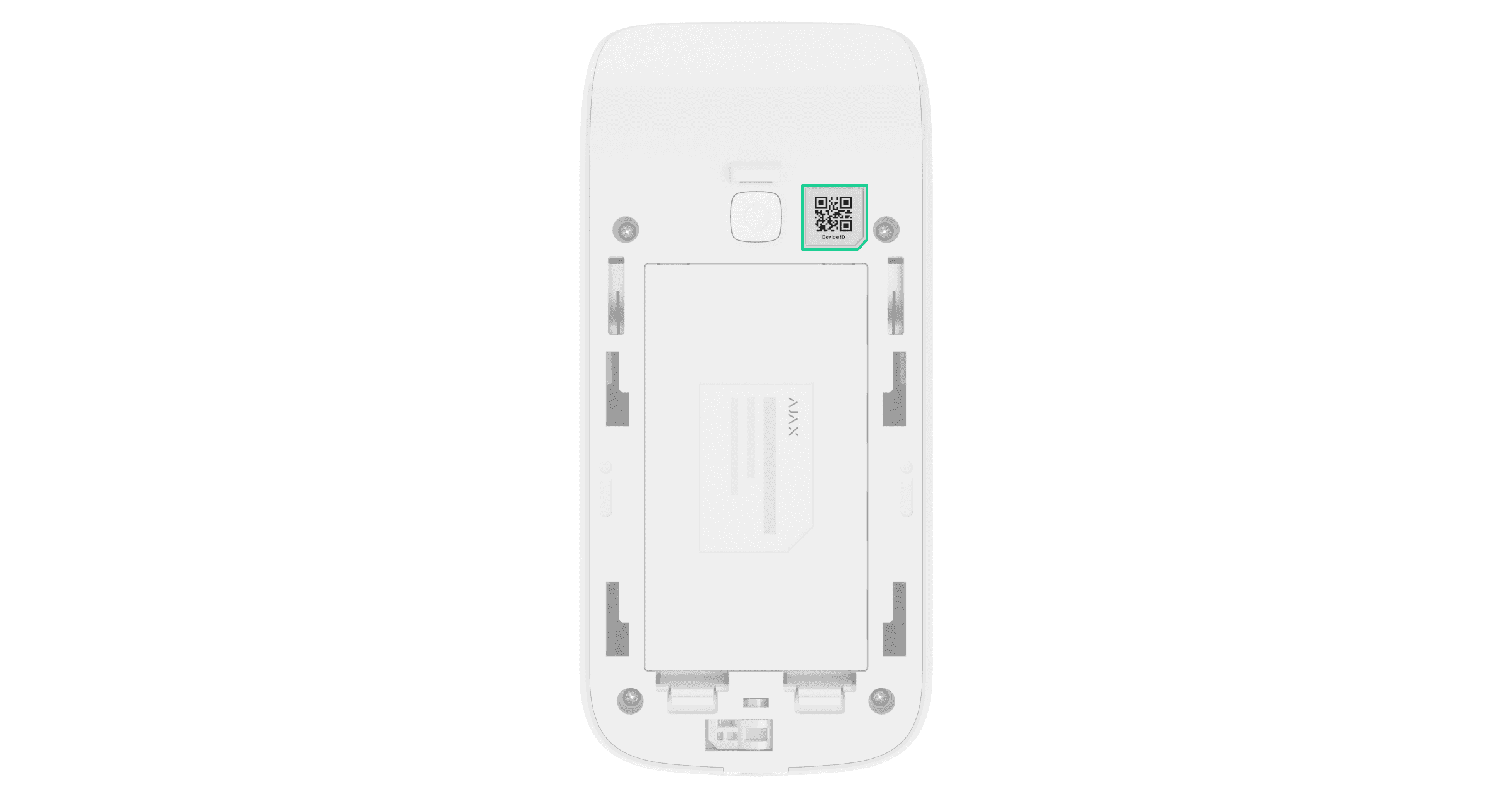
- QR code with the device ID. It is used to add the device to the hub.
- Places for drilling holes to mount the device on the surface.
- Bubble level for checking the inclination angle of the mount during installation.
- Places for drilling holes to mount the device on the corner.
- UP key for indicating the top of the device.
- SmartBracket’s lock. It is used to fix the device on the SmartBracket mounting panel.
Compatible hubs and range extenders
An Ajax hub running OS Malevich 2.36 or later versions is required for the device to operate.
Operating principle
Superior MotionCam G3 (PhOD) Jeweller is a wireless motion detector supporting photo verification with HD photo resolution. It is equipped with a PIR sensor, camera, and anti-masking system.
The device uses a PIR sensor to detect moving objects with temperatures close to that of the human body. When the movement is detected, the Superior MotionCam G3 (PhOD) Jeweller takes a series of images, enabling a real-time assessment of the situation at the site. This saves users from unnecessary anxiety and monitoring companies from false patrol dispatches.
When motion is detected, the device instantly sends an alarm to the hub, activating the sirens connected to the system, triggering scenarios, and notifying users and the monitoring company. All Superior MotionCam G3 (PhOD) Jeweller alarms and events are recorded in the event feed in Ajax apps.
Users and the monitoring company know exactly where movement is detected. The notifications contain the name of a space (the name of a guarded facility), the device name, and the virtual room to which the device is assigned.
Protection against false alarms
Superior MotionCam G3 (PhOD) Jeweller uses the SmartDetect algorithm to prevent false alarms. It allows the detector to analyze the thermal diagram read by the sensor, including the intensity of infrared radiation, the size of the heat spot, the time spent in the detection area, and other parameters.
Temperature compensation
Due to temperature compensation, the detector responds to movement even if the temperature at the facility is close to that of the human body. Read more about temperature compensation in the article.
Pet immunity
Superior MotionCam G3 (PhOD) Jeweller does not support the Pet immunity feature.
Anti-masking system
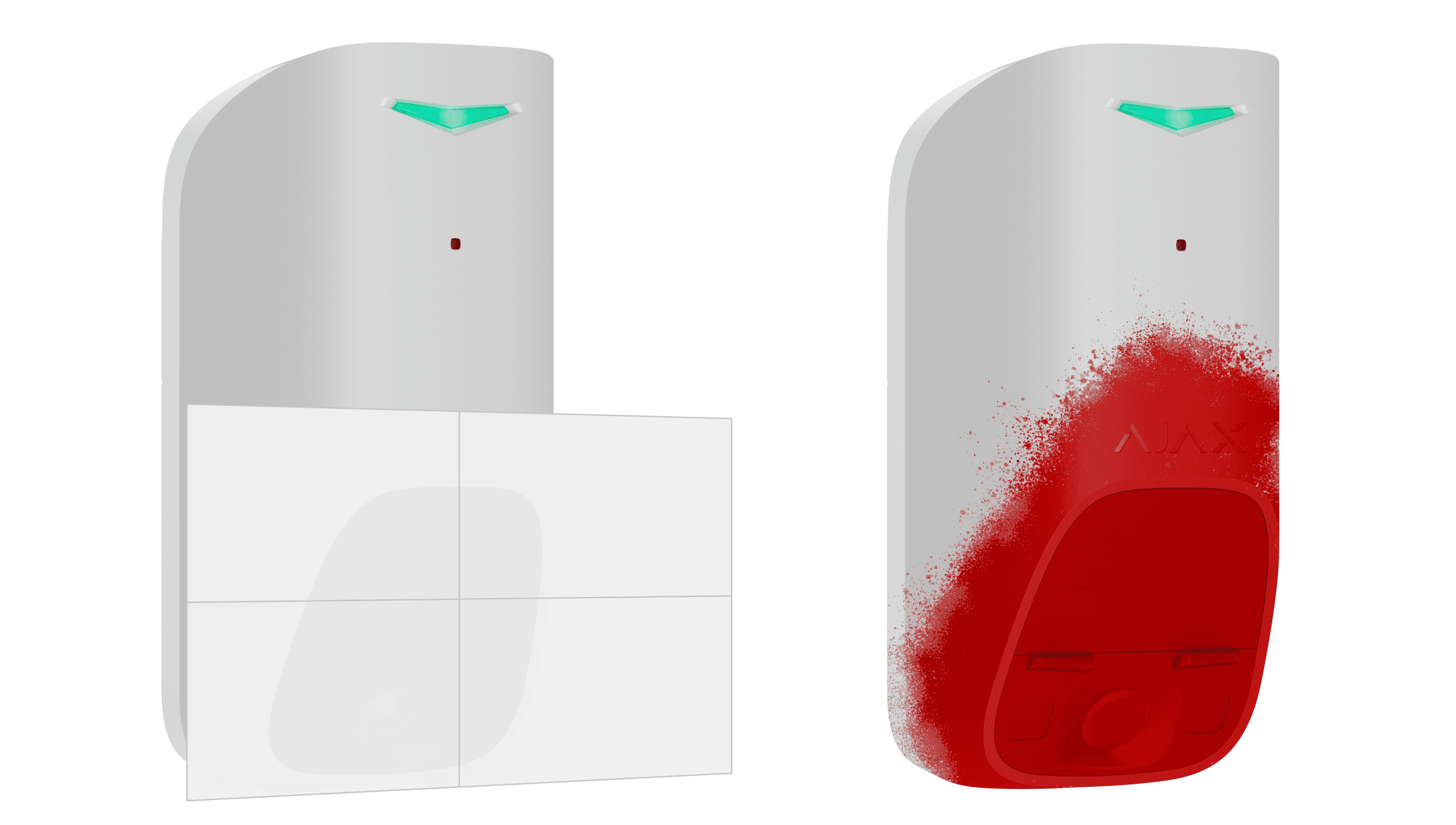
Masking is an attempt to block the detector’s field of view. Superior MotionCam G3 (PhOD) Jeweller detects the following types of masking:
- Placing an obstacle in front of the sensitive area of the detector’s motion sensor.
- Painting over the sensitive area of the detector’s motion sensor.
- Taping the sensitive area of the detector’s motion sensor.
The system notifies users and the monitoring company of masking. The masking detection time is up to 120 s, depending on the obstacle type and the distance between the device and the obstacle.

If the Anti-masking feature is enabled, it is always active and works regardless of the security mode.
Superior Jeweller data transfer protocol
Superior Jeweller is an enhanced radio protocol for Superior devices that ensures compliance with EN 50131 (Grade 3). It features advanced encryption and frequency hopping. Full frequency hopping is available only when all devices in the system use Superior Jeweller. If at least one device operates via the regular Jeweller protocol, the system will be limited to Grade 2: encryption remains, but frequency hopping is disabled. Superior devices can also operate via the regular Jeweller protocol, depending on the hub.
Wings data transfer protocol
Wings is a proprietary wireless communication technology for transmitting large data packets. The device uses Wings to transmit photos and upload firmware updates.
Advanced encrypted communication
The communication between Superior MotionCam G3 (PhOD) Jeweller and the hub is protected by an advanced encryption scheme that ensures data confidentiality and integrity. This means that all sensitive data in the message is encrypted, and each message includes a unique authentication tag allowing the system to check that the data has not been modified during transmission. The system can reliably detect tampering and reject forged or altered messages, providing robust protection against both passive and active attacks. This ensures secure communication between the device and the hub, as well as reliable system and data protection.
Frequency hopping
To comply with the Grade 3 requirements, Superior MotionCam G3 (PhOD) Jeweller uses frequency hopping for radio communication with the hub (or the radio signal range extender). With this method, the hub and devices added to it change their operating frequency according to a predefined pattern. The hopping sequence covers a defined set of channels within the operating bands, and devices switch frequencies synchronously with the hub. Even if some channels are affected by jamming, messages can be transmitted successfully via other channels. Frequency hopping improves the system’s reliability and performance and ensures its resistance to intentional interference and jamming attempts.
Frequency hopping does not cause delays or pauses in radio communication and does not reduce the data transfer speed. If range extenders are added to the system, the frequency hopping is used for all radio communications: “device — range extender” and “range extender — hub”.

The system uses frequency hopping for radio communication only if all wireless devices support this method.
If at least one device added to the system does not support frequency hopping, the hub and all devices switch to the operating frequencies of that device and do not use frequency hopping for radio communication.
Firmware update
If a new firmware version for Superior MotionCam G3 (PhOD) Jeweller is available, the  icon appears in Ajax apps in the Devices
  tab. An admin or a PRO with access to the system settings can run an update via device states or settings. The on-screen instructions help to update the firmware successfully.
Sending events to the monitoring station
An Ajax system can transmit alarms to the Ajax PRO Desktop monitoring app and the monitoring station in the formats of SurGard (Contact ID), SIA (DC-09), ADEMCO 685, and other protocols.
Superior MotionCam G3 (PhOD) Jeweller can transmit the following events:
- Motion alarm.
- Masking alarm.
- PIR sensor malfunction/recovery.
- Masking sensor malfunction/recovery.
- Tamper alarm / tamper button recovery.
- Low battery alarm/recovery.
- Loss and restoration of connection with the hub.
- Permanent deactivation/activation of the device.
- One-time deactivation/activation of the device.
When an alarm is received, the monitoring station operator knows what happened and precisely where to send a rapid response unit. The addressability of Ajax devices allows sending events to Ajax PRO Desktop or monitoring software, including the device type, its name, security group, and virtual room. The list of transmitted parameters may differ depending on the type of monitoring software and the selected communication protocol.
You can find the device ID and loop (zone) number in the device states.
Photo verification
Photo verification enables you to monitor activity at the secured site using a built-in camera. The device can take from 1 to 5 images or up to 3 images, depending on the image resolution.
With photo verification, you can receive visual confirmation of alarms from Superior MotionCam G3 (PhOD) Jeweller and other Ajax devices.
The detector features infrared illumination to take photos in the dark. In low-light conditions, Superior MotionCam G3 (PhOD) Jeweller takes black-and-white photos.
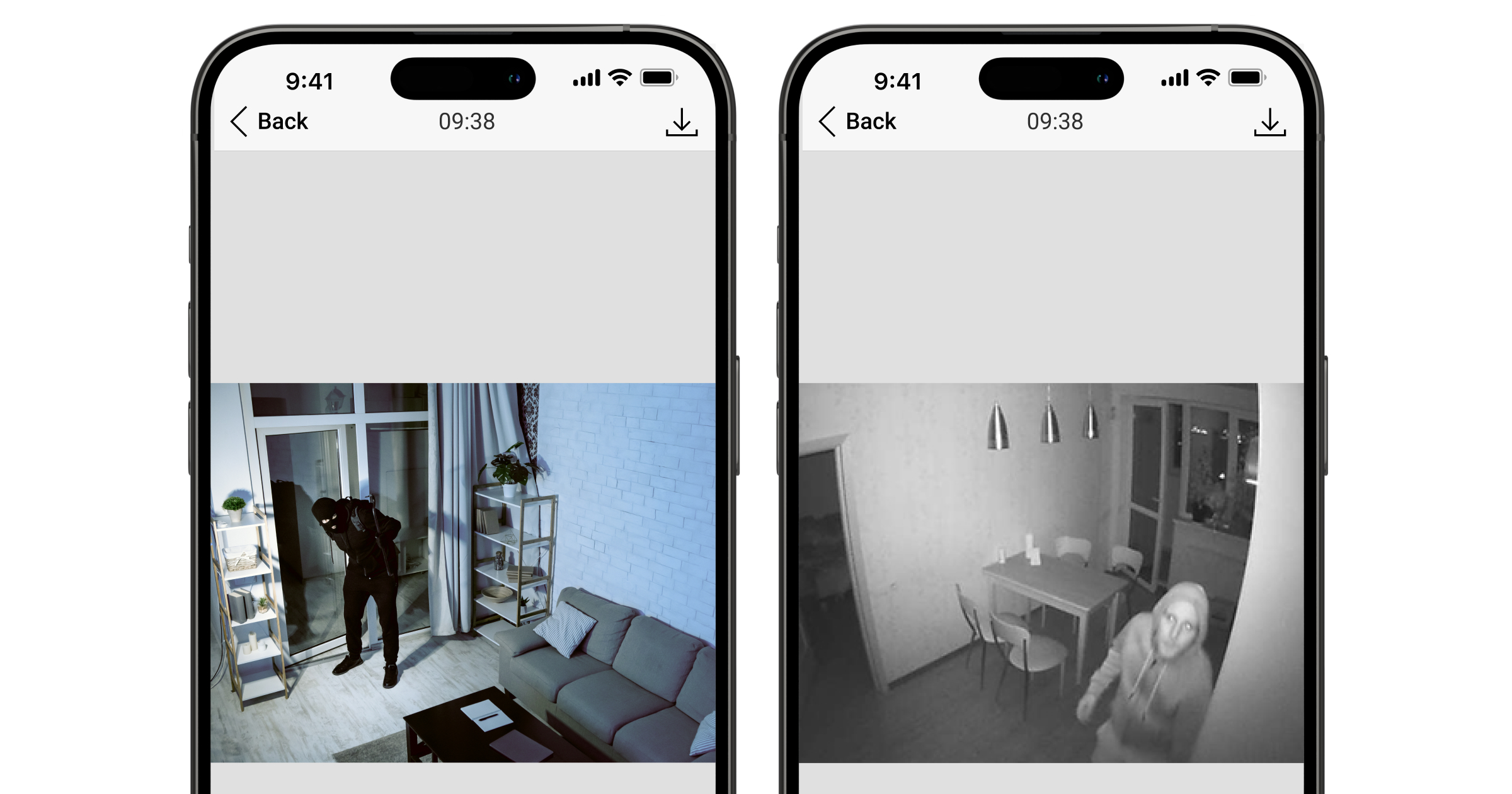
There are several types of photo verification: photo by alarm, photo on demand, photo by scenario, photo by schedule, and photo by arming/disarming.
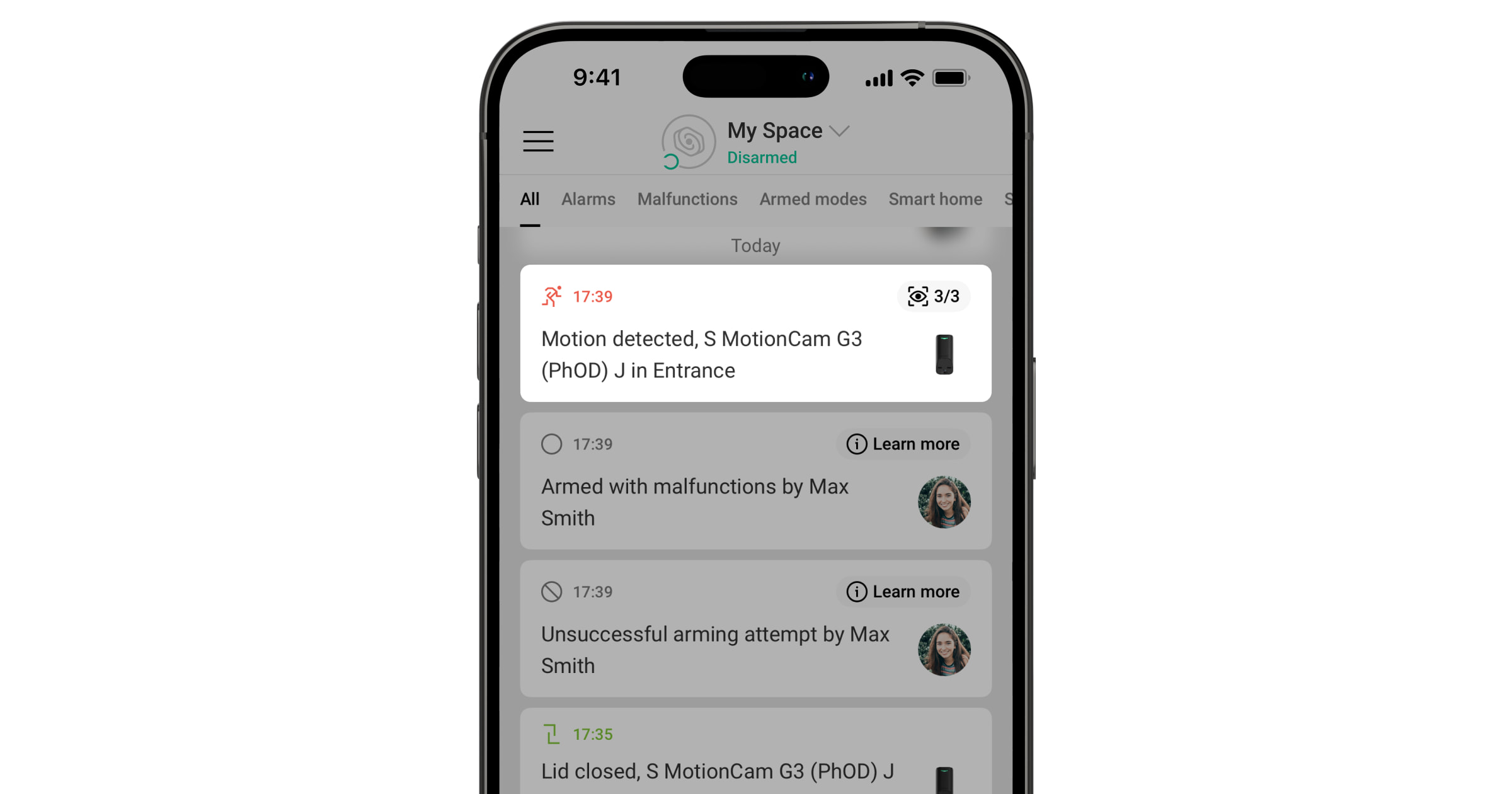
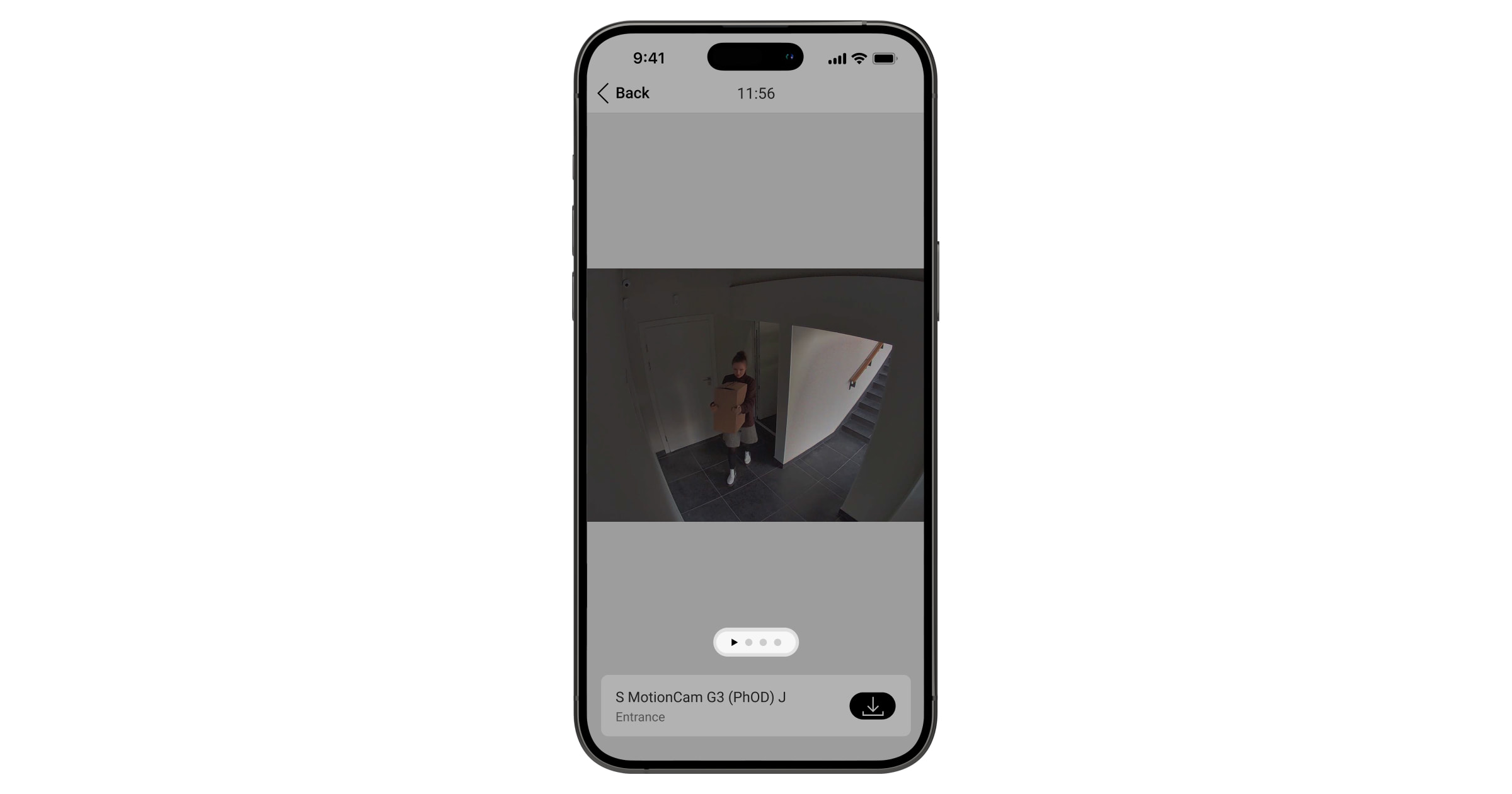
The photos can be displayed in the app as an image or an animated series (if more than 1 photo is taken). The number of images in the series can be configured in Ajax apps. To view the received photos, tap on the corresponding Superior MotionCam G3 (PhOD) Jeweller notification in the event feed.
Swipe left to view the images from the animated series frame by frame.
You can save the photo verification result as a video or photo by tapping the download icon.
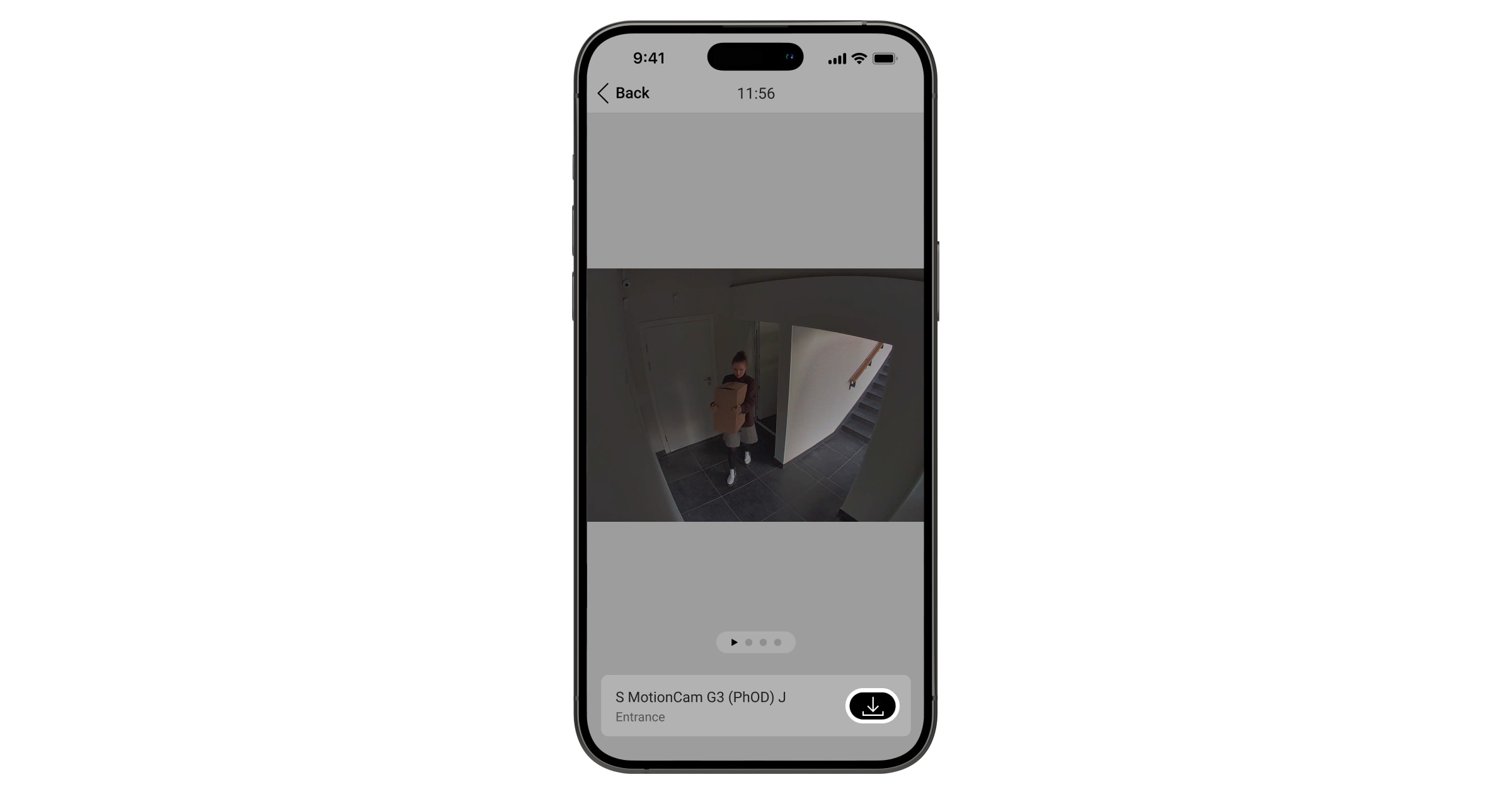
Photo by alarm
The detector takes photos by alarm only if the movement is detected and only when armed mode is on. By default, the Photo by alarm feature is enabled for all detectors. The number of images and their resolution can be changed in the device settings. Photos by alarm are available to all users with access to the event feed.
The detector does not switch to armed mode instantly. The switching time depends on the exit delay (specified in the device settings) and the detector polling interval. The polling interval is specified in the Jeweller or Jeweller/Fibra settings; its default value is 36 seconds. In the first case, the delay is set by a user or PRO with admin rights. In the second case, the delay occurs because the hub takes one polling interval to notify the detector of the security mode change.
Photo by masking
The Take photo if masking detected option allows users to receive photos from the built-in camera if masking is detected. The option is enabled by default. Photo resolution and the number of images depend on the settings selected for the Photo by alarm feature. Photos by masking are available to all users with access to the event feed. If the option is enabled, the device will take a photo by masking, regardless of the security mode.
Photo by tamper alarm
The Take photo if lid opened option allows users to receive photos from the built-in camera if the detector’s tamper button is triggered. The option is disabled by default. Photo resolution and the number of images depend on the settings selected for the Photo by alarm feature. Photos by tamper alarm are available to all users with access to the event feed. If the option is enabled, the device will take a photo by tamper alarm, regardless of the security mode.
Photo on demand
The Photo on demand feature allows users to take photos using the built-in cameras of detectors that support photo verification. With this feature, you can check the situation at the site: find out what the children are doing, check if your pet is OK, or simply monitor the situation at home. Depending on the settings, photos can be taken at any time or when Superior MotionCam G3 (PhOD) Jeweller is armed.
By default, the Photo on demand feature is disabled for all users. Users with the right to manage privacy settings (space settings, the Privacy section) determine who can take and view photos on demand and which detectors that support photo verification can take pictures. PRO users cannot manage privacy settings, but they can take photos on demand if they have been granted such permission.
Privacy settings do not apply to photos taken by detectors triggered in case of an alarm. All system users with access to the event feed can view the photos taken in case of an alarm.
Photos on demand are not sent to the monitoring station.
Ajax PRO Desktop users can take and view photos on demand only from their personal account if an admin has granted them the appropriate access rights. Taking and viewing photos on demand is not available for the monitoring company profile in the Ajax PRO Desktop app.
Photo by scenario
The Photo by scenario feature allows you to create a scenario for motion detectors supporting photo verification. These detectors will take pictures in case of alarms from specified Ajax devices.
By default, the Allow photos by scenarios option is disabled for all detectors. An admin or a user with access to privacy settings can enable it.
In the system settings, you can also set exactly when a detector supporting photo verification can take photos according to a scenario: always or when the device is armed.
Photos by scenario are available to all system users who have access to the event feed. The event of taking a photo after the alarm from specified devices is sent to the monitoring station via SIA DC-09 (SIA-DCS) and other proprietary protocols. The event code is 730.
If monitoring software supports photo verification, photos by scenario are available to the monitoring station engineers. Photos by scenario are also available in the Ajax PRO Desktop app.
Photos by scenario will not be sent to monitoring software if only a direct connection with the monitoring station is used.
Photo by schedule
The Photo by schedule feature allows you to create a scenario for motion detectors supporting photo verification. These detectors will take pictures by schedule.
Before creating a scheduled scenario, enable the Allow photos by scenarios option. An admin or a user with access to privacy settings can enable this option.
You can precisely set when a detector supporting photo verification can take pictures according to a scheduled scenario: always or when it is armed.
Photos taken by schedule are available to all system users who have access to the event feed. The event of taking a photo is sent to monitoring software via SIA DC-09 (SIA-DCS) and other proprietary protocols. The event code is 731.
If monitoring software supports photo verification, photos by schedule are available to the monitoring station engineers. These photos are also available in the Ajax PRO Desktop app.
Photos taken by schedule are not sent to monitoring software if only a direct connection with the monitoring station is used.
Photo by arming/disarming
The Photo by arming/disarming feature allows users to receive photos from a built-in camera when the security state changes. With this feature, you can check the situation at the facility when the system is armed, disarmed, or switched to Night mode.
Before creating an arming/disarming scenario, enable the Allow photos by scenarios option. A space admin or a user with access to privacy settings can enable this option.
The feature allows you to configure conditions under which the selected detectors take photos: when arming, when disarming, when Night mode is enabled, or when Night mode is disabled. Also, you can set up whether to consider or ignore entry/exit delays.
Photos by arming/disarming are available to all system users with access to the event feed. The event of taking a photo is sent to monitoring software via SIA DC-09 (SIA-DCS) and other proprietary protocols. The event code is 732.
If monitoring software supports photo verification, the monitoring station engineers can access photos by arming/disarming. These photos are also available in Ajax PRO Desktop.
Photos by arming/disarming will not be sent to monitoring software if only a direct connection with the monitoring station is used.
Selecting the installation site
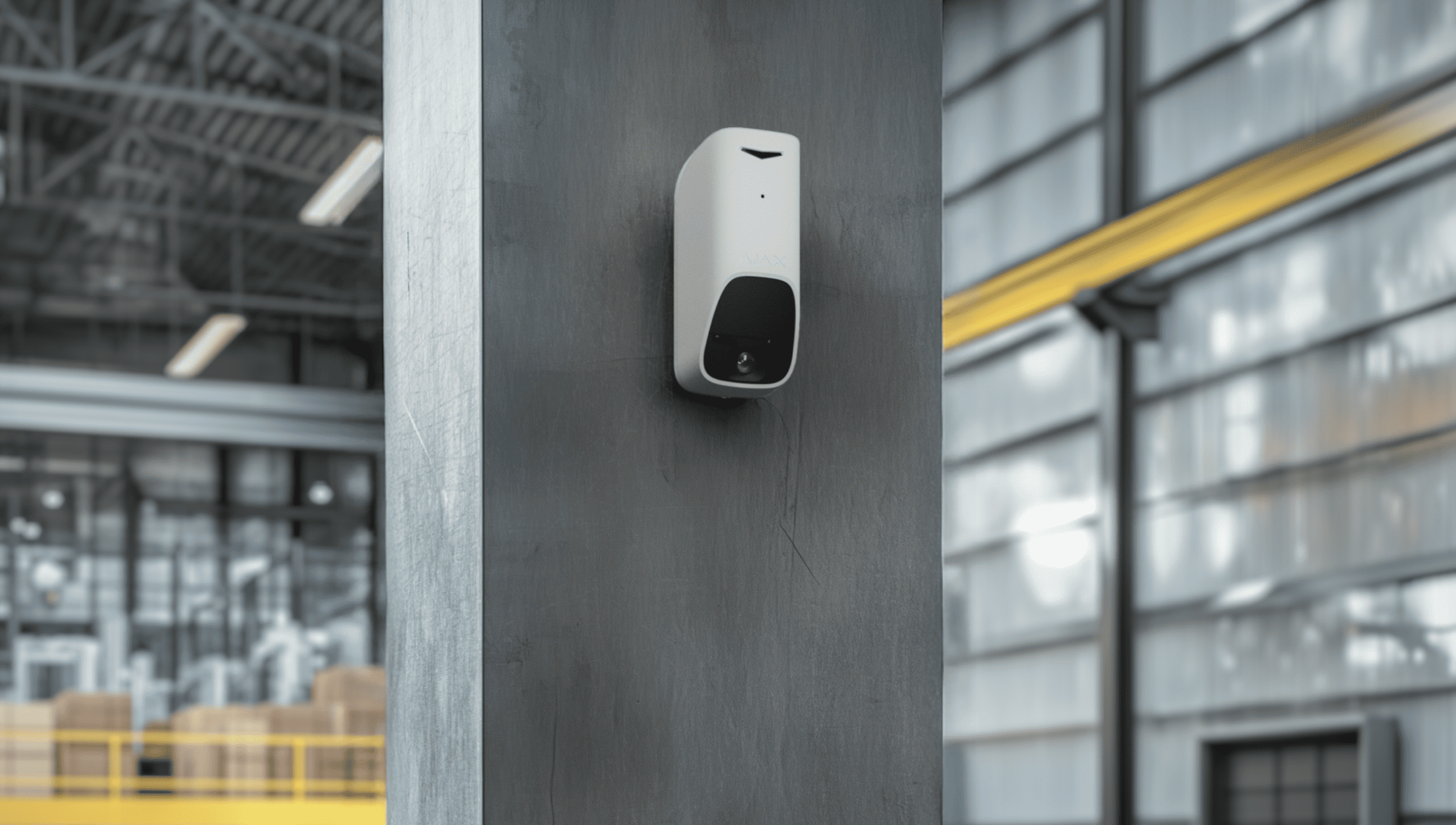
The device is designed for installation at a height of 7.9 ft. The direction of the detector sensor and camera should be perpendicular to an alleged intrusion path to the site.
When choosing where to place Superior MotionCam G3 (PhOD) Jeweller, consider the parameters that affect its operation:
- Jeweller and Wings signal strength
- Motion detection zone
- The presence of objects or structures that can obstruct the detector’s view
Consider the placement recommendations when developing a system project. Only specialists should design and install Ajax systems. A list of recommended partners is available here.
Signal strength
The signal strength is determined by the number of undelivered or corrupted data packages over a certain period of time. The icon  in the Devices tab in Ajax apps indicates the signal strength:
- three bars — excellent signal strength;
- two bars — good signal strength;
- one bar — low signal strength, stable operation is not guaranteed;
- crossed-out icon — no signal.
Check the Jeweller and Wings signal strength before final installation. With a signal strength of one or zero bars, we do not guarantee the device will operate stably. Consider relocating the device, as adjusting its position even by 8 inches can significantly improve the signal strength. If the signal remains poor or unstable after relocation, consider using a radio signal range extender.
Refer to the Functionality testing section to learn how to run Jeweller and Wings signal strength tests.
Motion detection zone
The detector location determines the area to be monitored and the effectiveness of the security system. When selecting the installation place, consider the direction of the detector sensors and camera, viewing angles, and the presence of obstacles to the detector’s view. Incorrect detector placement may cause false alarms.
Superior MotionCam G3 (PhOD) Jeweller detects movement at a distance of up to 49 ft. The direction of the detector sensors should be perpendicular to the intended entry path to the site. Ensure that no structures or objects block the detector’s field of view.
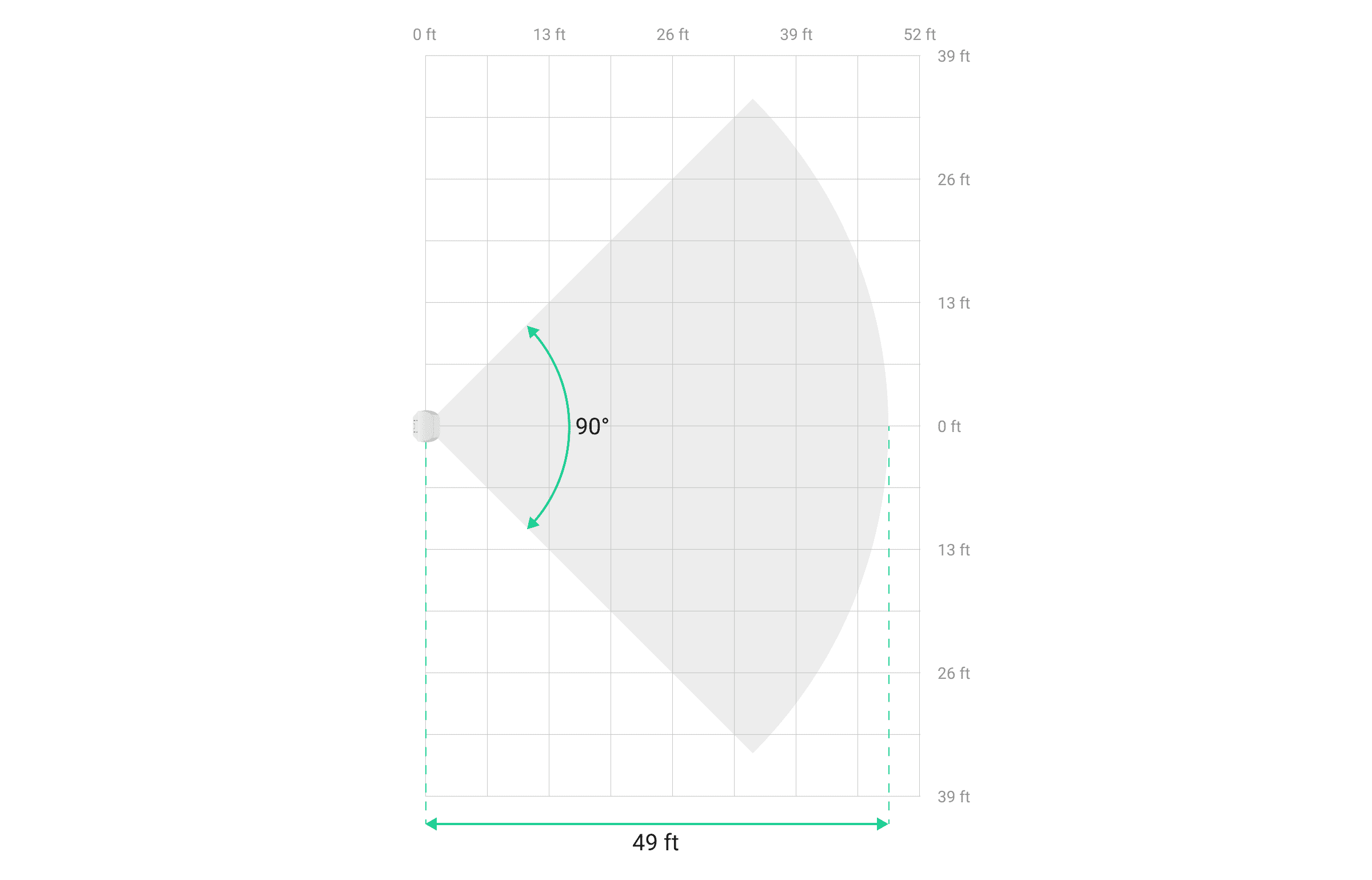
Horizontal characteristics of the motion detection area

Vertical characteristics of the motion detection area
When installing the detector, perform the Detection zone test. This allows you to check the device operation and accurately determine the sector in which the device detects movement. Refer to the Functionality testing section to learn how to run the tests.
Where not to install the detector
- Outdoors. This could damage the device.
- In places where objects or structures can block the detector’s view. For example, behind a flower or a column.
- In places where glass structures can block the detector’s view; the device does not detect movement behind glass.
- In front of water reservoirs or pools if they are located in the detection zone of the detector. They can cause false alarms.
- Inside premises with temperature and humidity outside the permissible limits. This could damage the device.
- In places with low or unstable Jeweller or Wings signal strength.
- Closer than 3 ft to the hub or radio signal range extender.
Installation
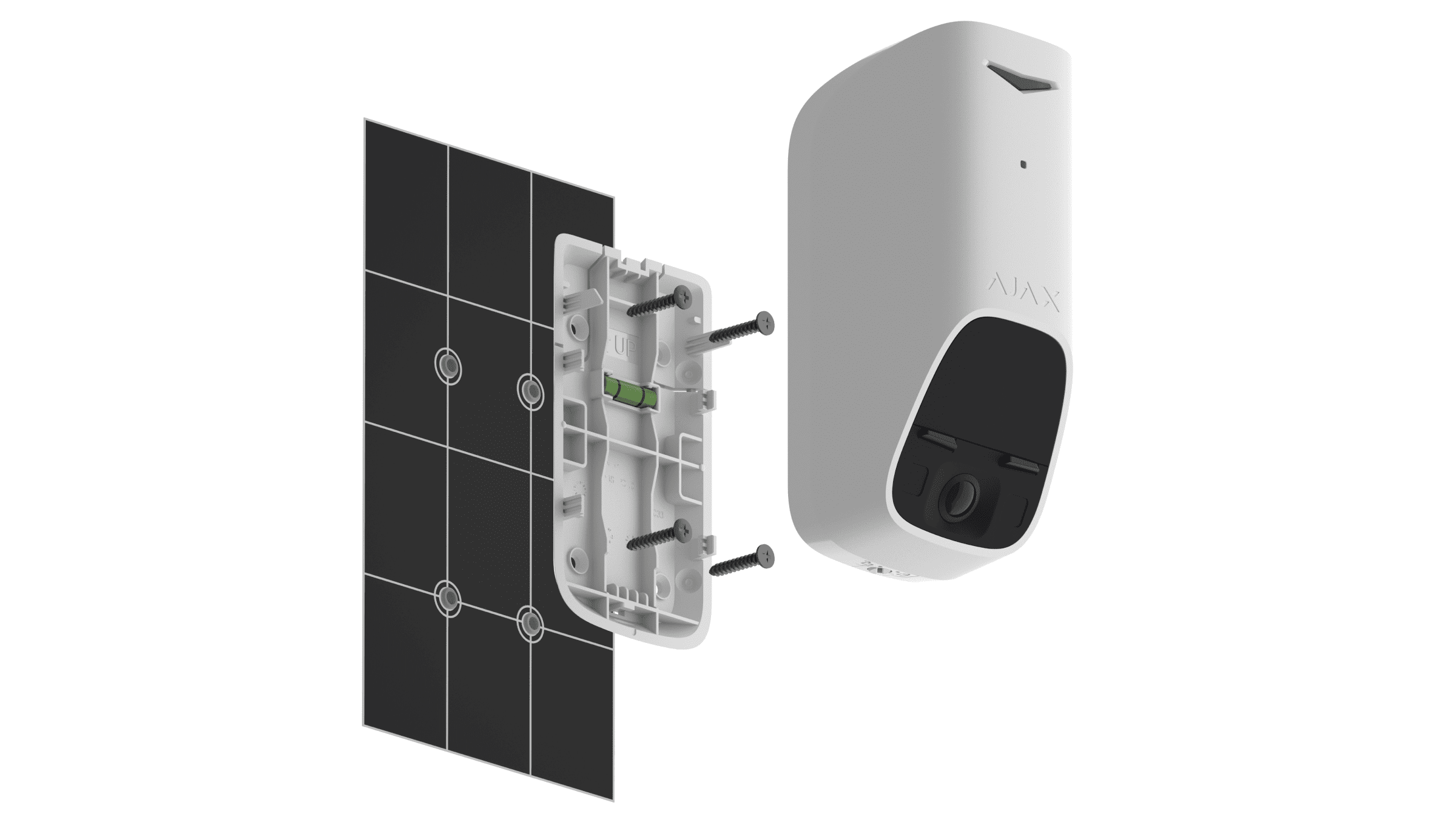
Before installing Superior MotionCam G3 (PhOD) Jeweller, ensure that you have chosen the optimal location that complies with the requirements of this manual.
To install the device:
- Remove the SmartBracket mounting panel from the device.
-
Temporarily secure the SmartBracket panel to a vertical surface or corner using double-sided adhesive tape or other temporary fasteners. This is necessary for testing the device. The installation height is 7.9 ft.
- Add the device to the system.
- Place the device on the SmartBracket mounting panel and lock it.
- Run the functionality testing.
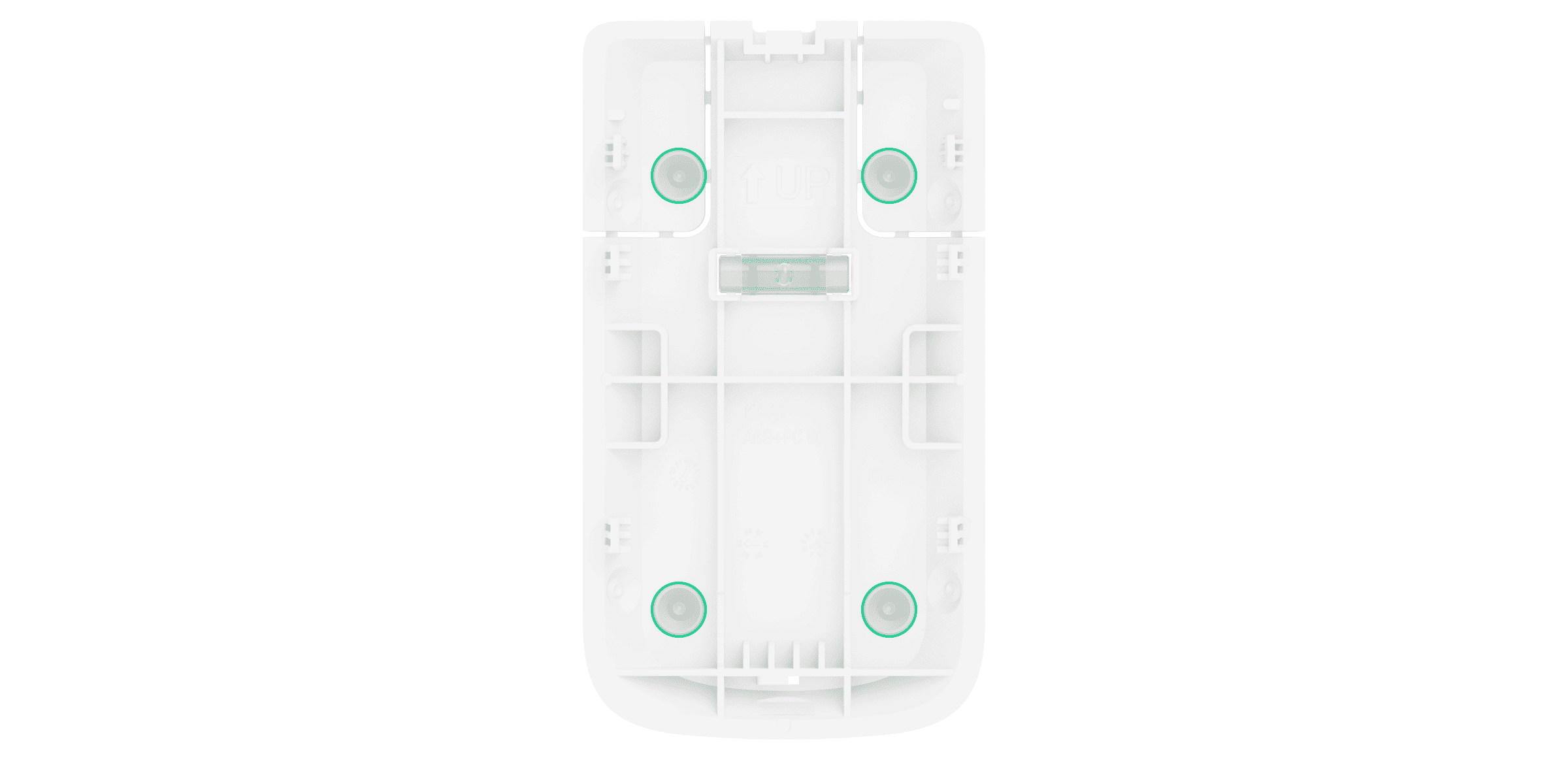
- If the device passes the tests, fix the SmartBracket mounting panel to a vertical surface with bundled screws. Use all fixing points (two are in the perforated part of the mount above the tamper buttons). The tamper button responds if someone attempts to break or open the lid of the enclosure — the notification about this is sent to Ajax apps.
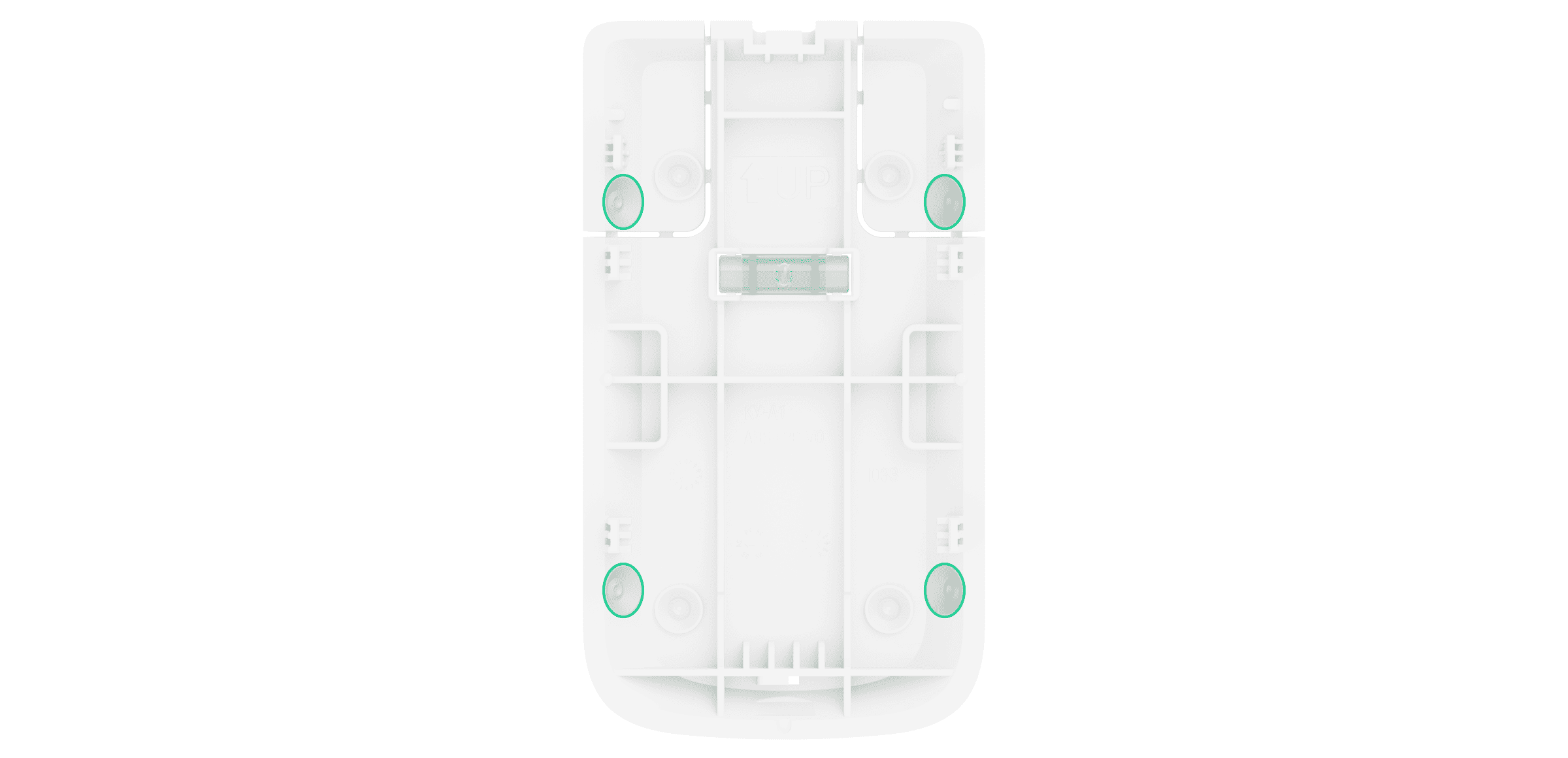
To fix SmartBracket on the corner, screw the bundled fasteners to the side recesses. Use all fixing points (two are in the perforated part of the mount above the tamper buttons).
When using other mounts, make sure they do not damage or deform the mounting panel.
Double-sided adhesive tape can be used for temporary fastening, as the device can come unglued from the surface at any time. As long as the device is taped, the tamper button will not be triggered when the device is detached from the surface.
- Put the device on the SmartBracket mounting panel and lock it. The lock for SmartBracket has a tamper button and is needed to securely fix the device and protect it from quick dismantling. The tamper button responds if someone attempts to unlock the lock for SmartBracket, and the notification about this is sent to Ajax apps.
Adding to the system
The hub and the device operating at different radio frequencies are incompatible. The device’s radio frequency range may vary by region. We recommend purchasing and using Ajax devices in the same region. The technical support service can help you check the operating frequency range.
Check the device compatibility before adding the device to the system. Superior MotionCam G3 (PhOD) Jeweller is a device of the Superior product line. Only accredited Ajax Systems partners can sell, install, and maintain Superior products.
Before adding a device
- Install an Ajax PRO app.
- Log in to your PRO account or create a new one.
- Select a space or create a new one.
- Add at least one virtual room.
- Add a compatible hub to the space. Ensure the hub is switched on and has internet access via Ethernet, Wi-Fi, and/or mobile network.
- Check the states in the Ajax app to ensure the space is disarmed and the hub is not starting an update.
Adding to the hub
- Open an Ajax PRO app. Select a space to which you want to add the device.
- Go to the Devices tab and tap Add device.
- Scan the QR code or enter the device ID manually. A QR code with ID is placed on the device enclosure. Also, it is duplicated on the device packaging.
- Assign a name to the device.
- Select a virtual room and a security group (if Group mode is enabled).
- Tap Add, and the countdown will begin.
- Switch on the device by holding the power button for 3 seconds.

Once added to the hub, the device will appear in the list of hub devices in the Ajax app. The update frequency for device statuses in the list depends on the Jeweller or Jeweller/Fibra settings and is 36 seconds by default.
If the connection fails, try again in 5 seconds. If the maximum number of devices has already been added to the hub, you will receive an error notification when you try to add more.
Superior MotionCam G3 (PhOD) Jeweller works with only one hub. When paired with a new hub, it stops sending events to the old one. After the device is added to a new hub, it will not be automatically removed from the device list of the old hub. This must be done through the Ajax app.
Functionality testing
An Ajax system provides several types of tests to help select the correct installation place for the devices. For Superior MotionCam G3 (PhOD) Jeweller, the following tests are available:
- Jeweller signal strength test — to determine the signal strength and stability between the hub (or the radio signal range extender) and the device via the wireless Jeweller data transfer protocol at the device installation site.
- Wings signal strength test — to determine the signal strength and stability between the hub (or the radio signal range extender) and the device via the wireless Wings data transfer protocol at the device installation site.
- Detection zone test — to check how the detector responds to movement and masking at the installation site.
- Signal attenuation test — to decrease or increase the power of the radio transmitter; to check the stability of communication between the device and the hub, the changing environment at the site is simulated.
- Calibration of masking sensor — to register the characteristics of the detector’s field of view at the installation site. These characteristics will be used as a reference for masking detection.
- Device self-test — to check if all detector’s built-in sensors operate properly.
Icons
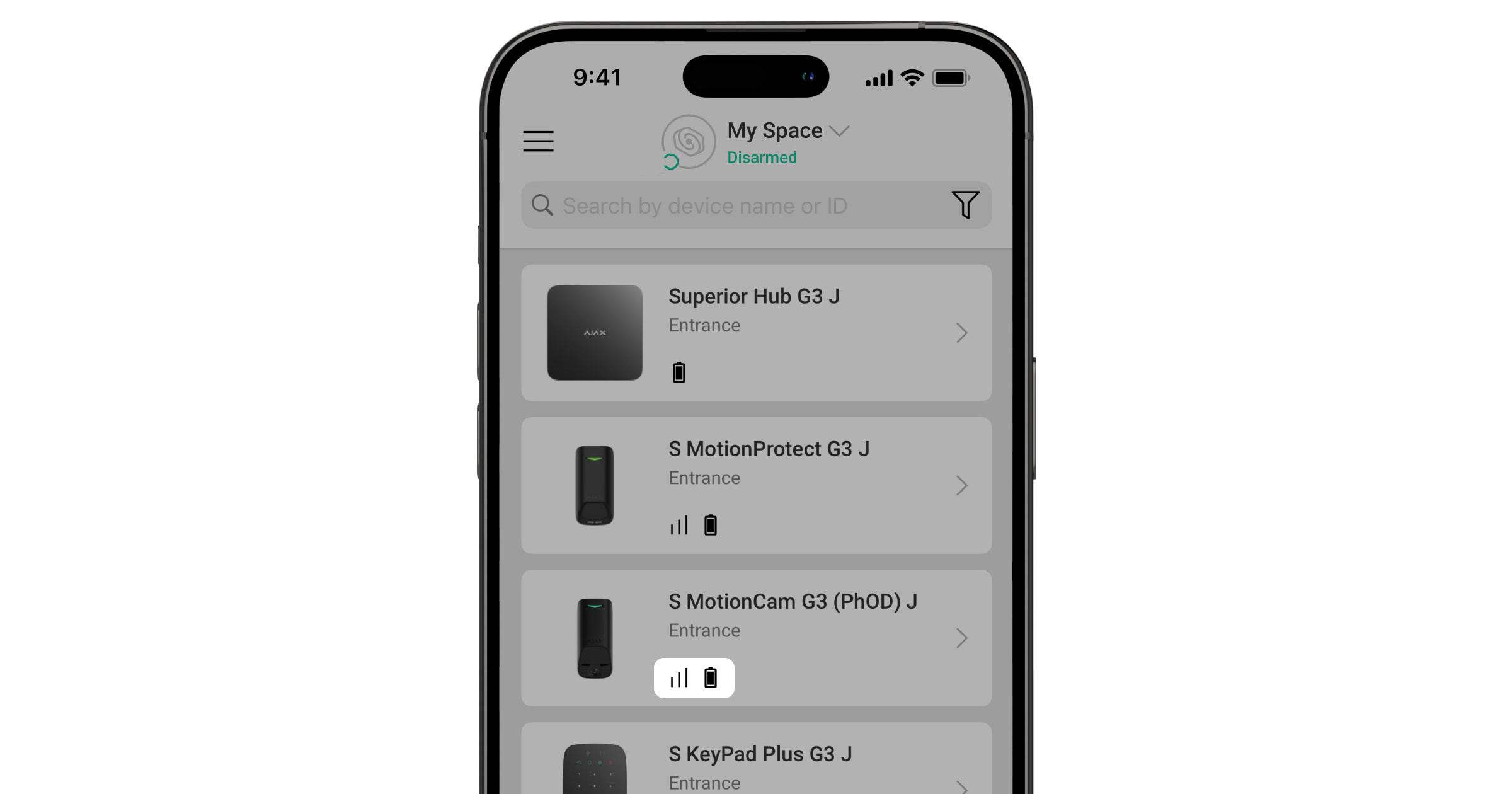
Icons in an Ajax app display some of Superior MotionCam G3 (PhOD) Jeweller states. You can check the icons in the Devices tab.
| Icon | Meaning |
|
Jeweller signal strength. It displays the signal strength between the hub and the device. The recommended value is 2–3 bars. |
 |
Battery charge level of the device. |
 |
A firmware update is available. Go to the device states or settings to find the description and launch an update. |
 |
Other users have access to the Photo on demand feature. |
 |
The device operates in Always active mode. |
 |
The device operates through the radio signal range extender. |
 |
Entry/exit delay is enabled. |
 |
The device operates in Night mode. |
 |
Masking is detected. |
 |
The device is in the signal attenuation test mode. |
 |
The device is automatically disabled because the number of alarms has been exceeded. |
 |
The device is permanently deactivated. |
 |
Tamper alarm notifications are permanently deactivated. |
 |
The device is deactivated until the system is disarmed for the first time. |
 |
Tamper alarm notifications are deactivated until the system is disarmed for the first time. |
 |
The device has lost connection with the hub, or the hub has lost connection with the Ajax Cloud server. |
 |
The device has not been transferred to the new hub. |
States
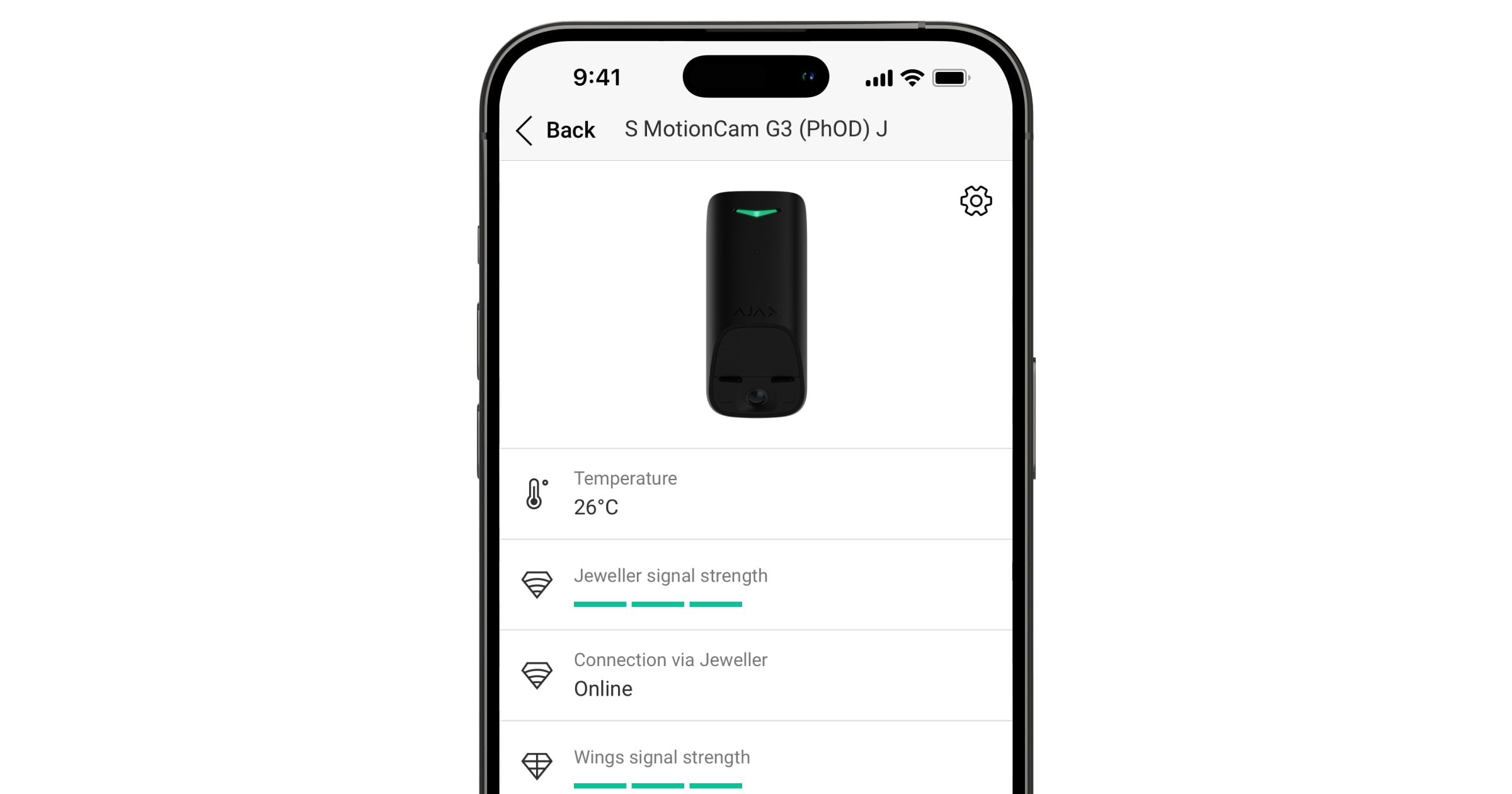
The states include information about the device and its operating parameters. The states of Superior MotionCam G3 (PhOD) Jeweller can be found in Ajax apps:
- Go to the Devices tab.
- Select Superior MotionCam G3 (PhOD) Jeweller in the list.
| Parameter | Meaning |
| Data import | Displays the error when transferring data to the new hub:
|
| Malfunction |
Tapping on The field is only displayed if a malfunction is detected. |
| New firmware version available |
Tapping on The field is displayed if a new firmware version is available. |
| Temperature |
Device temperature. It is measured by the processor and changes depending on the ambient temperature. You can create a scenario by temperature to control automation devices. |
| Jeweller signal strength |
Jeweller signal strength between the device and the hub (or the radio signal range extender). The recommended value is 2–3 bars. Jeweller is a protocol for transmitting events and alarms. |
| Connection via Jeweller | Connection status via the Jeweller channel between the device and the hub (or the range extender):
|
| Wings signal strength |
Wings signal strength between the device and the hub (or the range extender). The recommended value is 2–3 bars. Wings is a protocol for photo verification of alarms and updating the device firmware. |
| Connection via Wings | Connection status via the Wings channel between the device and the hub (or the range extender):
|
| <Range extender name> | Status of device connection to the radio signal range extender:
The field is displayed if the device operates via the radio signal range extender. |
| Battery charge | The battery charge level of the device. Two states are available:
When the batteries need to be replaced, users and the monitoring company will receive appropriate notifications. |
| Lid | The state of the device’s tamper buttons that respond to detachment or opening of the device enclosure:
|
| Transmitter power |
Displays the selected power of the transmitter. The parameter appears when the Max or Attenuation option is selected in the Signal attenuation test menu. |
| Sensitivity | Sensitivity level of the motion detector:
Select the sensitivity depending on the results of the detection zone test. |
| Anti-masking | The state of the masking sensor:
|
| Always active |
When this option is enabled, the detector is constantly armed, detects movement, and raises alarms. |
| Advanced encryption | The state of the communication with advanced encryption between the device and the hub or radio signal range extender:
|
| Permanent deactivation | The state of the device’s permanent deactivation setting:
|
| One-time deactivation | Shows the state of the device’s one-time deactivation setting:
|
| Photo on demand access | Displayed if Allow photos on demand is enabled in the space settings in the Privacy section. |
| Alarm response | |
| Operating mode | Shows how the detector responds to alarms:
|
| Entry delay |
Entry delay (alarm activation delay) is the time the user has to disarm the security system after entering the premises. |
| Exit delay |
Exit delay (arming delay) is the time the user has to leave the premises after the system is armed. |
| Arm in Night mode |
If this option is enabled, the device will enter armed mode when the system is set to Night mode. |
| Entry delay in Night mode |
Entry delay in Night mode. Night mode entry delay (alarm activation delay) is the time the user has to disable Night mode after entering the premises. |
| Exit delay in Night mode |
Exit delay in Night mode. Night mode exit delay (arming delay) is the time the user has to leave the premises after Night mode is enabled. |
| Night mode delay |
Entry delay in Night mode when the device is set to the Follower operating mode. It is the time the user has to disable Night mode (alarm activation delay) after the Entry/Exit detector is triggered. |
| Firmware | Device firmware version. |
| Device ID | Device ID. It is also available on the QR code on the device enclosure and its package box. |
| Device No. | Device number. This number is transmitted to monitoring software in case of an alarm or event. |
 opens the list of device malfunctions.
Settings
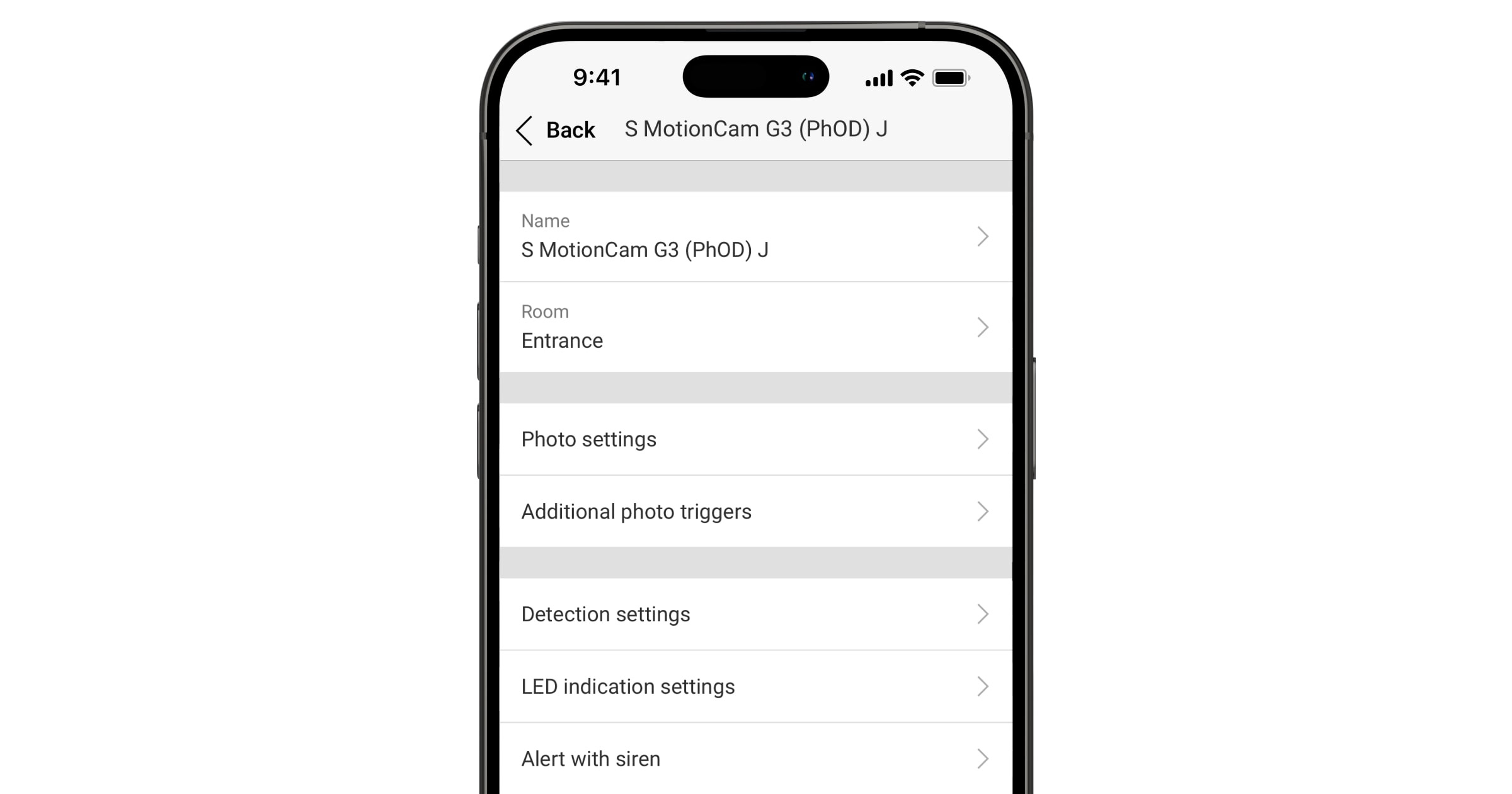
To change Superior MotionCam G3 (PhOD) Jeweller settings in Ajax apps:
- Go to the Devices tab.
- Select Superior MotionCam G3 (PhOD) Jeweller in the list.
- Go to Settings
 .
. - Set the required settings.
- Tap Back to save the new settings.
| Settings | Meaning |
| Name |
Device name. It is displayed in the list of hub devices, text of SMS and notifications in the events feed. To change the device name, tap on the text field. The name can contain up to 24 Latin characters or up to 12 Cyrillic characters. |
| Room |
Selecting the virtual room to which Superior MotionCam G3 (PhOD) Jeweller is assigned. The room name is displayed in the text of SMS and notifications in the event feed. |
| Photo settings | |
| Image resolution | The resolution of photos taken by the device’s camera:
The higher the resolution, the more detailed the image is. It takes longer to transfer photos with higher resolution. The selected resolution is set for Photo by alarm, Photo by scenario, Photo on demand, Photo by schedule, and Photo by arming/disarming. |
| Alarms with photo verification |
The number of alarms accompanied by photos. You can choose whether the photo will be transmitted each time the device is triggered, or specify the exact number of alarms: 1 to 10. An alarm counter with photo verification is reset when the security system is disarmed and rearmed. The setting is available if the Always active option is disabled. When the detector is in the Always active mode, it will transmit a photo every time it is triggered. |
| Photos by alarm | The number of photos taken by the device’s camera:
The selected number of photos is set for Photo by alarm and Photo by scenario. |
| Photos on demand | The number of photos on demand:
It is displayed if the Allow photos on demand feature is enabled in the space settings in the Privacy section. |
| HDR image | When this option is enabled, the device improves detail accuracy in bright and dark scenes. |
| Additional photo triggers | |
| Take photo if masking detected | When this option is enabled, the device will take a photo if masking is detected. |
| Take photo if lid opened | When this option is enabled, the device will take a photo if the tamper button is triggered. |
| Detection settings | |
| Always active |
When this option is enabled, the detector is always in armed mode and detects movement. |
| Sensitivity | Sensitivity level of the motion detector. It depends on the type of facility, the presence of probable sources of false alarms, and the specifics of the protected area:
|
| Anti-masking | When this option is enabled, the device detects masking. |
| Masking sensor sensitivity | Sensitivity level of the device’s masking sensor. It depends on the type of facility, the presence of probable sources of false alarms, and the specifics of the protected area:
|
| LED indication settings | |
| Alarm LED indication | When this option is disabled, the LED indicator does not notify users of alarms and tamper button triggering. |
| Alert with siren | |
| If motion detected | When this option is enabled, sirens are activated when the device detects movement. |
| If masking detected |
When this option is enabled, sirens are activated when the device detects masking. The parameter is displayed if the Anti-masking option is enabled. |
| Alarm response | |
| Operating mode | Specify how this device responds to alarms:
|
| Entry delay |
Entry delay : 5 to 255 seconds. Entry delay (alarm activation delay) is the time the user has to disarm the security system after entering the premises. |
| Exit delay |
Exit delay: 5 to 255 seconds. Exit delay (arming delay) is the time the user has to leave the premises after the system is armed. |
| Arm in Night mode |
When this option is enabled, the detector will enter the armed mode if the system is set to Night mode. |
| Entry delay in Night mode |
Entry delay in Night mode: 5 to 255 seconds. Night mode entry delay (alarm activation delay) is the time the user has to disable Night mode after entering the premises. |
| Exit delay in Night mode |
Exit delay in Night mode: 5 to 255 seconds. Night mode exit delay (arming delay) is the time the user has to leave the premises after enabling Night mode. |
| Night mode delay |
Delay time in Night mode: 5 to 255 seconds. It is the time the user has to disable Night mode (alarm activation delay) after the Entry/Exit detector is triggered. The setting is displayed if the device is set to the Follower operating mode and the Arm in Night mode option is enabled. |
| Scenarios |
Opens the menu for creating and setting scenarios for the device. The menu allows you to create a scenario according to which the detector takes photos when specified Ajax devices are triggered or by schedule. |
| Firmware update | Switches the device to the firmware updating mode if a new version is available. |
| Jeweller signal strength test |
Switches the device to the Jeweller signal strength test mode. The test allows you to check the signal strength between the hub (or the radio signal range extender) and the device via the wireless Jeweller data transfer protocol to select the optimal installation site. |
| Wings signal strength test |
Switches the device to the Wings signal strength test mode. The test allows you to check the signal strength between the hub (or the radio signal range extender) and the device via the wireless Wings data transfer protocol to select the optimal installation site. |
| Detection zone test |
Switches the device to the detection zone test mode. The option allows testing motion and masking sensors. The test helps to check whether the device is installed correctly to detect all alarms. |
| Signal attenuation test |
Switches the device to the signal attenuation test mode. |
| Calibration of masking sensor |
Runs the calibration of the masking sensor to ensure that the device operates correctly and can instantly detect attempts to block its field of view. |
| Device self-test |
Runs the device self-test to check if the built-in sensors operate properly. The test checks the PIR motion sensor and masking sensor. |
| Monitoring | Opens the Monitoring settings menu:
The Monitoring settings are available in Ajax PRO apps only. |
| User manual | Opens the Superior MotionCam G3 (PhOD) Jeweller user manual in an Ajax app. |
| Permanent deactivation |
Allows a user to disable events of the device without removing it from the system. Three options are available:
The system can also automatically deactivate devices when the set number of alarms is exceeded. |
| One-time deactivation |
Allows a user to disable events of the device until the system is disarmed for the first time. Three options are available:
|
| Delete device | Unpairs the device, disconnects it from the hub, and deletes its settings. |
Masking sensor calibration
Calibration of the masking sensor is important to ensure that the device operates correctly and can instantly detect attempts to block the field of view of its sensors. Calibration starts automatically 10 seconds after the SmartBracket’s lock is locked. If the device fails to calibrate the masking sensor, the system sends a notification to users and the monitoring station and displays the corresponding fault in the device states.
You can start the calibration of the masking sensor manually, for example, if the automatic calibration fails or the device installation location has been changed.
Before starting the calibration, ensure the device is installed properly and nothing blocks its field of view.
To start calibrating the masking sensor, in the Ajax app:
- Go to the Devices tab.
- Select Superior MotionCam G3 (PhOD) Jeweller from the list.
- Go to Settings .
- Go to the Calibration of masking sensor menu.
- Tap Start.
- If the calibration is successful, tap Close to return to the settings. If the device fails to calibrate the masking sensor, check if it is installed correctly and nothing blocks its field of view. Then tap Restart.
Device self-test
Device self-testing allows users to check if the device’s built-in sensors operate properly. During the self-test, the PIR motion sensor and masking sensor will be tested. The device runs the self-test of the built-in sensors automatically on a regular basis. If a malfunction is detected, the system notifies users and the monitoring station.
In addition, the device self-test procedure can be started manually in Ajax apps.
Before running the self-test, ensure that the system is disarmed, and another test is not in progress.
To run self-testing, in the Ajax app:
- Go to the Devices tab.
- Select Superior MotionCam G3 (PhOD) Jeweller from the list.
- Go to Settings .
- Go to the Device self-test menu.
- Tap Start.
- If self-testing is successful, tap Done to return to the settings. If some sensors are faulty, we recommend contacting the service center.
Users and the monitoring station will receive a corresponding notification about the testing result after completion.
Configuring the Photo on demand feature
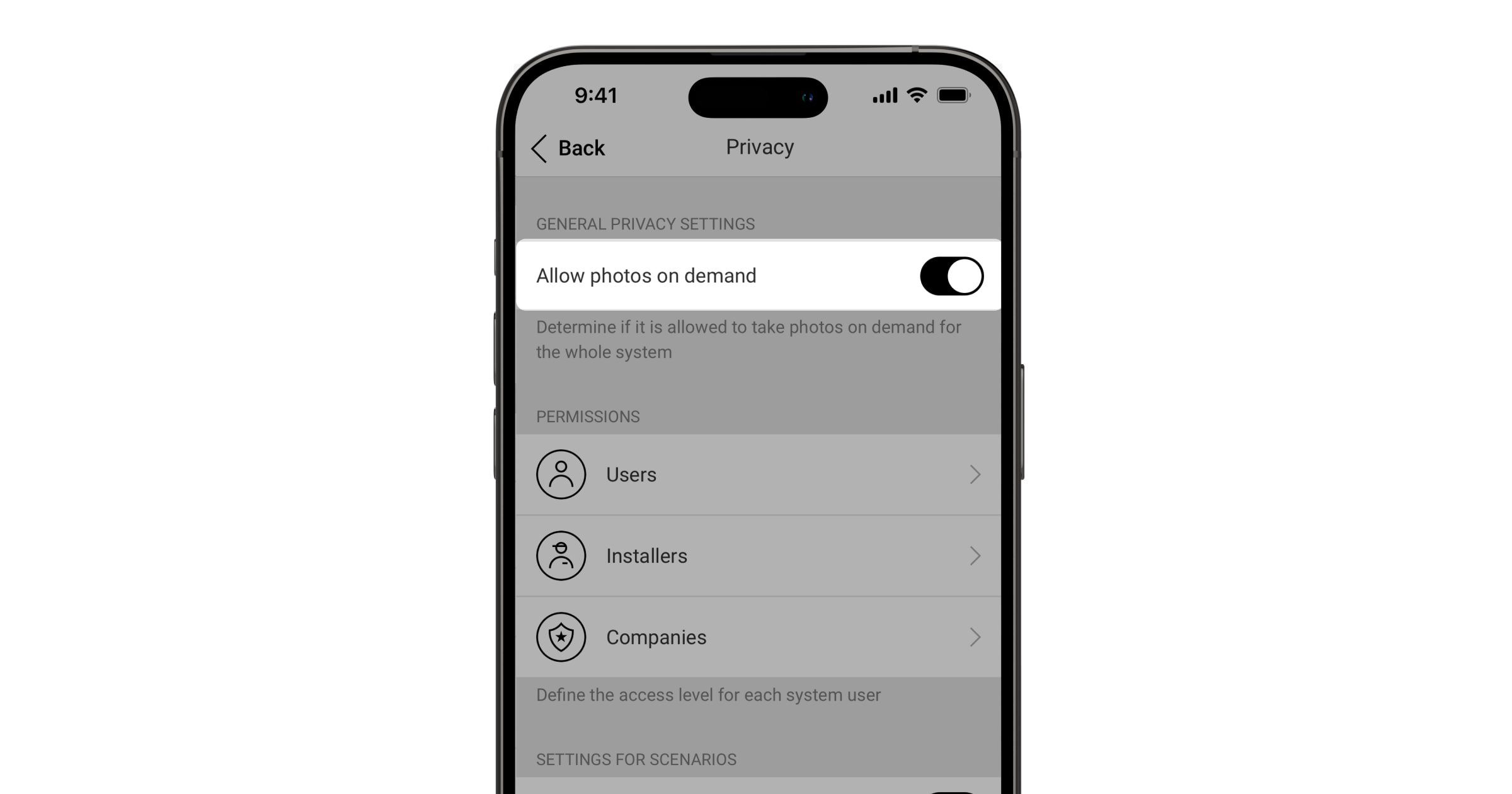
An admin or a user with access to privacy settings can enable and configure the Photos on demand feature. To do this, in an Ajax app:
- Select a space.
- Go to the Control
 tab.
tab. - Go to the space Settings .
- Go to the Privacy settings.
- Enable the Allow photos on demand option.
- Select the user category:
- Users
- Installers
- Companies
- Select a specific user, a PRO, or a company. A list of cameras, DVRs, and detectors supporting photo verification added to the space will open.
- Select the device to which you want to provide access.
- Enable the Take & view photos option.
- Specify when the user can take on-demand photos: Always or When device armed.
- Tap Back to save the settings.
- Repeat steps 6–11 for any other user and devices to which you want to provide access.
After saving the privacy settings, all users with access to the event feed will be notified of who received access rights and which user granted them.
Configuring the Photo by scenario feature
First, you need to enable the Photo by scenario feature in the space Privacy settings. After that, it is possible to create scenarios for taking photos in case of alarms from the specified devices.
Enabling the Photo by scenario feature
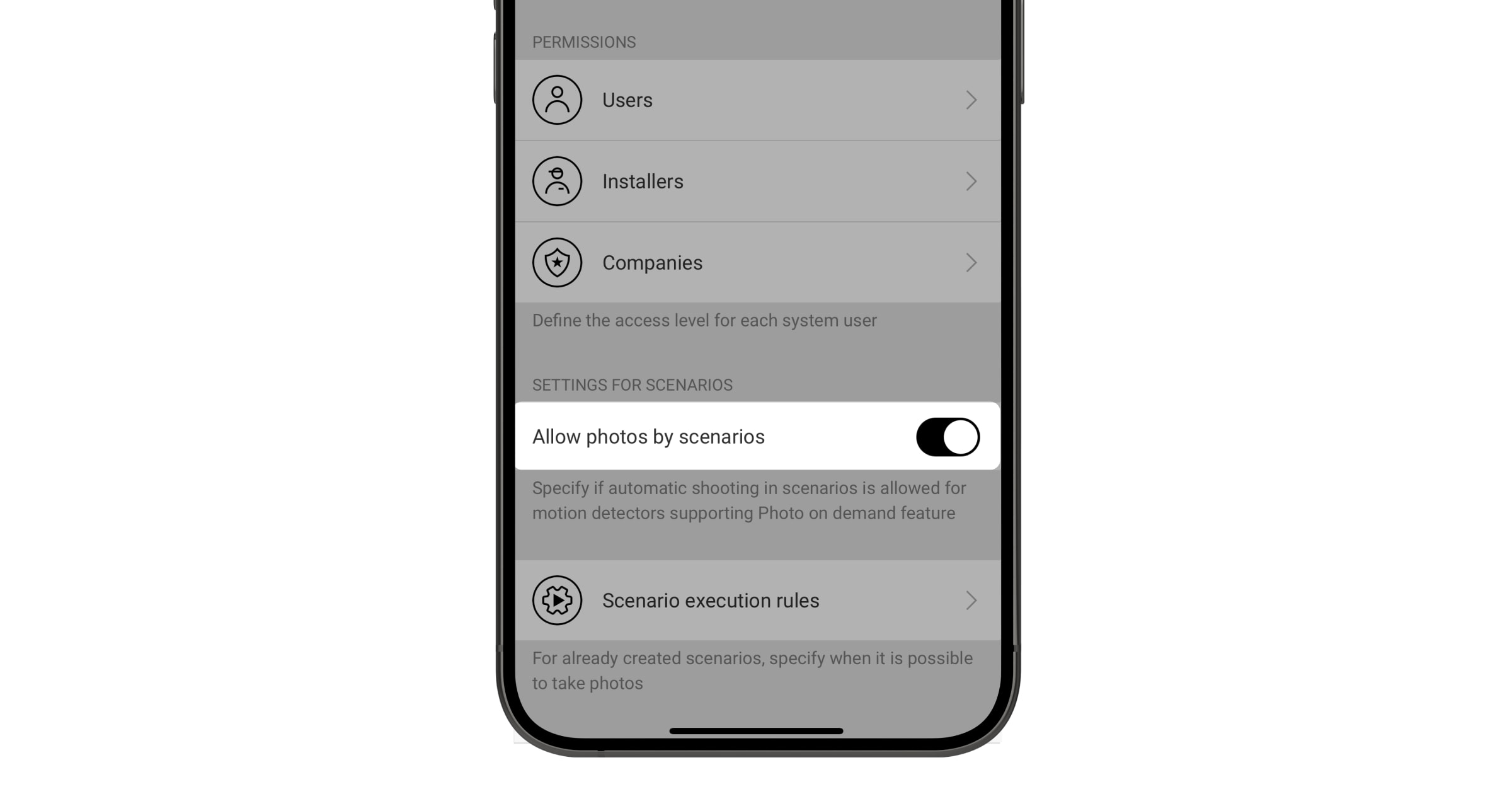
An admin or a user with access to privacy settings can enable and configure the Photo by scenario feature. To do this, in an Ajax app:
- Select a space.
- Go to the Control tab.
- Go to the space Settings .
- Go to the Privacy settings.
- Enable the Allow photos by scenarios option.
- Tap Back to save the settings.
Creating a scenario for taking photos by an alarm of a specified device
An admin or PRO with system configuration rights can create and configure a scenario by alarm. To do this, in an Ajax app:
- Select a space.
- Go to the Devices tab.
- Select a detector supporting photo verification from the device list.
- Go to its Settings .
- Go to Scenarios and tap Add scenario.
- Select the scenario type By alarm.
- Select the devices and type of alarms that will trigger the photo verification.
- Specify:
- Name of the scenario.
- Devices triggering the scenario. Select which devices trigger the scenario (available if two or more devices are selected for this scenario):
- Any — the scenario will run if any selected device is triggered.
- All selected — the scenario will run if all selected devices are triggered.
- Max actuating time for all selected devices. The time frame within which all selected devices should be triggered to run the scenario. Available only for the All selected option.
- Device action — only Take photo by default. The number of photos equals the number of Photos by alarm specified in the settings.
- When the detector takes photos: Always or When armed. By default, the motion detector takes photos by scenario only when armed.
Note that only an admin can specify when the detector takes photos.
- Tap Save. The scenario will appear in the list of device scenarios.
Configuring the Photo by schedule feature
An admin or PRO with system configuration rights can create and set up a scenario by schedule. To do this, in an Ajax app:
- Select a space.
- Go to the Devices tab.
- Select a detector supporting photo verification from the device list.
- Go to its Settings .
- Go to Scenarios and tap the Add scenario button.
- Select the By schedule scenario type.
- Specify:
- Name of the scenario.
- Device action — only Take photo by default. The number of photos equals the number of Photos on demand specified in the settings.
- Execution time — the time of day when the detector takes photos by schedule.
- Repeat — the days of the week when the detector takes photos by schedule.
- When the detector takes photos: Always or When armed. By default, the motion detector takes photos by schedule only when armed.
Note that only an admin can specify when the detector should take photos.
- Tap Save. The scenario will appear in the list of device scenarios.
Indication
The Superior MotionCam G3 (PhOD) Jeweller LED indicator can light up green or red, depending on the device’s state.
Indication upon pressing the power button
| Event | Indication |
| Turning on the device. | Lights up green for about 0.5 s. |
| Turning on the device that has not been added to the hub. | Lights up green for about 0.5 s, flashes green 6 times, and flashes red 3 times rapidly. |
| Turning off the device. | Lights up red for about 1 s, then flashes 3 times. |
Indication of activated device
| Event | Indication | Note |
| The device is added to the hub. | Lights up green for about 0.5 s. | |
| The device is deleted from the hub. | Flashes green six times for 2 s, then flashes red three times rapidly after 0.5 s. | |
|
Lights up green for about 0.6 s. | |
| The detection zone test of the motion sensors is running for the device. | Lights up green constantly and goes out for 0.6 s when movement is detected. | Learn more |
| The detection zone test of the masking sensor is running for the device. | Lights up red constantly and goes out completely when masking is detected. When the masking is removed, it lights up red again. | Learn more |
| Calibration of the masking sensor is in progress. | Lights up green for 0.5 s and goes out for 0.5 s. | Starts automatically when the device is installed on SmartBracket. |
| The battery charge is low. | Slowly lights up green and slowly goes out when the device is triggered. | The battery needs to be replaced. |
| The battery is completely discharged. | Flashes green continuously. | The battery needs to be replaced. |
| There is a device hardware error or sensor malfunction. | Lights up red for about 1 s every 4 s. | The device requires maintenance; contact our Technical Support. |
| Calibration of the masking sensor has failed. | Lights up red for about 1 s every 13 s. |
Ensure the device is installed properly and nothing obstructs its field of view. Remove the device from SmartBracket and install it again to restart the calibration. If the indication appears again, contact our Technical Support. |
| Downloading a new firmware version of the device. | Lights up green twice and goes out every 3 s. | |
| The device firmware is being updated. | Flashes green 2 times every 1 s. | The indication lasts until the firmware update is finished. |
Malfunctions
When the device detects a malfunction (for example, there is no connection via the Jeweller protocol), a malfunction counter is displayed in an Ajax app in the upper left corner of the device icon.
All malfunctions can be seen in the device states. Fields with malfunctions will be highlighted in red.
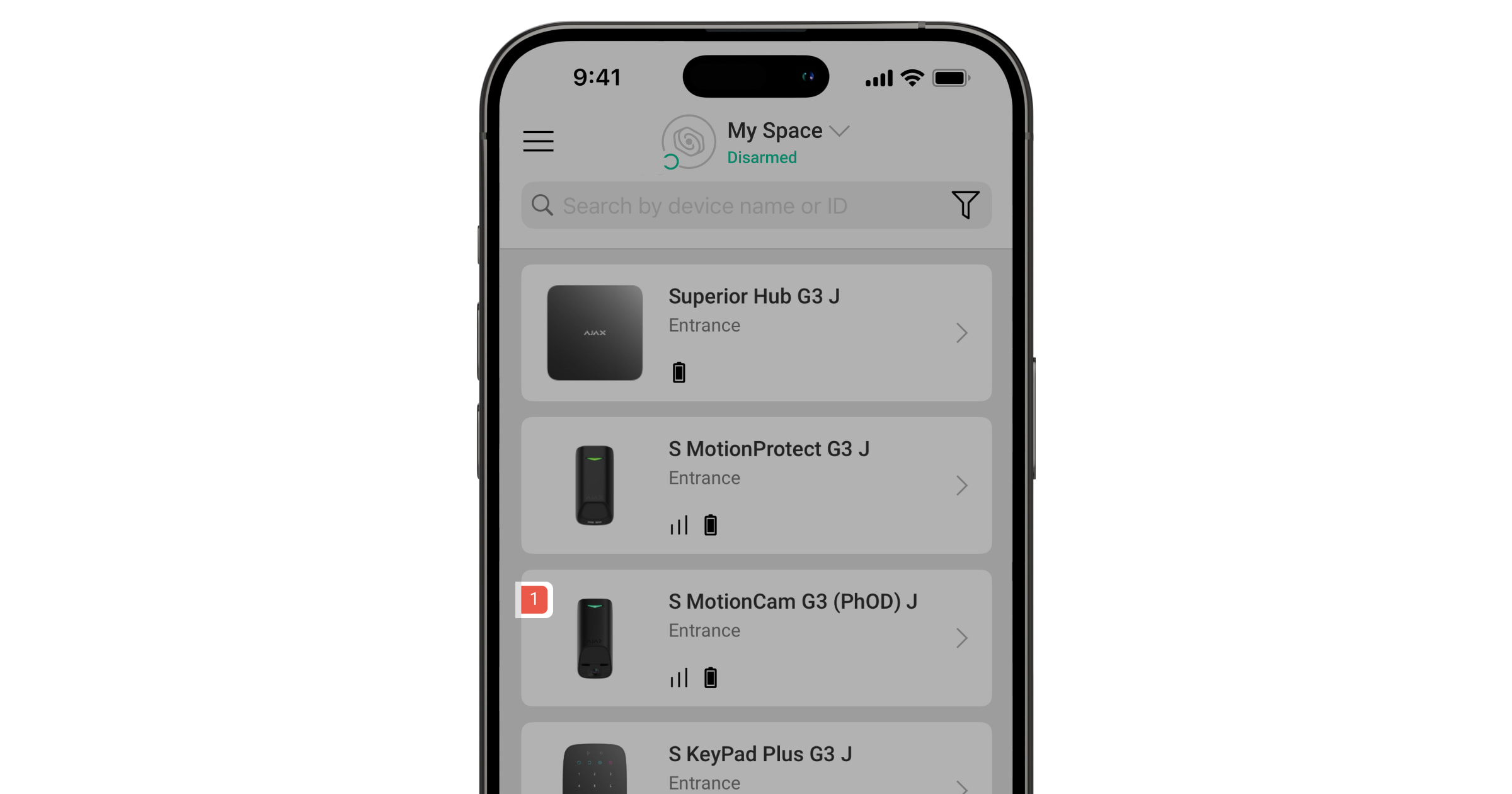
Malfunction is displayed if:
- The camera module is faulty. The device detects motion but cannot take photos.
- The device temperature is outside acceptable limits.
- The device mounting panel lock is unlocked (tamper button has been triggered).
- The device lid is open (tamper button has been triggered).
- The PIR sensor is faulty.
- The masking sensor is faulty.
- The calibration of the masking sensor has failed.
- There is no signal via the Jeweller protocol.
- There is no signal via the Wings protocol.
- The device battery is low.
Maintenance
Regularly check the device operation. The optimal frequency of checks is once every three months. Clean the device enclosure from dust, cobwebs, and other contaminants as they emerge. Use soft, dry wipes suitable for equipment maintenance.
Do not use substances that contain alcohol, acetone, gasoline, or other active solvents to clean the device. Wipe the lens carefully, as scratches may impair the detector’s sensitivity.
Technical specifications
Warranty
The warranty for the products of the “Ajax Systems Manufacturing” Limited Liability Company is valid for 2 years after purchase.
If the device does not operate properly, we recommend contacting the support service first, as most technical issues can be resolved remotely.
Contact Technical Support:
Manufactured by “AS Manufacturing” LLC