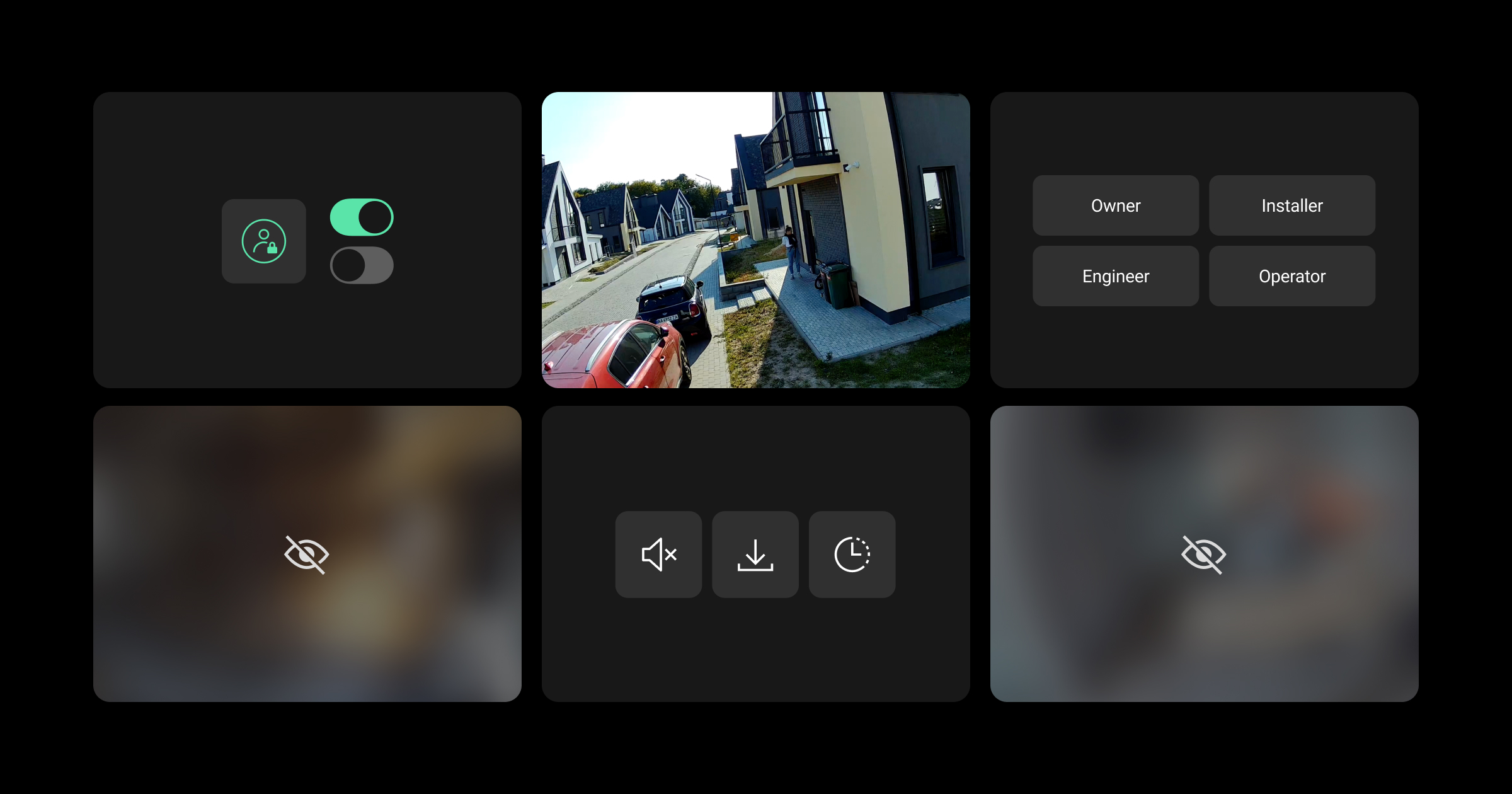
In Ajax systems, users can manage access to their video surveillance devices and set permissions according to their preferences. They can configure permanent privacy settings for each user, private installer, or company on a per-camera basis.
A company can manage employee permissions within the limits set by the system owner. All installer activities are tracked in Ajax PRO Desktop.
Privacy settings are available:
- in the Privacy menu in the Ajax Security System and Ajax Desktop apps for end users;
- in the Access rights menu in the Ajax PRO Desktop app for companies.
Also, PROs can request temporary access to cameras from users with privacy management rights. Learn more about temporary access in the following article:
After a video device is added to the space, the system automatically provides installers and companies with eight hours of temporary access, allowing them to configure the device. When the time expires, access will be revoked unless a user with privacy management rights grants permanent access.
Privacy setting description
| Setting | Meaning | |
| Access rights | ||
| Watch camera livestream | When enabled, a user, PRO, or company can watch the livestream of a specific camera. | |
| View camera archive | When enabled, a user, PRO, or company can view the archive of a specific camera. The setting is available when the Watch camera livestream option is enabled. |
|
| Download video from archive | When enabled, a user, PRO, or company can download video recordings from the archive of a specific camera. The setting is available when the View camera archive option is enabled. |
|
| Watch with sound |
When enabled, a user, PRO, or company can watch a video with sound from a specific camera. The setting is available when the Watch camera livestream option is enabled. |
|
| Use pan-tilt-zoom (PTZ) feature |
When enabled, a user, PRO, or company can use the PTZ feature of a specific camera. The setting is available when the Watch camera livestream option is enabled. |
|
| Allow access | ||
| Always | When selected, a user, PRO, or company has access to the camera features, as defined by the provided permissions, regardless of the camera’s security mode. | |
| When device armed | When selected, a user, PRO, or company has access to the camera features, as defined by the provided permissions, only when the camera is in armed mode. | |
| After alarm only |
When selected, a company has access to the camera features, as defined by the provided permissions, for a specified time only after the alarm has been triggered. This option is available only for companies. |
|
| Time to access camera after alarm | Defines how long after the alarm has been triggered a company can access the selected camera features. The following options are available:
This setting is available when the After alarm only option is selected. |
|
Managing permissions as a system owner
Space admins and users with the right to manage privacy settings can control privacy permissions for Users, Installers, and Companies in the Ajax Security System and Ajax Desktop apps.
Users
To manage user permissions, in the Ajax Security System or Ajax Desktop app:
- Select a space and go to:
Control → Settings
  → Smart Lock Access
 - Go to Users and select the required user.
- Select the required camera.
- Configure the required access rights:
- Watch camera livestream
- View camera archive
- Download video from archive
- Watch with sound
- Use pan-tilt-zoom (PTZ) feature
- If the Watch camera livestream option is enabled, specify when this user is allowed to access the selected camera features:
- Always
- When device armed
- Tap Back to apply the settings.
If necessary, repeat these steps for other users and/or cameras.

It is not possible to configure the permissions for users who are space admins or have the right to manage privacy settings. Such users have full access to all cameras.
Installers
To manage private installer permissions, in the Ajax Security System or Ajax Desktop app:
- Select a space and go to:
Control → Settings → Privacy - Go to Installers and select the required installer.
- Select the required camera.
- Configure the required access rights:
- Watch camera livestream
- View camera archive
- Download video from archive
- Watch with sound
- Use pan-tilt-zoom (PTZ) feature
- If the Watch camera livestream option is enabled, specify when this user is allowed to access the selected camera features:
- Always
- When device armed
- Tap Back to apply the settings.
If necessary, repeat these steps for other private installers and/or cameras.
Companies
To manage company permissions, in the Ajax Security System or Ajax Desktop app:
- Select a space and go to:
Control → Settings → Privacy - Go to Companies and select the required company.
- Go to Native cameras & NVR channels.
- Select the required camera.
- Configure the required access rights:
- Watch camera livestream
- View camera archive
- Download video from archive
- Watch with sound
- Use pan-tilt-zoom (PTZ) feature
- If the Watch camera livestream option is enabled, specify when this user is allowed to access the selected camera features:
- Always
- When device armed
- After alarm only
- If the After alarm only option is selected, configure the Time to access camera after alarm setting.
- Tap Back to apply the settings.
If necessary, repeat these steps for other companies and/or cameras.
Managing employee permissions as a company
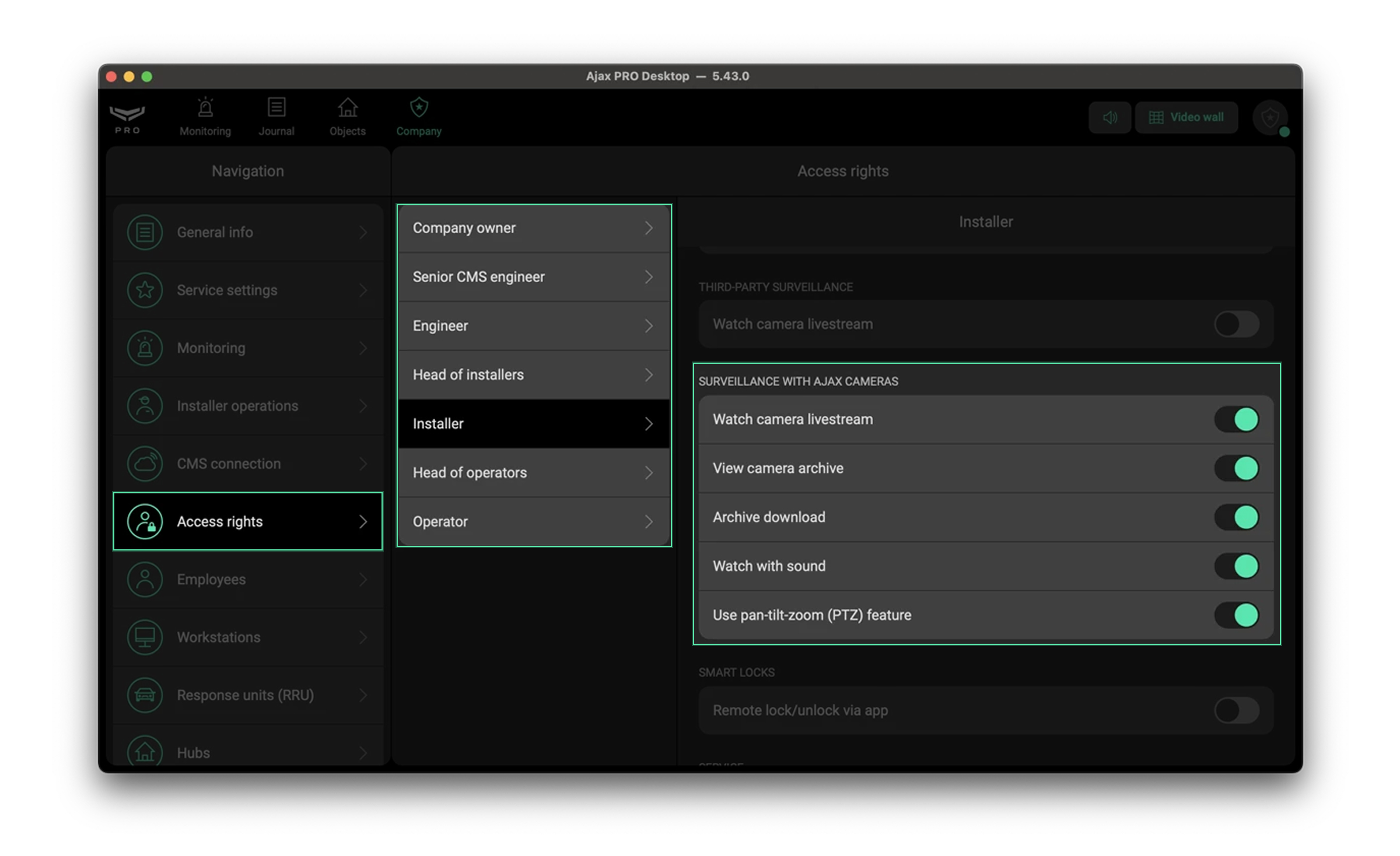
To manage employee permissions, in the Ajax PRO Desktop app:
- Log in with a company account.
- Go to the Company section.
- Select Access rights in the navigation bar.
- Select the required employee role.
- Configure the required access rights under the Surveillance with Ajax cameras section:
- Watch camera livestream
- View camera archive
- Archive download
- Watch with sound
- Use pan-tilt-zoom (PTZ) feature
If necessary, repeat these steps for other company employee roles.
Employee permissions apply to all employees of the given role and take effect only when an employee is assigned to the object.

Note that if the object owner has not granted the company certain permissions to access video devices, the company’s employees will not have those permissions once the employees are assigned to the object.
Additional information
Providing access to video surveillance devices for the monitoring company is required when the Ajax Photo Mode service is activated for the system. For more information, refer to the Ajax Photo Mode user manual.
Besides video surveillance devices, privacy settings also control access to motion detectors with the Photo on demand feature. For more information, refer to this article.
Read also: Privacy-preserving video surveillance: how to build a truly secure CCTV with Ajax