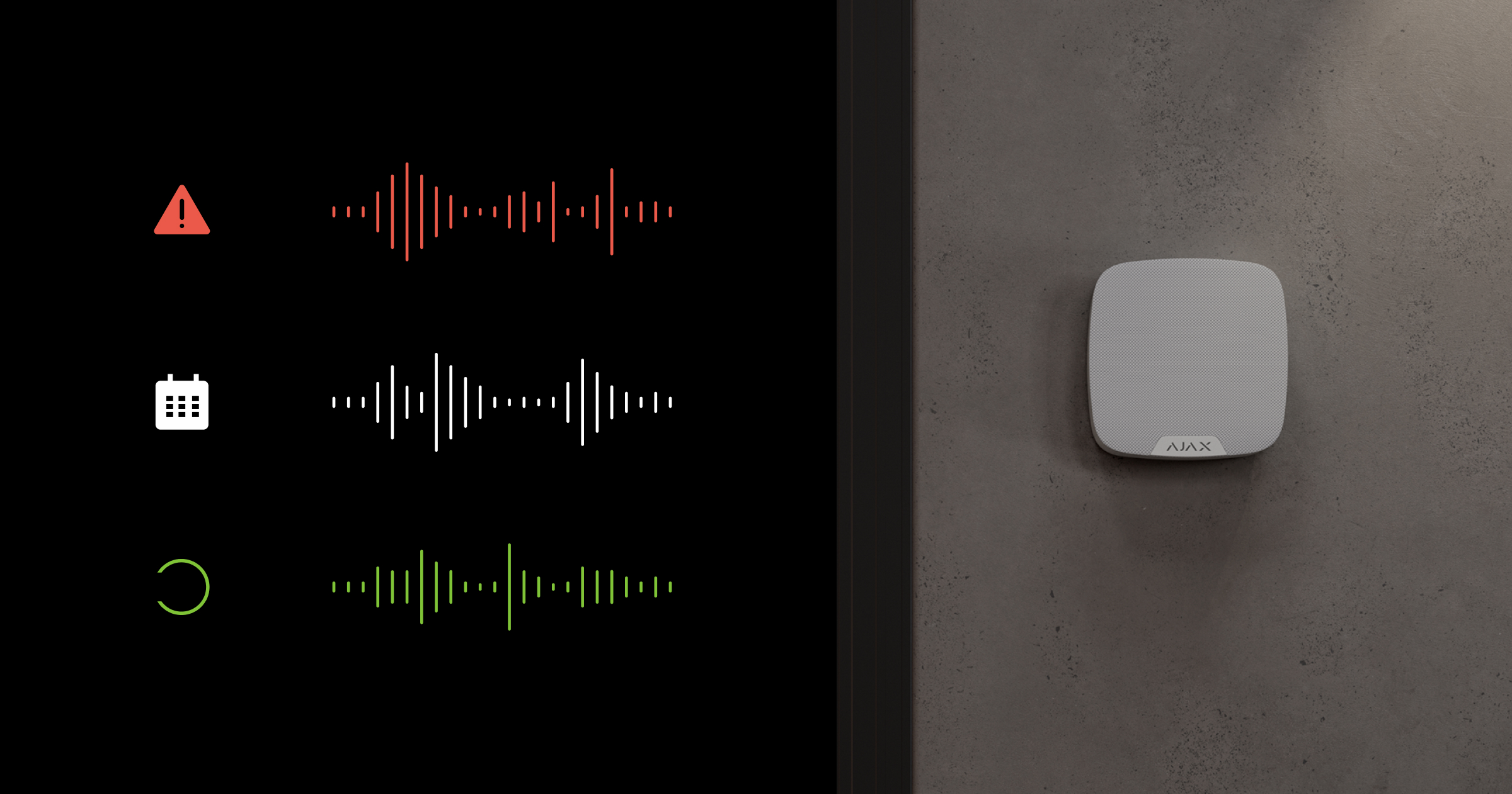
An audio scenario allows voice modules to automatically play custom audio clips in response to alarms, on a schedule, or when security mode changes.
System requirements
The system requires at least one SpeakerPhone Jeweller with firmware version 6.60.6.9 or later added to a compatible Ajax hub running OS Malevich 2.38 or later.
The feature is available in the following or later Ajax app versions:
- Ajax Security System 3.42 (iOS/Android);
- Ajax PRO: Tool for Engineers 2.42 (iOS/Android);
- Ajax Desktop 5.42 (Windows/macOS);
- Ajax PRO Desktop 5.42 (Windows/macOS).
Operating principle
Audio scenarios trigger automatic playback of a pre-uploaded audio clip via SpeakerPhone Jeweller when predefined conditions are met. The system initiates playback without user or operator interaction.
A scenario is linked to specific triggers, such as an alarm, arming/disarming event, or a schedule. When the configured event occurs, the voice module plays the assigned audio clip. The system allows flexible assignment of different clips to a specific voice module or broadcasting the same message via all modules. Also, the system enables users to adjust the audio volume and test playback while creating a scenario.
Audio scenarios can be applied in various cases:
- Security mode changes: voice message about arming/disarming to reduce user errors that may lead to false alarms.
- Alarm events: playback of pre-recorded voice warnings to notify users of an alarm and potentially prevent unauthorized access.
- Scheduled messages: playback of routine messages, such as closing reminders, at a predefined time.
Configuring an audio scenario
To configure an audio scenario, a PRO user must add at least one audio clip to the system. Once the audio clip is added, a user or PRO with admin rights can create an audio scenario.
Note that only PRO users can add audio clips to the system in the Ajax PRO Desktop app.
Adding an audio clip
Before creating an audio scenario, a PRO user must first upload an audio clip in Ajax PRO Desktop. To do this:
- Open the Company module.
- Go to the Audio clips menu.
- Click Add audio clip.
- Enter a name for the audio clip, upload it, and click Add.

The system allows adding up to 10 audio clips in WAV or MP3 format, each up to 15 seconds long and 6 MB in size.
Creating an audio scenario
Once an audio clip is added, a user or PRO with admin rights can create an audio scenario in Ajax apps. To do this:
- Select the required space.
- Go to the Devices
 tab.
tab. - Select the hub and go to its settings
 .
. - Go to the Scenarios and schedule menu.
- Tap Create scenario if a scenario is created for the first time, or Add scenario if scenarios have already been created in the system.
- Tap Audio scenario.
- Specify when the created scenario should run:
- By arming/disarming — when security mode changes.
- By alarm — when selected devices trigger an alarm.
- By alarm confirmation — when an alarm is confirmed in a specific zone, if a cross zone is configured.
- By schedule — at a specified time and on selected days.
- Enter a name for the scenario and set the conditions that trigger it.
- Select the devices that will play the audio and set their volume level.
- Select the audio clip. You can test it by tapping Test audio on devices.
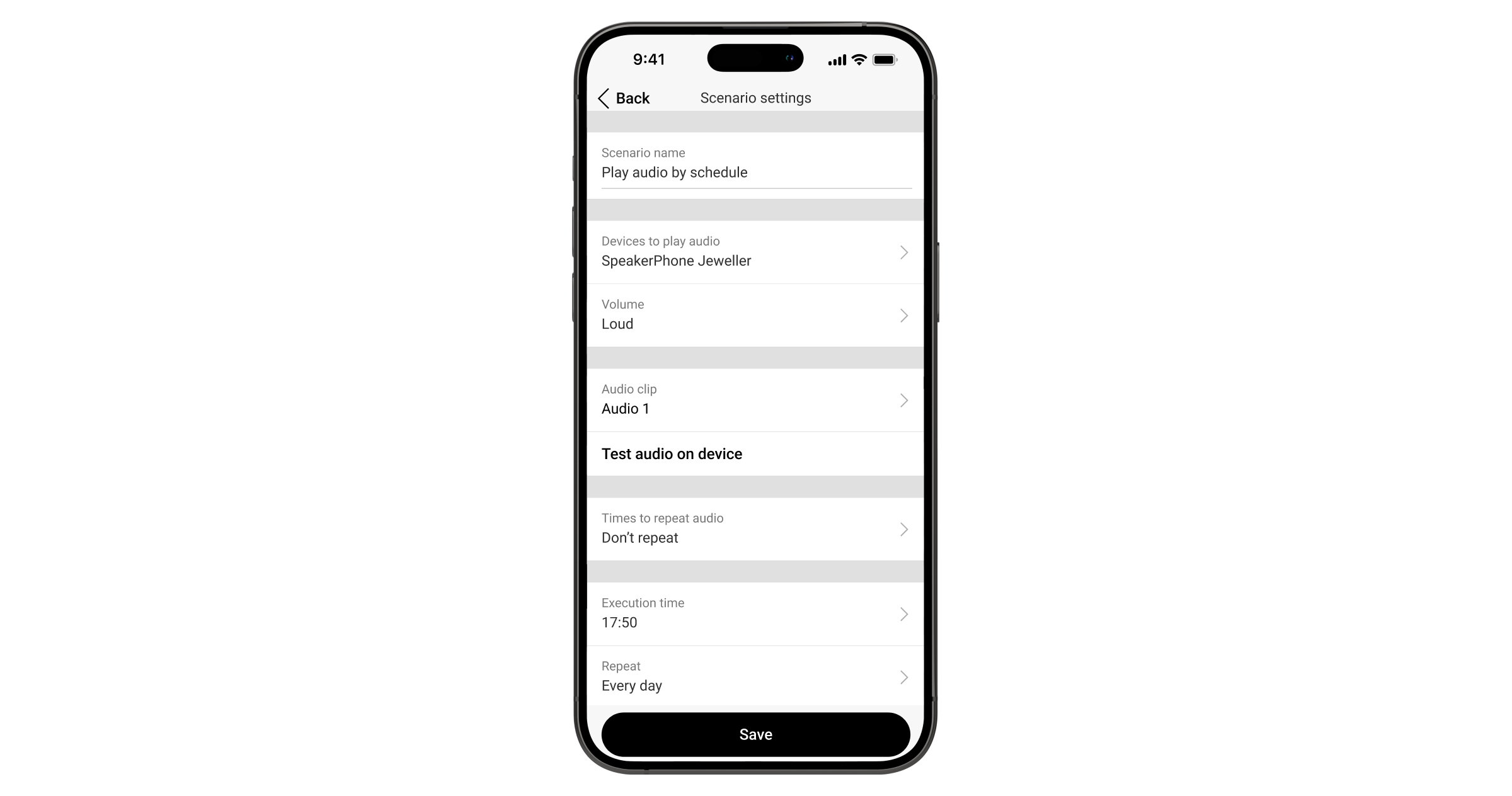
- Choose whether the audio should repeat.
- Tap Save.