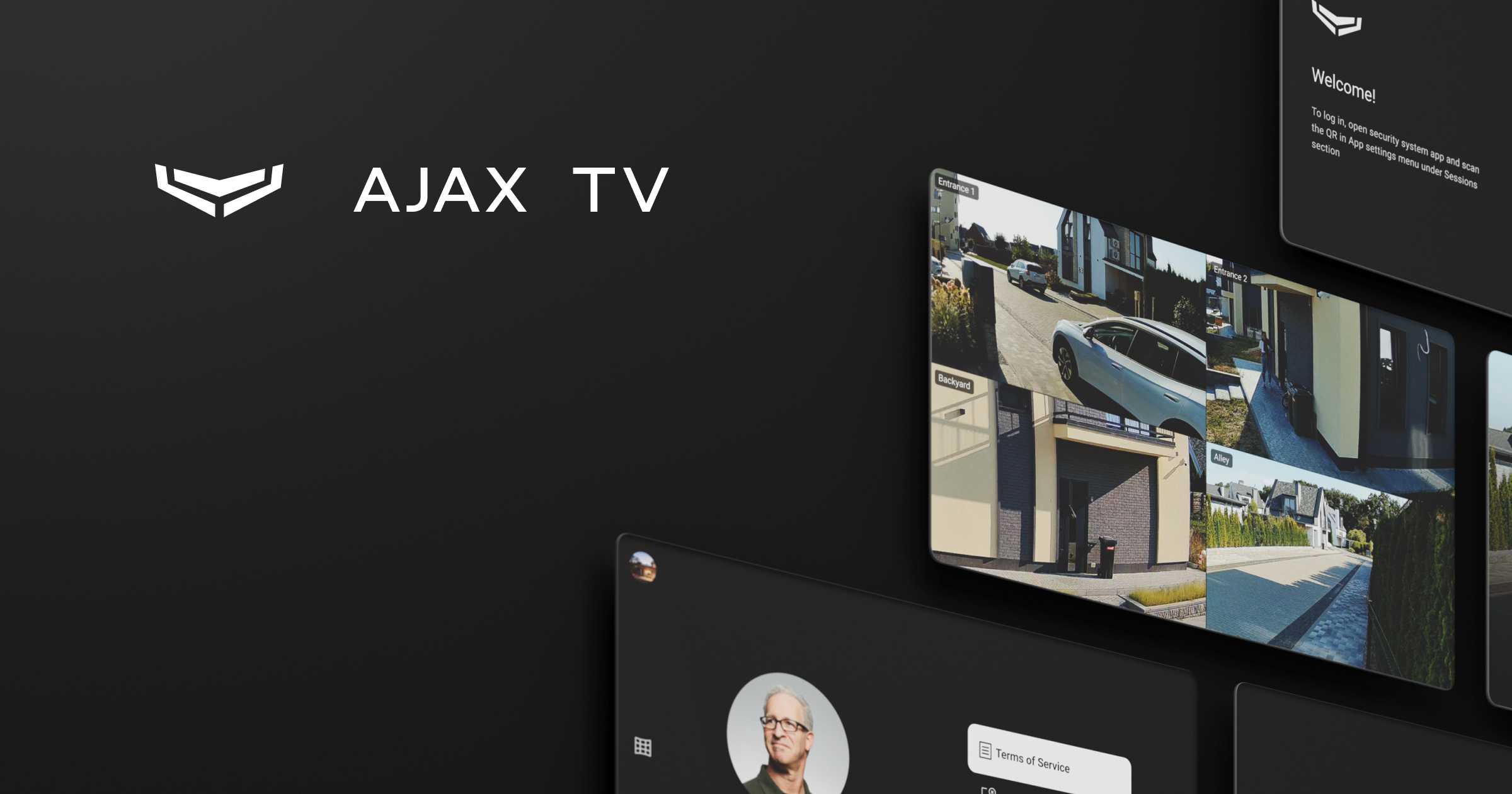
Ajax TV is an Android smart TV app that allows you to set up a video wall and watch videos from your cameras directly on your TV.
Overview
With Ajax TV, you can display a video wall with your camera streams on any smart TV. The app provides a convenient solution for sites that have video devices installed.
The app operates over the internet, so the TV does not need to be located at the site or connected to the local network. Ajax TV can also be used simultaneously on multiple TVs by multiple users.
Setting up the app
Ajax TV is a smart TV app designed to be installed and run only on a TV’s operating system.
System requirements
Ajax TV is available for smart TVs with the following operating systems.
| Parameter | Minimum | Recommended |
| Operating system | Android TV 8.0 (API level 26) or later | Android TV 8.0 or later |
| RAM | 1.5 GB | 2 GB or more |
| Video decoding | H.264 (AVC): hardware decoding required | H.264 (AVC): hardware decoding required |
| H.265 (HEVC): hardware decoding required | H.265 (HEVC): hardware decoding required | |
| Hardware resources | 4 or more hardware video decoders capable of parallel operation | 4 or more hardware video decoders capable of parallel operation |
The TV must be connected to the internet, as the app requires a connection to the Ajax Cloud server.
Downloading and installing
You can download Ajax TV from the application store available on your smart TV.
Open the application store on your TV, find the Ajax TV app, and install it. Once installed, it will appear in the list of available apps on your TV.
Using Ajax TV
Ajax TV enables you to access the video wall directly on your smart TV. You can log in to your account, navigate spaces, watch the videos from your cameras, and more.

To use Ajax TV, you need an Ajax account and the mobile Ajax app. If you do not have an Ajax account, you can create one using a mobile or desktop Ajax app.
Logging in
To log in to your account in the Ajax TV app:
- Open Ajax TV on your TV.
- On your mobile device, open an Ajax app and go to:
 Menu → App settings
  → Sessions
- Select Scan QR and scan the QR code displayed on the TV screen.
To log out of your account, follow the steps described in this section.
Selecting a space
After you log in to your account, Ajax TV displays a page with a list of your spaces if there are two or more. Select the required space to open its video wall on the TV.
If your account has only one space, the app opens the video wall for that space immediately.
If your account has no spaces, the app displays an information screen.
Ajax TV shows the space name, image, and its current security model.
To switch between spaces, select the current space in the sidebar on the left side of the app — this opens a menu with all your spaces.
Video wall
The video wall opens automatically once the space is selected. Also, you can return to the video wall by selecting Video wall in the sidebar on the left-hand side of the app.
The video wall features a fixed 2×2 layout for cameras. If there are more than four cameras in the space, you can navigate them by clicking up or down on the TV remote control.
The video wall allows you to:
- View live streams from your cameras.
- Open video in full-screen mode and change the video quality.
- Navigate through all cameras in the layout and in full-screen mode.
If a camera is offline or your account does not have permission to view the live stream, the camera still appears on the video wall, but the video is unavailable.
If a space has no cameras, the app displays an information screen.
Settings
Using the settings menu, you can access the terms of service documents, report a problem, view app information, or log out of your account.
The menu also displays your profile picture, name, and email address.
To open the settings menu, select Settings in the sidebar on the left side of the app.
Terms of service
The Terms of service menu contains links to the documents that regulate the use of the Ajax TV app. Each link is encoded in a QR code — scan it to open the document.
The available documents are:
To open the terms of service menu, go to Settings and select Terms of service.
Report a problem
If you encounter any issues with the Ajax TV app, you can send a report to our Technical Support Team so they can address them.
To report a problem in the Ajax TV app:
- Go to Settings.
- Select Report a problem.
- Specify the issue type.
- Select the time when the issue appeared.
- Select Send report.
Note that an internet connection is required to report a problem via the Ajax TV app.
App info
The App info menu provides basic details about the app, including the app version and build number.
To open the app info menu, go to Settings and select App info.
Logging out
To log out of the Ajax TV app, go to Settings and select Sign out.
After you log out, the app shows the welcome page.
You are also logged out automatically if you terminate the corresponding session in a mobile or desktop Ajax app.