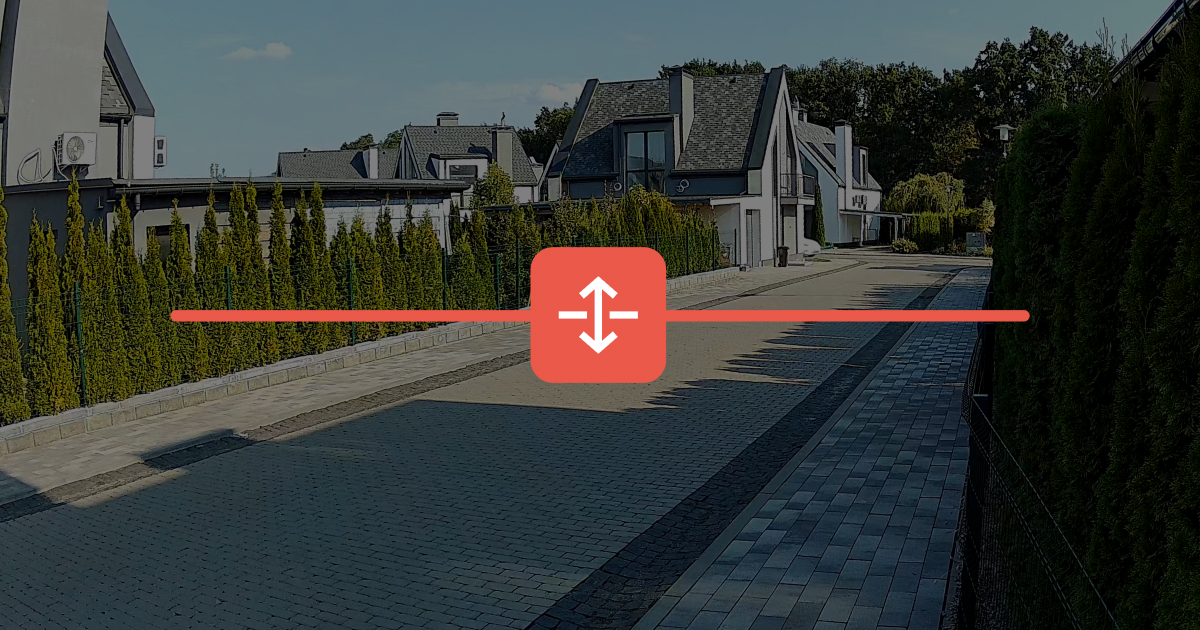
Line crossing detection is a feature that enables video surveillance cameras to respond when a specified object — such as person, pet, or vehicle — crosses a virtual line drawn in the camera frame. When the line is crossed, the system can send a notification or an alarm and record the crossing footage in the archive.
System requirements
The Line crossing detection feature is supported by all wired Ajax cameras running firmware version 2.532 or later.
DoorBell and IndoorCam devices do not support this feature.
Line crossing detection can be configured in the following or later versions of Ajax apps:
- Ajax Security System 3.38 (iOS/Android)
- Ajax PRO: Tool for Engineers 2.38 (iOS/Android)
- Ajax Desktop 5.38 (Windows/macOS)
- Ajax PRO Desktop 5.38 (Windows/macOS)
Operating principle
Line crossing detection makes the video surveillance system more flexible and helps you monitor a site more efficiently. You can define specific areas or directions to receive notifications only when a line crossing occurs. This helps filter out unnecessary alerts related to general motion or object detection.
The feature enables you to add up to 4 lines per camera. For each line, you can set the crossing direction, select which objects trigger the event (person, pet, and vehicle), and define how the system notifies you when the line is crossed. The system can send a regular notification or raise an alarm. You can also enable sirens to activate when a line is crossed. Each notification includes information about which line was crossed and lets you instantly open the corresponding camera feed or recorded video.

If sending events to the monitoring station is enabled for a camera, line crossing detection notifications are also sent to the monitoring station.
If the camera is integrated via ONVIF, line crossing events are also transmitted via ONVIF.
All added lines are displayed half-transparent in the camera frame when viewed via the in-app Ajax video player. When an object crosses a line, the colored rectangle around the object and the crossed line begin to pulsate, and the corresponding event appears on the video timeline. Note that to display the lines, the Spotlight objects option must be enabled in the video player menu.
To ensure accurate line crossing detection, draw the line according to the recommendations below. For guidance on adjusting the line, see the Recommendations and best practices section.
Setting up the feature
The Line crossing detection feature can be configured by space admins or PROs who have access to system settings and camera live streams in Ajax apps.
Prerequisites
Before setting up and using the Line crossing detection feature, make sure the following conditions are met:
- The app has permission to send notifications, and the relevant notifications are configured in the user settings.
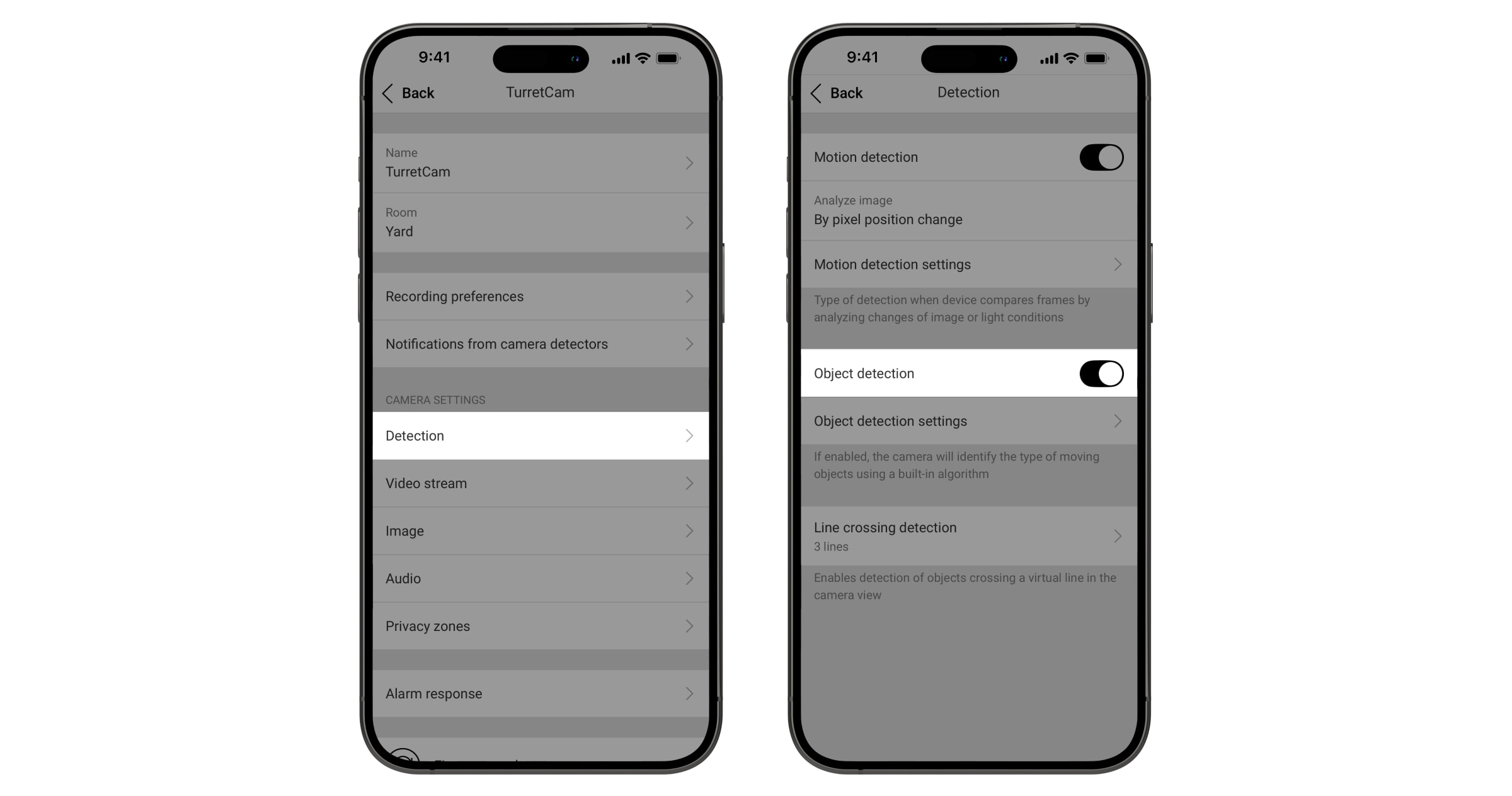
- Object detection is configured in the camera detection settings:
- Object detection is enabled.
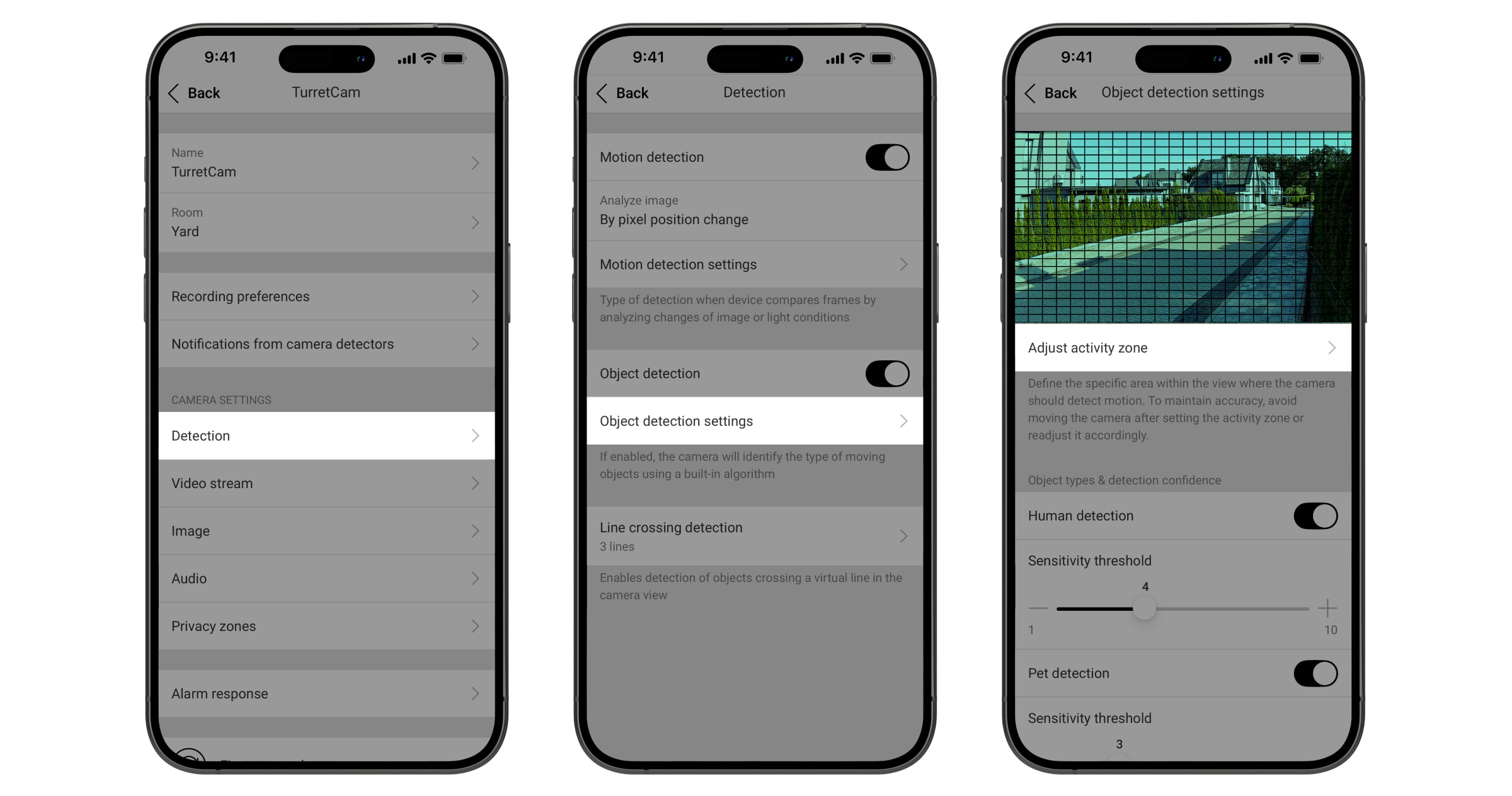
- Object detection zone is configured correctly.
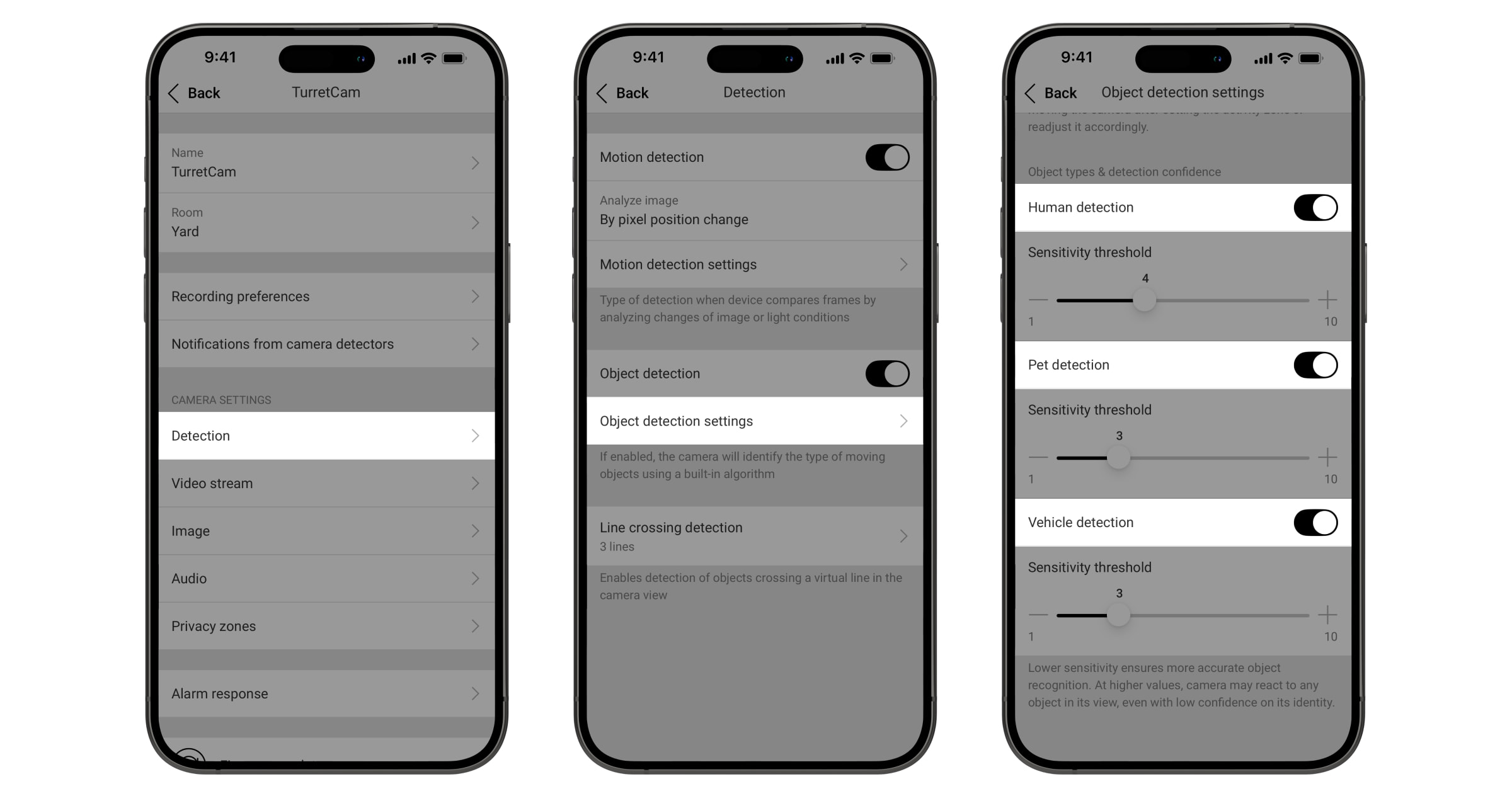
- Detection of the required Object types is enabled.
- Object detection is enabled.
- The Spotlight objects option is enabled in the camera video player menu. This allows you to see the lines and detected objects while watching the video.
Adding a line
To add a line in an Ajax app:
- Select the required space.
- Go to the Devices
 tab.
tab. - Select the camera from the list. If it is connected to a network video recorder, find NVR and tap Cameras.
- Open the camera settings by tapping the gear
 icon twice.
 - Go to the Detection menu.
- Open the Line crossing detection settings.
- Tap Add or
 in the upper-right corner.
 - In the menu that opens, configure the following:
- Set line crossing rule. Adjust the line position and crossing direction.
- Enter a name for the line in the Title field.
- Select the required triggers.
- Tap Save to add the line.
After adding a line, it is strongly recommended to test how the camera detects line crossings. For guidance on fine-tuning the line for accurate detection, refer to the Recommendations and best practices section.
You can add up to 4 lines per camera.
Modifying or deleting a line
To modify or delete a line in an Ajax app:
- Select the required space.
- Go to the Devices tab.
- Select the camera from the list. If it is connected to a network video recorder, find NVR and tap Cameras.
- Open the camera settings by tapping the gear icon twice.
- Go to the Detection menu.
- Open the Line crossing detection settings.
- In the menu that opens, you can do the following:
- Enable or disable individual lines.
- Modify a line: select the required line, adjust it or its settings, and tap Save to apply the changes.
- Delete a line: select the required line, tap Delete, and confirm the action.
Line crossing notifications
The line crossing detection notifications can be configured independently of other camera notifications. You can enable or disable them, choose between a regular notification or an alarm, and enable sirens to activate upon line crossing detection.
To configure line crossing notifications in an Ajax app:
- Select the required space.
- Go to the Devices tab.
- Select the camera from the list. If it is connected to a network video recorder, find NVR and tap Cameras.
- Open the camera settings by tapping the gear icon twice.
- Go to Notifications from camera detectors.
- Go to the Line crossing menu.
- In the menu that opens, enable or disable notifications for each line. Select the required line and configure the following:
- Set Event type: Regular notification or Alarm.
- Enable or disable Activate sirens upon detection.
- Tap Save to apply the changes.
If a user opens the push notification within 30 seconds of receiving it, the system opens the camera live stream in an Ajax app. If more than 30 seconds have passed, the system opens the recorded video in the camera archive.
Recommendations and best practices
Line crossing detection requires following specific guidelines when drawing a line to ensure accurate detection.
Please follow these recommendations:
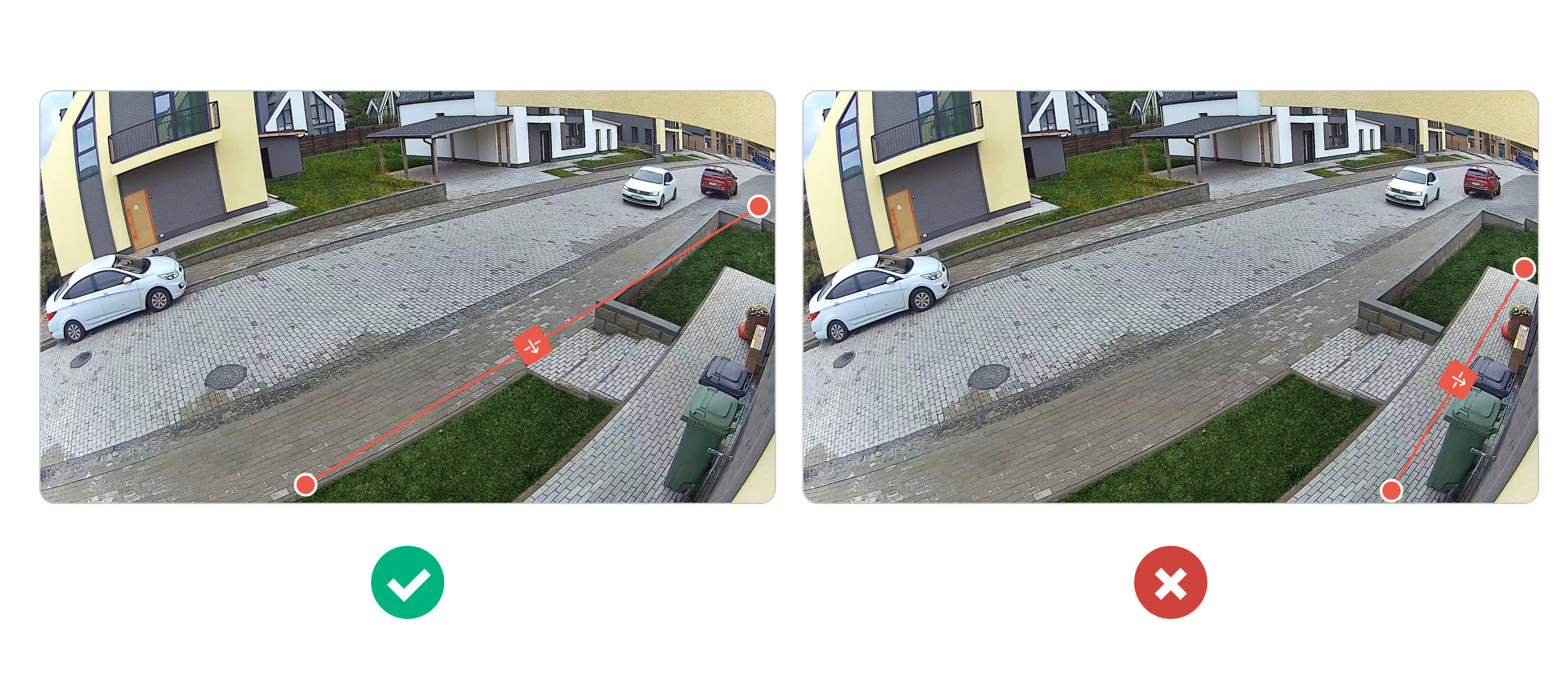
- Do not place the line too close to the edge of the frame. The camera may fail to detect the crossing, as an object may be detected after it has already passed the line.
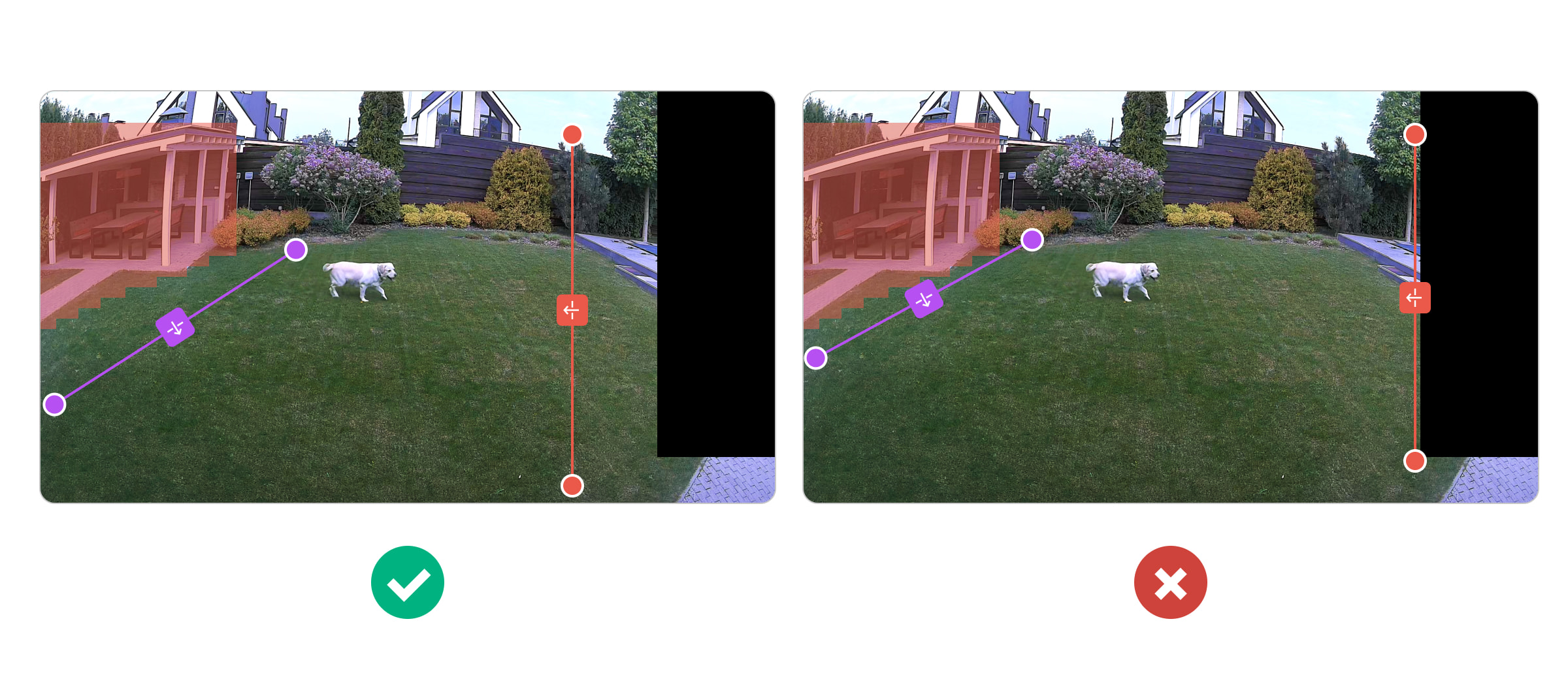
- Do not place the line on or too close to areas where object detection is disabled (highlighted in red) or private zones (black rectangles). Objects are not detected in these areas.
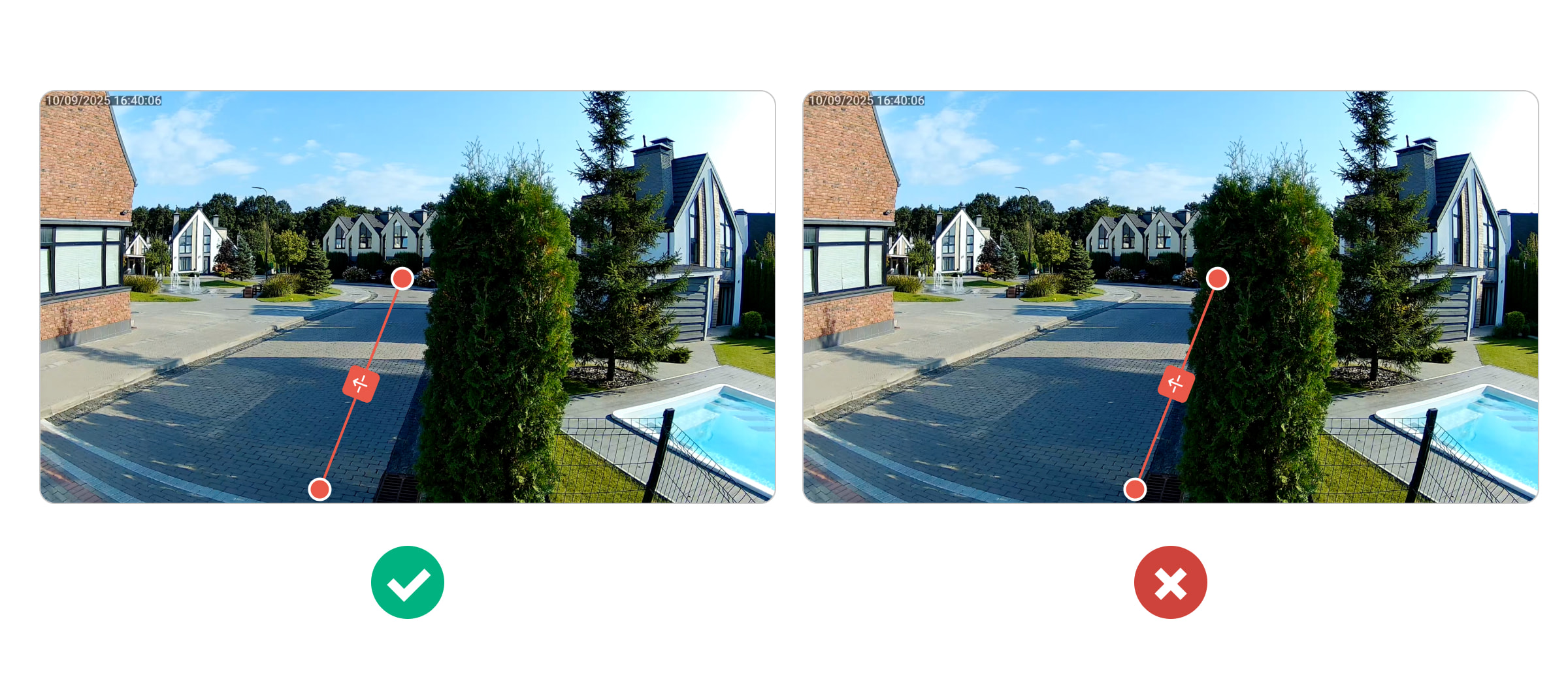
- Do not place the line on or too close to objects that may obstruct detection, such as trees, bushes, utility poles, parked vehicles, etc.
- Do not draw a line too short. Make sure the line fully intercepts potential paths of moving objects.
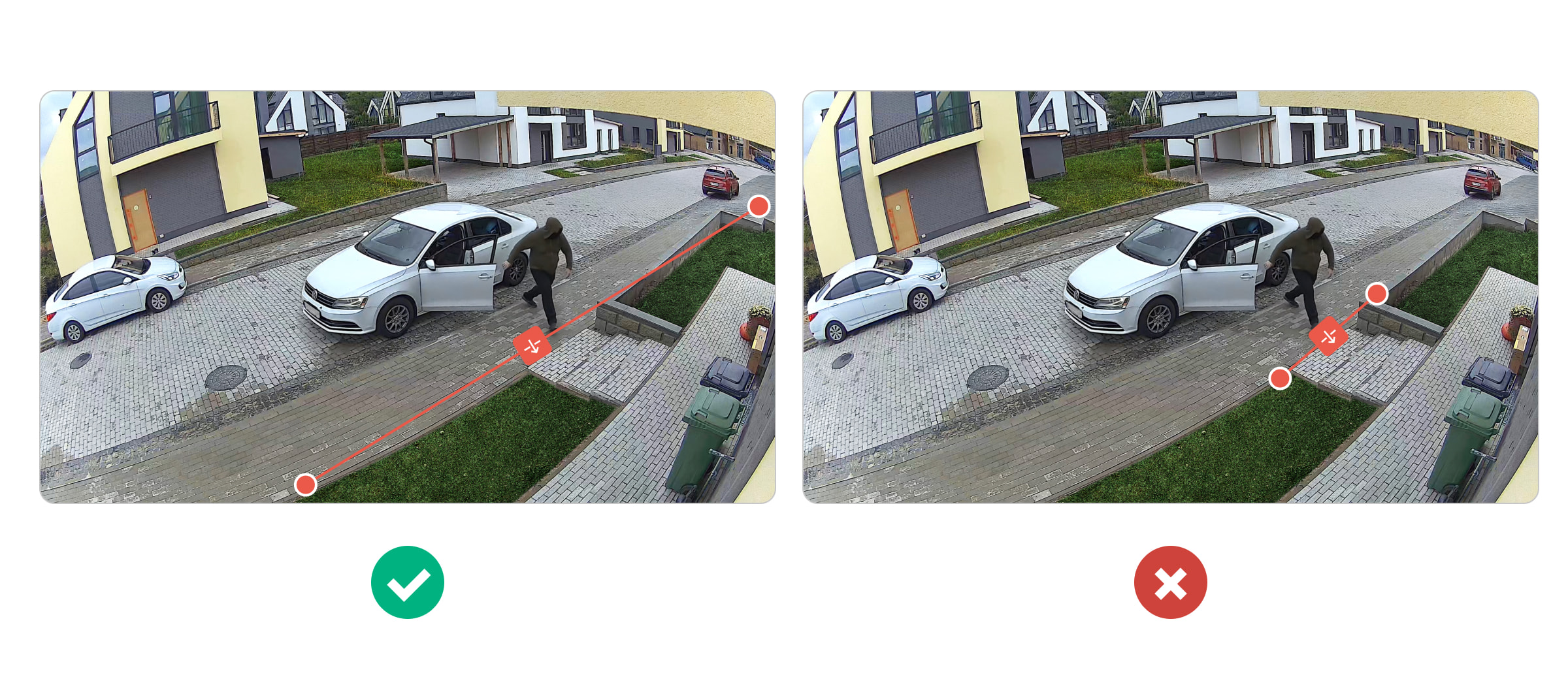
Note that a line is considered crossed even if only part of an object crosses its edge. This ensures precise detection of potential intrusions into the protected area.
Most importantly, after adding a line, always perform a test to ensure the camera detects line crossings correctly. If detection is unreliable, adjust the line and run the test again. In some cases, accurate detection may also require adjusting the camera field of view.