
Ajax systems support corporate card billing — a feature that allows dealer companies to use a corporate card for centralized payment of Ajax Services by employees with the appropriate roles.
To use this feature, the company owner must select the Directly via payment card option when creating a dealer company. After that, a single corporate payment card is added to the company account, and all service activations are automatically charged to it. Card details do not need to be entered for each activation, and all transactions are recorded in the company activity log.
The feature is available for the following Ajax Services:
- Ajax SIM;
- Ajax Cloud Storage (for IndoorCam and DoorBell only).
Follow the link to check Ajax Services availability and supported payment methods.
Learn more about corporate card billing
Preconditions
The company must not be a dealer. The company type must be mixed or installation.
The feature is available in Ajax apps of the following versions or later:
- Ajax Security System 3.44 (iOS/Android);
- Ajax PRO: Tool for Engineers 2.44 (iOS/Android);
- Ajax Desktop 5.44 (Windows/macOS);
- Ajax PRO Desktop 5.44 (Windows/macOS).
Selecting the payment method
To use corporate card billing, the company owner must select the Directly via payment card option when enabling additional services for the company.
To select the card payment method in Ajax PRO Desktop:
- Open the Company tab.
- Go to the Service settings menu.
- Click Extra Ajax services.
- Click Next.
- Select the I’m service installer option and click Next.
- Select the Directly via payment card option and click Next.
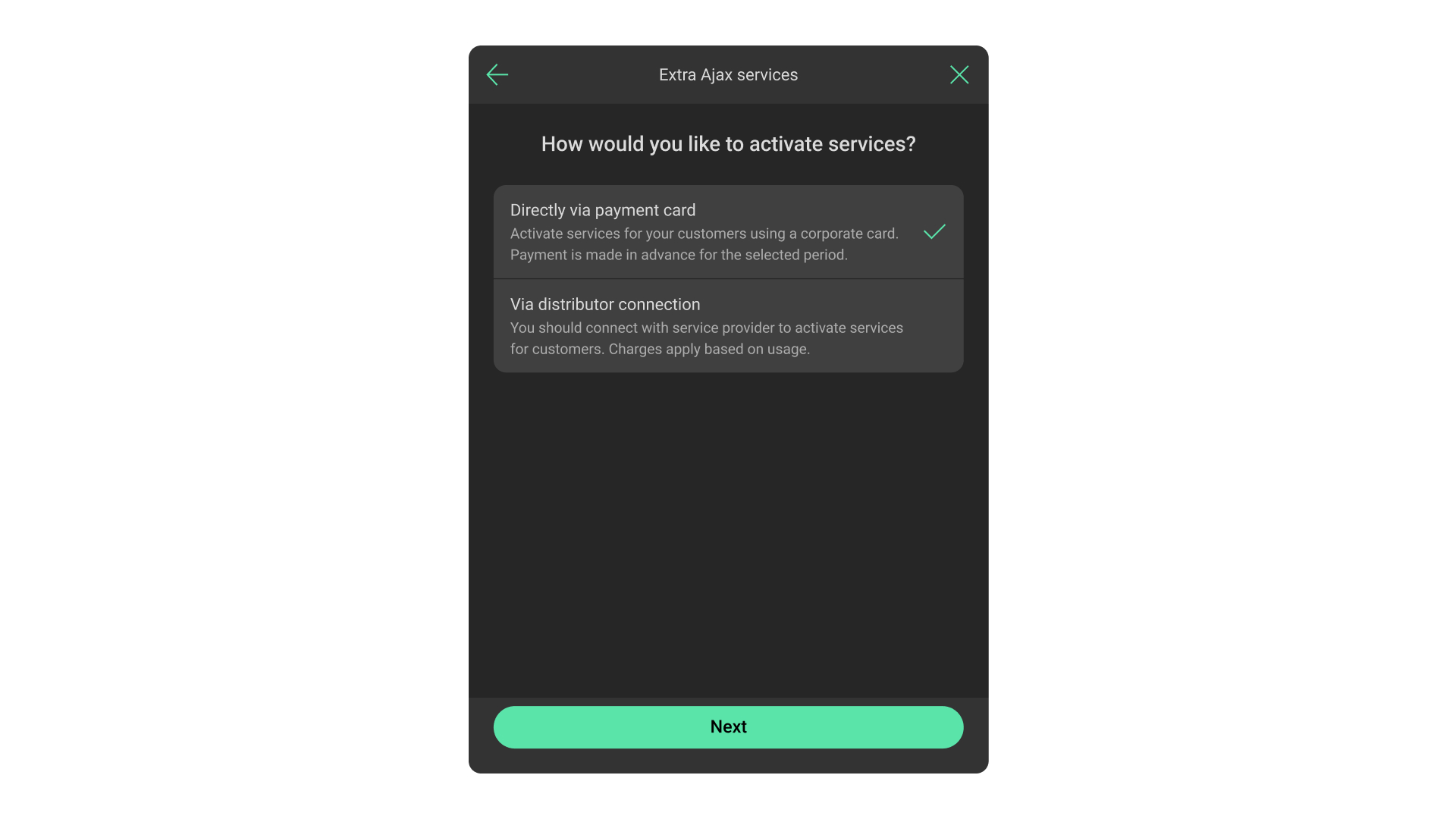
- Fill in the form and click Activate.
A new Services tab appears at the top of the screen. After that, the company can add a payment card used for service activations.
Adding a corporate card
Company owner or Senior Ajax services manager must add a payment card to be used for billing. To do this in Ajax PRO Desktop:
- Open the Services tab.
- Click Add card. You will be redirected to your browser.
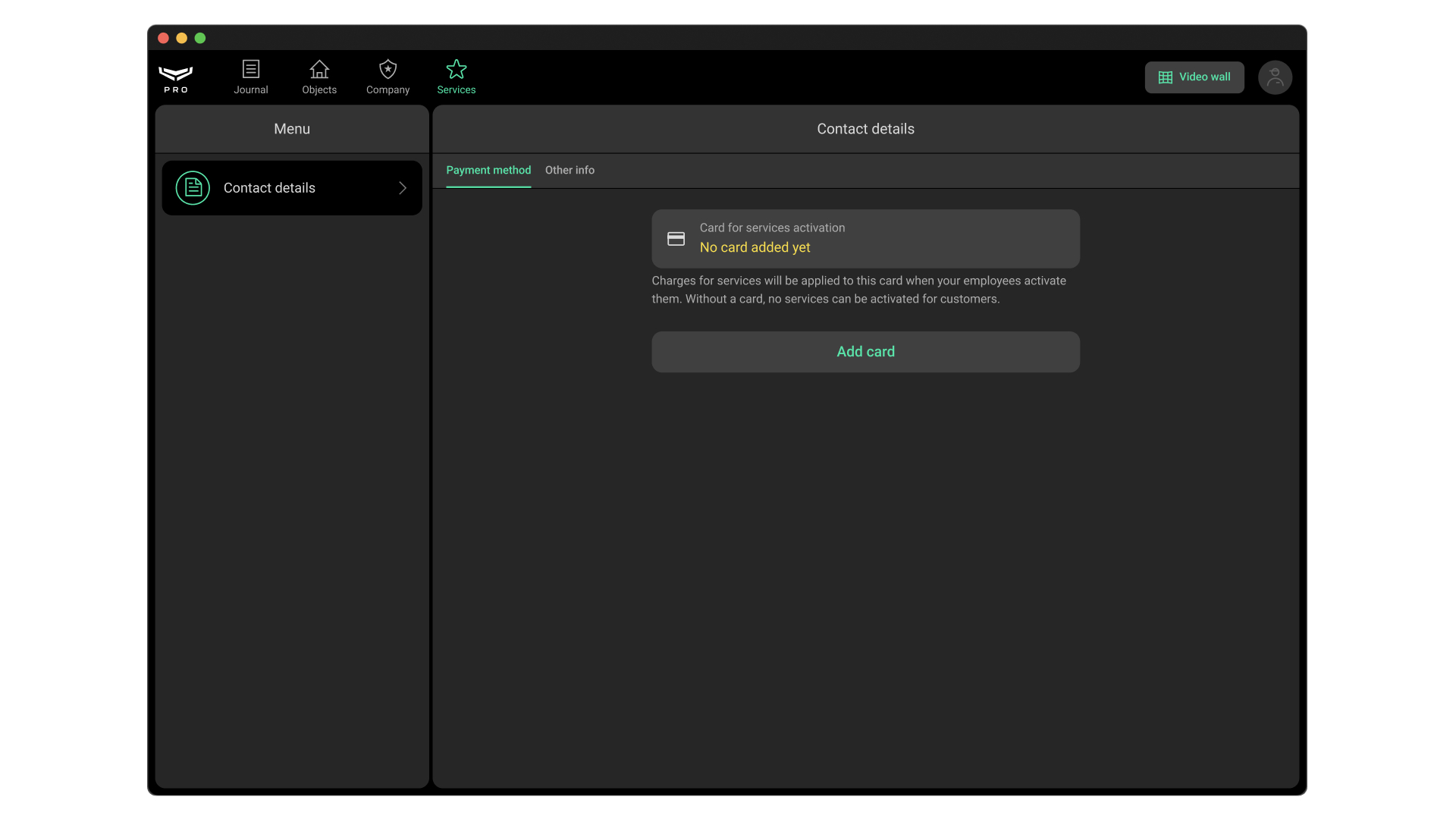
- Enter your payment details and confirm the payment.
- After successful payment, you will be prompted to return to Ajax PRO Desktop.
Activating services
Installer or Ajax services manager can activate services if they are available in the space.
To activate a service in the mobile Ajax app:
- Select a space.
- Tap the gear
 icon to open the space settings.
 - Go to the Extra services menu. If the menu is missing, there are no services or supported devices available for activation.
- Tap Add more services.
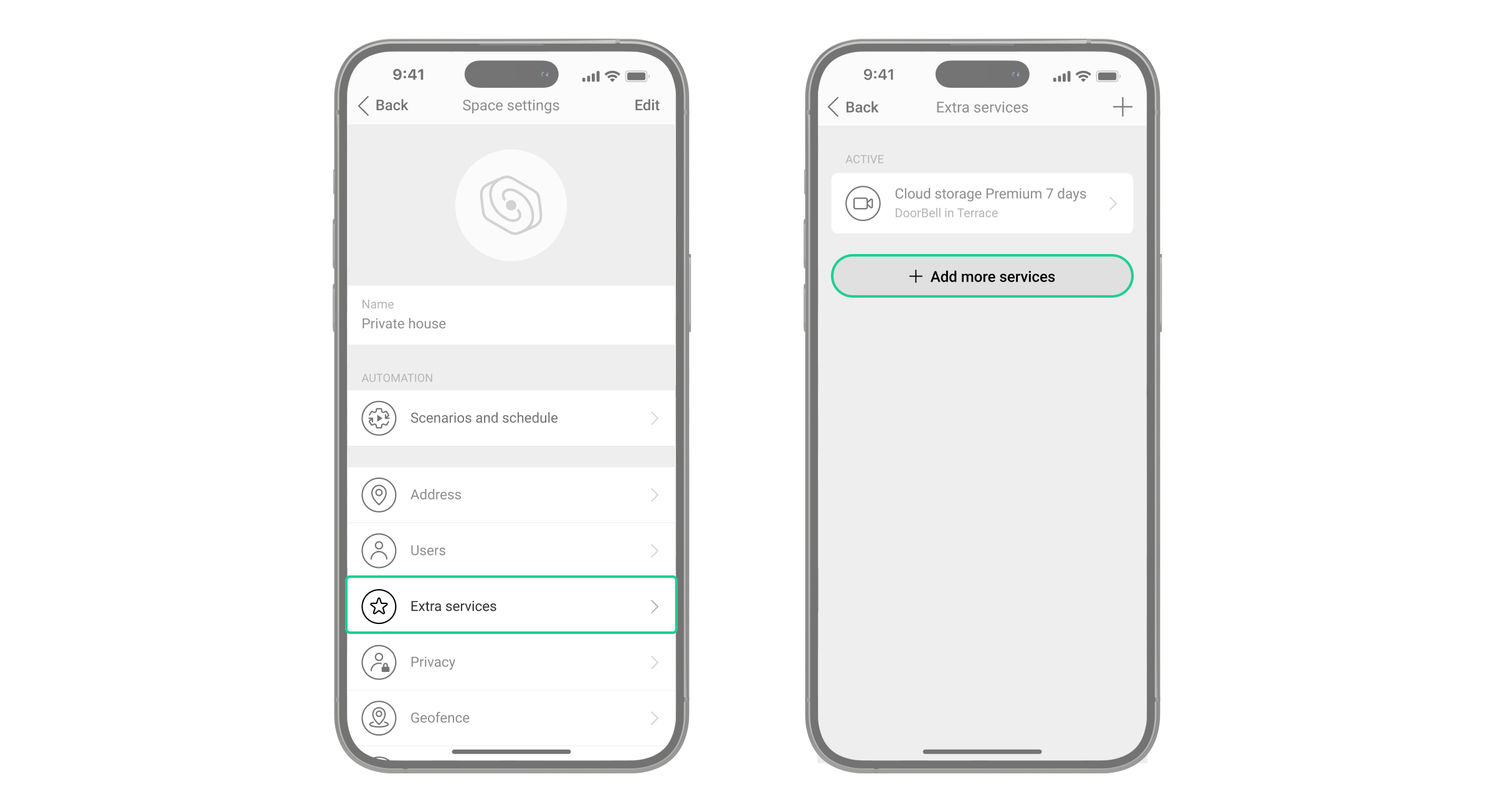
- Select a service and tap Next.
- Select the devices to upgrade.
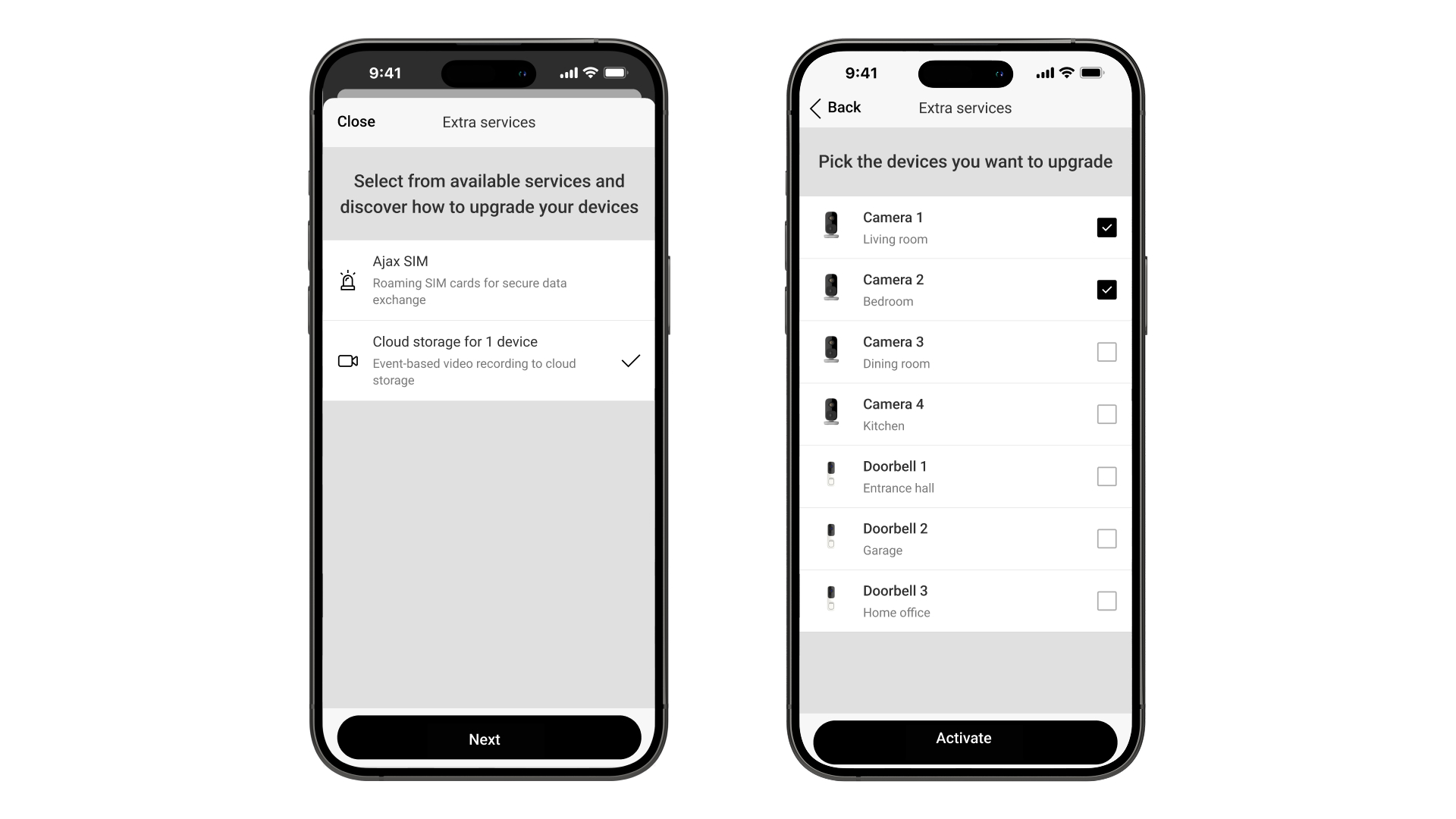
- Tap Activate.
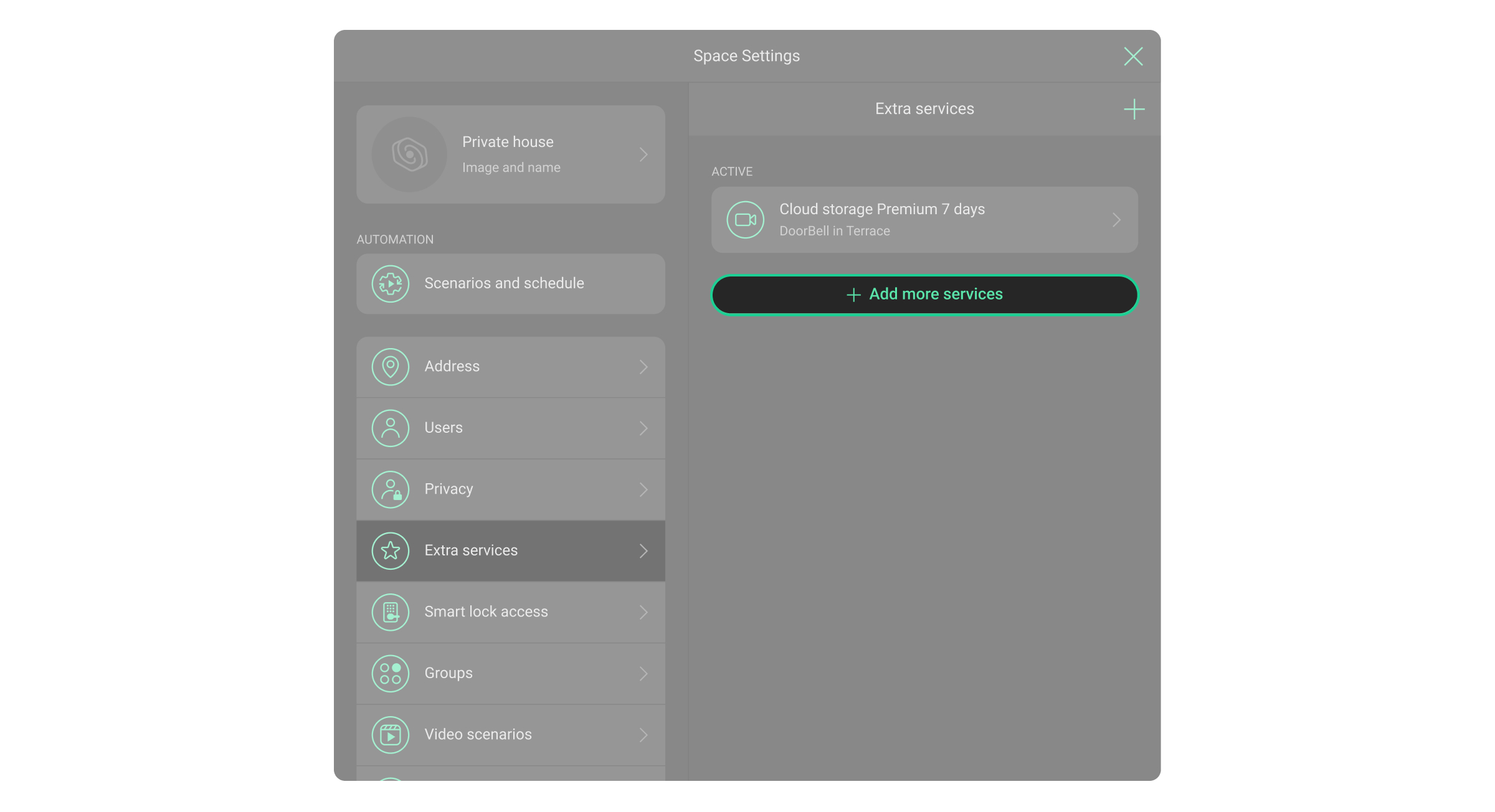
To activate a service in the desktop Ajax app:
- Select a space.
- Click the gear icon to open the space settings.
- Click Extra services. If the menu is missing, there are no services or supported devices available for activation.
- Click Add more services.
- Select a service and click Next.
- Select the devices to upgrade.
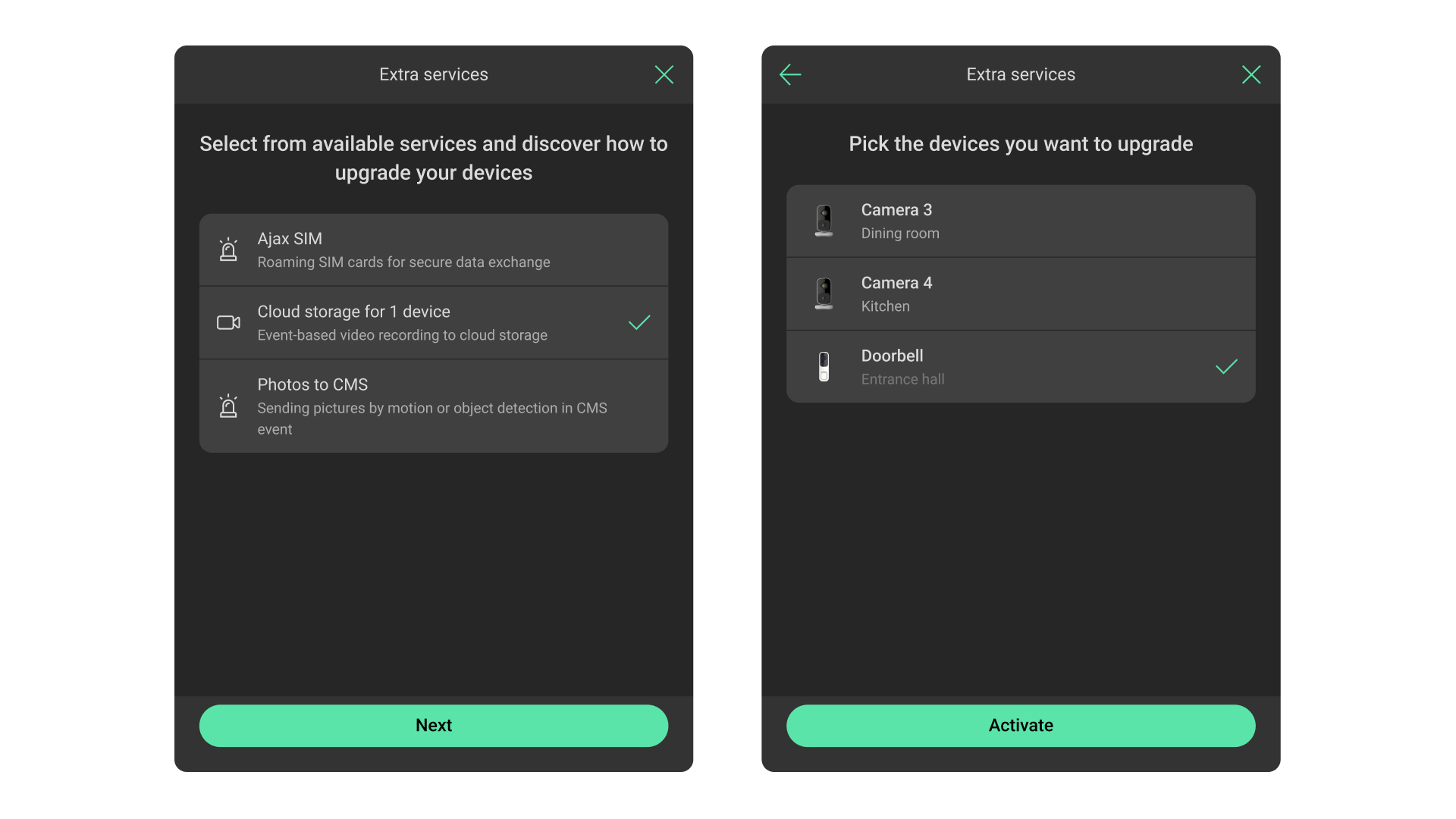
- Click Activate.
Replacing a corporate card
Company owner or Senior Ajax services manager can replace the corporate billing card. To do this in Ajax PRO Desktop:
- Open the Services tab.
- Click Edit. You will be redirected to your browser.
- Enter your payment details and confirm the payment.
- After successful payment, you will be prompted to return to Ajax PRO Desktop.