After update in June 2019, Ajax applications received integration with the Ivideon service. The video surveillance devices linked to Ivideon can be connected to Ajax in a few clicks now.
Compatibility with applications:
| Application | iOS version | Android version |
| Ajax Security System | 2.12 | 2.15 |
| Ajax PRO: Tool For Engineers | 1.5 | 1.5 |

Ivideon is a cloud video surveillance service with the ability to connect cameras of any manufacturer without using static IP addresses. Ivideon allows to use cameras with its own built-in service or connect third-party surveillance systems (a full list of the supported devices is available in Ivideon applications).
In October 2017, we added the ability to connect any IP-cameras supporting RTSP protocol to the Ajax security system. For users without experience with video surveillance systems, obtaining an RTSP link to a video stream was not an easy task. In order for the user to connect video surveillance systems as easily as Ajax devices, we have integrated Dahua, Hikvision, and Safire cameras and DVRs into the system. Ivideon service is also available now.
How video is transmitted to the Ajax app
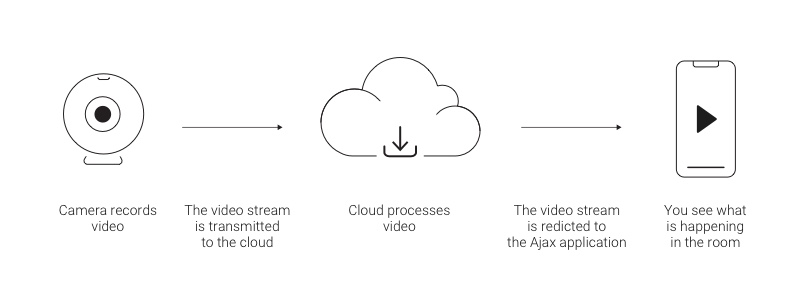
The stream of a camera or a video recorder (DVR) is broadcasted to the Ivideon cloud. The video stream is then transmitted to the Ajax app from the cloud using the manufacturer’s SDK.
You can connect any DVR/camera linked to your Ivideon account to the Ajax security system. The number of connections available depends on the hub model:
| Hub model | Video monitoring (CCTV) devices |
| Hub | up to 10 |
| Hub Plus | up to 50 |
Before linking Ivideon DVR/cameras to Ajax
In order to add video surveillance devices, you need an account with the Ivideon system.
- Register on the official website or in the Ivideon application if you do not have an account yet.
- Connect and configure the video surveillance system following the manufacturer’s instructions.
After settig up, all the cameras associated with your Ivideon account can be added to the Ajax app.
How to link an Ivideon account to the Ajax security system
Log in to your Ivideon account via the Ajax mobile app (Menu  Video Surveillance Ivideon).

If you do not log in to your Ivideon account, streams will not be available in the Ajax app!
Now, all the cameras and DVRs associated with the new account are available for linking to the hubs.
In order to make the cameras of several Ivideon accounts available in the Ajax app
- Add the desired cameras and DVRs associated with the first Ivideon account to the Ajax app.
- Go to the Ivideon menu (Application Menu Video Surveillance Ivideon).
- Log out of the first account (click Logout).
- Log in to the new account.
Now, all the cameras and video recorders of the new account are available for linking to the hubs. Meanwhile, all the streams previously linked to the hubs are not deleted and remain available for viewing.
How to connect a video recorder / Ivideon camera to the Hub
If your video surveillance system uses a video recorder, you can use two methods to add a video stream:
- Linking DVR allows you to view all available DVR-connected camera streams and switch between them in the Ajax app. In this case, the DVR acts as a single video surveillance device regardless of the number of the linked cameras. 10 DVRs can be connected to the Hub and up to 50 DVRs — to the Hub Plus.
- Linking of individual DVR-connected cameras allows you to add separate streams of DVR-connected cameras. Each camera is displayed as a separate device and also occupies a single hub memory cell.
Note: users with the rights to view cameras have access to all video streams within the Ajax app without exceptions.
In order to link a video recorder / camera in the Ajax application:
- Go to the Devices tab.
 .
. - Click Add camera.
- Select Ivideon.
If you are not logged in to your Ivideon account, the login screen will appear. Log in to your account and try to add a camera or a video recorder again.
- Specify:
- the name of the camera or video recorder
- the room that the surveillance device is being linked to
- the camera or video recorder from the list
- Click Add — the video stream will be added to the Ajax app and will be available for viewing.
Before adding a video surveillance device in the Ajax app, you need to link it to your Ivideon account.
Ajax app capabilities
In order to view a video, click on the camera icon in the Ajax app.
In order to expand the stream to full screen, change the smartphone orientation.
In order to pause a video, click the pause button.
In order take a photo, click on the button indicated on the screenshot. The screenshot is automatically saved in the smartphone memory.
If the hub has lost communication with the Ajax Cloud service for whatever reason and the cameras or the DVR continue to operate, the video streams will still be available in the Ajax application.
How to configure user access to camera streams
Access to video streams is provided to the security system users in the hub settings. In order to change the access settings in the Ajax application, go to the user settings:
- Devices Hub Settings
 Users
Users - Go to the settings of the selected user (click on opposite the user).
Note that access is provided simultaneously to all cameras and video recorders connected to the hub.