
With the release of wireless Grade 3 devices, Ajax Systems has improved device radio communication by implementing advanced encryption and enhanced frequency hopping and removing the siren number limit. The upgraded radio protocol has been introduced as Superior Jeweller.
This article describes how advanced encryption and enhanced frequency hopping function in the system and provides the system configurations required for their correct operation.
Advanced encryption
System requirements
The following devices support advanced encryption:
- Hubs:
- Range extenders:
- Devices:
Operating principle
Advanced encryption protects the communication between an Ajax device and a hub or radio signal range extender, ensuring the confidentiality and integrity of the data transmitted between them. It is a device-based feature: the hub and each device encrypt their communication individually; if any device does not support the feature, the hub and that device use standard encryption only for their communication.
The advanced encryption status is available in device states in Ajax apps. This status is displayed only for devices that support the feature.
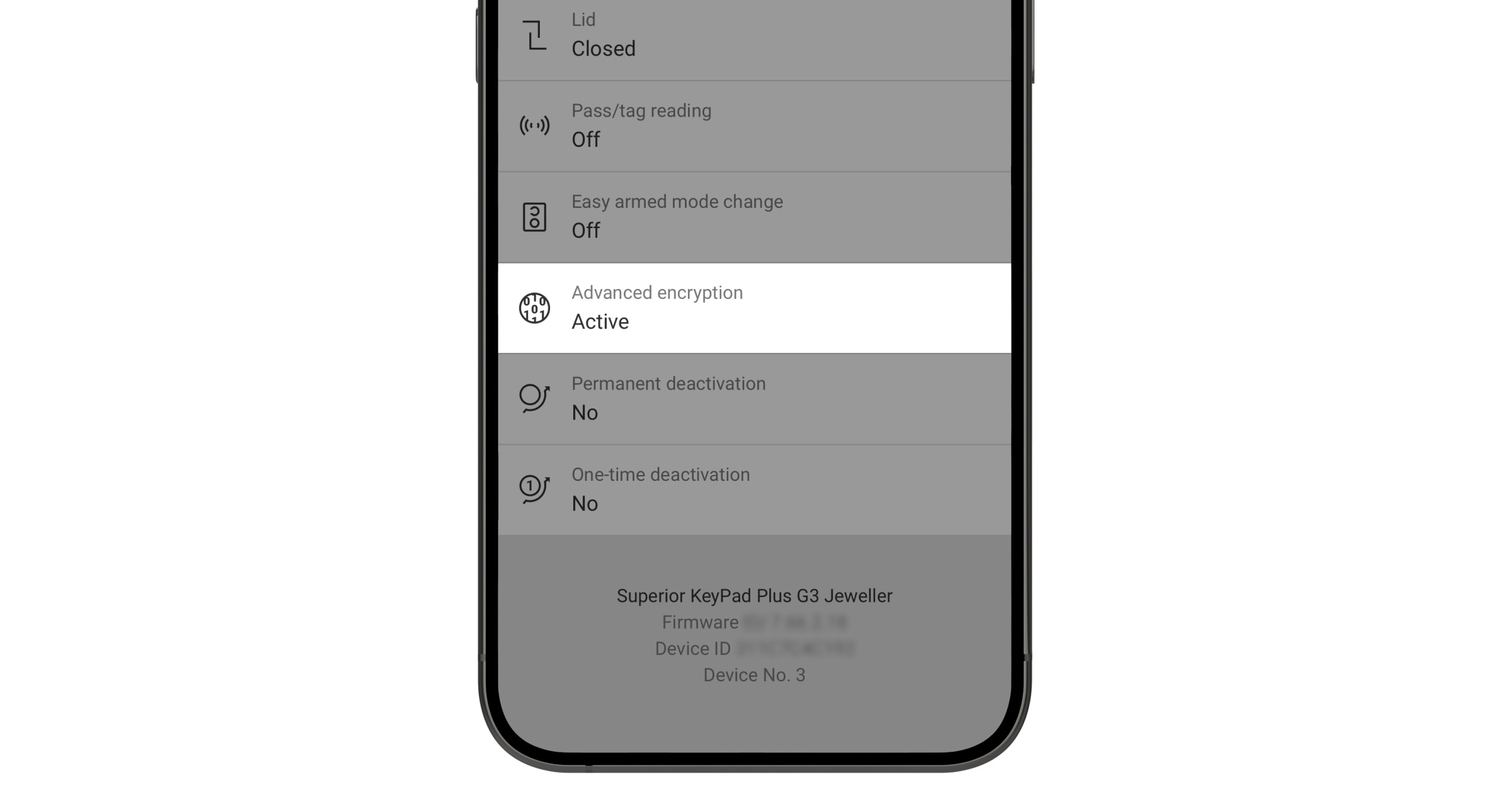
The following blocks describe the conditions that determine whether device communication is protected by advanced encryption:
Advanced encryption is active for a device if all of the following conditions are true:
- The device supports advanced encryption.
- The device is added to the hub or range extender that supports advanced encryption.
Advanced encryption is not active for a device if at least one of the following conditions is true:
- The device does not support advanced encryption.
- The device is added to the hub or range extender that does not support advanced encryption.
- The device’s advanced encryption has been downgraded and has not yet been activated in the device settings.
If a device that supports advanced encryption is connected to a range extender that does not support the feature, communication between the range extender and the device is not protected by advanced encryption. In this case, communication protection downgrades to standard encryption.
If the encryption is downgraded on devices that support advanced encryption, PRO users can manually activate the feature in the Ajax PRO apps. Detailed information is provided in the Enabling advanced encryption manually section.
Only PRO users with access to system settings can connect devices that support advanced encryption to a range extender that does not support the feature. End users are not allowed to perform actions that could lead to encryption downgrade.
Note that an Ajax app will inform a user if adding or transferring a device will downgrade the encryption. Follow in-app suggestions to address the issue, if necessary.
Enabling advanced encryption manually
If advanced encryption is not activated after the device is connected to another range extender, returned to the hub, or the entire system is transferred to another hub, a PRO user with access to system settings can activate it manually in the device settings. To enable advanced encryption for a device manually, in the Ajax PRO app:
- Select the required space and go to the Devices
 tab.
tab. - Select the required device and go to its Settings
 .
. - Find the Device supports advanced encryption message at the top of the screen and tap Activate.
- Tap Activate to confirm activation.
- Tap Done to finish.
Enhanced frequency hopping
System requirements
Enhanced frequency requires every device in the system to support it.
If enhanced frequency hopping is to be applied only to devices added to the hub, all such devices must support the feature. Devices that do not support enhanced frequency hopping must either be isolated by connecting to a range extender or replaced with devices that support the feature. The range extender must also support enhanced frequency hopping.
If enhanced frequency hopping is to be applied only to devices connected to a range extender, all such devices must support the feature. Devices that do not support enhanced frequency hopping must either be isolated by adding them directly to a hub or replaced with devices that support the feature. The range extender must also support enhanced frequency hopping.
The following devices support enhanced frequency hopping:
- Hubs:
- Range extenders:
- Devices:
Operating principle
Frequency hopping is a method that a hub and devices added to it use to change their operating radio communication frequency according to a defined pattern. Even if some channels are jammed, messages can still be transmitted successfully via other channels.
The frequency hopping feature is based on the hub and/or range extender, meaning these devices determine whether enhanced frequency hopping is active in the system. When the feature is active, sixteen frequencies across four bands are used for enhanced frequency hopping. When the feature is not active, the system switches to regular frequency hopping, which uses two frequencies.
The frequency hopping status is available in the hub or range extender states in Ajax apps. This status is displayed only for hubs and range extenders that support frequency hopping.
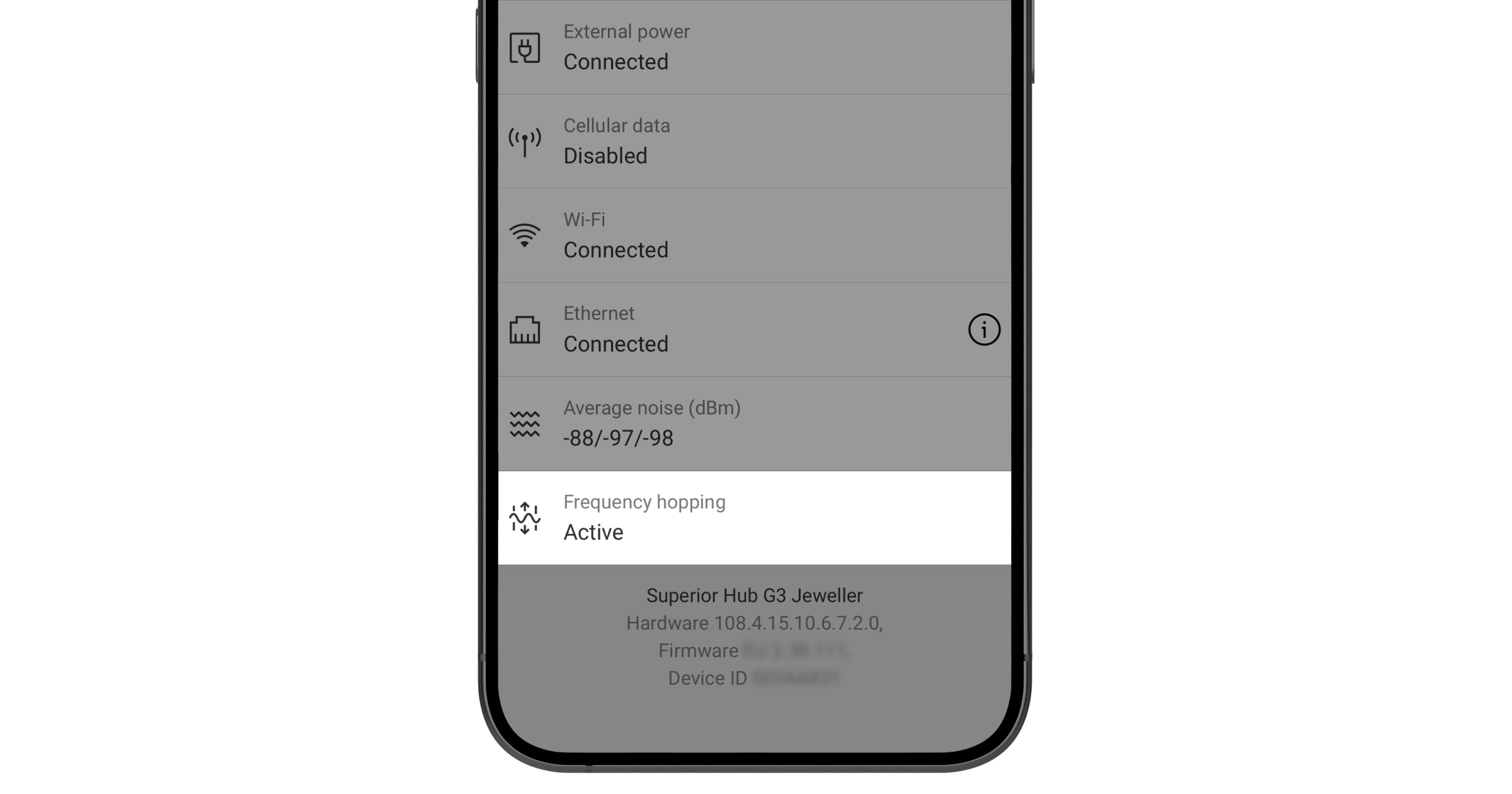
Enhanced frequency hopping works when all devices added to the system support it. If at least one device in the system does not support the feature, the system cannot use enhanced frequency hopping. However, with a compatible range extender added, the system can be configured to use enhanced frequency hopping to communicate with devices that support the feature, while communicating without enhanced frequency hopping with devices that do not support it. Detailed information is provided in the Combining devices with and without enhanced frequency hopping section.
The following blocks describe the conditions that determine whether enhanced frequency hopping is active in the system:
Enhanced frequency hopping is active on a hub if all of the following conditions are true:
- The hub supports enhanced frequency hopping.
- All devices added directly to the hub support enhanced frequency hopping.
- All range extenders (if any) added to the hub support enhanced frequency hopping.
- Devices that do not support enhanced frequency hopping are connected to range extenders. Such devices cannot be added directly to the hub.
Enhanced frequency hopping is active on a range extender if all of the following conditions are true:
- The hub supports enhanced frequency hopping.
- All range extenders added to the hub support enhanced frequency hopping.
- All devices connected to the range extender support enhanced frequency hopping.
- Devices that do not support enhanced frequency hopping are added either directly to the hub or connected to another range extender. Such devices cannot be connected to the range extender with active enhanced frequency hopping.
Enhanced frequency hopping is not active on a hub if at least one of the following conditions is true:
- The hub does not support enhanced frequency hopping.
- The range extender does not support enhanced frequency hopping.
- The device that does not support enhanced frequency hopping is added to the hub.
Enhanced frequency hopping is not active on a range extender if at least one of the following conditions is true:
- The hub does not support enhanced frequency hopping.
- The range extender does not support enhanced frequency hopping.
- The device that does not support enhanced frequency hopping is connected to the range extender.
Combining devices with and without enhanced frequency hopping support
If devices that do not support enhanced frequency hopping need to be added, the system allows isolating devices that communicate using enhanced frequency hopping from those that do not. This will ensure that enhanced frequency hopping is active for devices that support it.
To do this, all devices that do not support enhanced frequency hopping must be connected to a radio signal range extender so that the remaining devices that communicate directly with the hub can use enhanced frequency hopping. Or conversely: connect all devices that support enhanced frequency hopping to a range extender, and add those that do not support the feature to the hub. Note that the range extender must support enhanced frequency hopping in all cases.

A range extender that does not support enhanced frequency hopping cannot be used to isolate devices that support enhanced frequency hopping from those that do not. If such a range extender is added to the system, it will completely disable enhanced frequency hopping in the entire system.
If enhanced frequency hopping is inactive, tap  to see which devices do not support the feature and get suggestions to resolve the issue.
Note that an Ajax app will inform a user if adding or transferring a device will deactivate enhanced frequency hopping. Follow in-app suggestions to address the issue, if necessary.