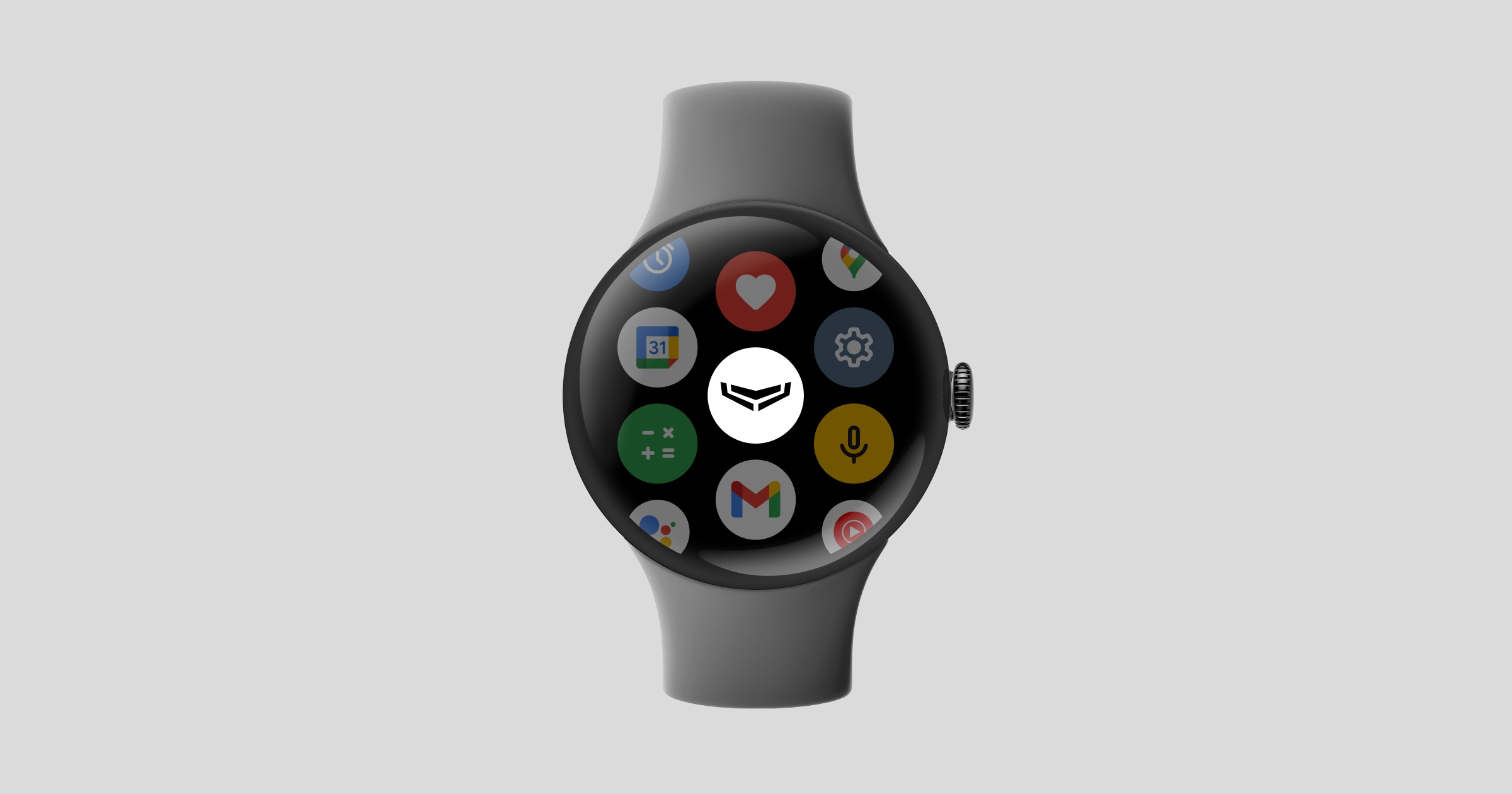
Wear OS akıllı saati için Ajax Security System Ajax sisteminizi doğrudan akıllı saatinizden kontrol etmenizi sağlayan bir uygulamadır. Bu uygulama ile sistemin güvenlik modunu değiştirebilir, panik alarmı verebilir ve anlık bildirimler alabilirsiniz — tüm bunları akıllı telefonunuzdaki Ajax uygulamasını açmadan yapabilirsiniz.

Ajax PRO: Tool for Engineers app uygulaması yalnızca akıllı telefonlar için mevcuttur ve akıllı saatlerde kullanılamaz.
Sistem gereklilikleri
Wear OS akıllı saatleri için Ajax Security System, Wear OS 5.0 veya daha yeni sürümlere sahip cihazlar tarafından desteklenir.
Wear OS akıllı saatleri için Ajax uygulaması yalnızca Android akıllı telefonlarla eşleştirilerek çalışır. Android dışındaki işletim sistemlerine sahip akıllı telefonlar desteklenmez.
Çalışma prensibi
Wear OS akıllı saati için Ajax uygulamasını kullanarak Ajax sisteminizle genel eylemleri gerçekleştirebilirsiniz. Uygulama, space’ler arasında geçiş yapmanıza, sistemi ve grupları kurmanıza/çözmenize, Gece modunu, etkinleştirmenize, panik alarmı vermenize, anlık bildirimler almanıza ve daha fazlasına olanak tanır.
Wear OS akıllı saati için Ajax uygulaması, Android akıllı telefondaki Ajax uygulamasıyla eşleştirilerek çalışır. Her iki uygulama da aynı Ajax hesabını kullanır ve tüm eylemler ile verileri internet üzerinden sürekli olarak birbirleriyle senkronize eder.
Akıllı saat Wi-Fi veya hücresel ağa bağlıysa, akıllı telefonunuzun yakınında olmasanız bile Ajax uygulamasını kullanabilir ve akıllı saatinizde anlık bildirimler alabilirsiniz.
Mobil uygulamanın aksine, akıllı saat için Ajax uygulaması çeşitli sistem yapılandırmaları yapmanıza, gizlilik ayarlarını yönetmenize, kameralardan video görüntülemenize vb. izin vermez. Daha fazla ayrıntı için aşağıdaki listeye bakınız.
- Space oluşturma veya silme.
- Cihazlar, kullanıcılar ve odaları ekleme, kaldırma veya görüntüleme.
- Gizlilik ayarlarını yönetme.
- Herhangi bir cihaz için ayarları değiştirme.
- Otomasyon senaryoları oluşturma veya yapılandırma.
- Kameralardan video izleme.
- Bildirim akışını açma ve göz atma (yalnızca anlık bildirimler kullanılabilir).
- Kullanım kılavuzlarını açma.
Yükleme
Wear OS saati için Ajax Security System, akıllı saate doğrudan uygulama mağazası üzerinden veya eşleştirilmiş akıllı telefon aracılığıyla yüklenebilir.
Ajax uygulamasını akıllı saat üzerindeki mağaza aracılığıyla yüklemek için:
- Akıllı saatinizde Google Play’i açınız.
- Ajax Security System uygulamasını bulunuz.
- Yükle‘ye dokununuz.
- Yükleme tamamlanana ve Ajax uygulaması akıllı saatinizde görünene kadar bekleyiniz.
Ajax uygulamasını eşleştirilmiş akıllı telefon üzerinden yüklemek için:
- Akıllı telefonunuzun akıllı saatle eşleştirildiğinden emin olunuz.
- Akıllı telefonunuzda Google Play’i açınız.
- Ajax Security System uygulamasını bulunuz.
- Yükle‘ye dokununuz.
- Uygulama akıllı telefonunuza yüklendikten sonra akıllı saatinizi kontrol ediniz. Bir bildirim almanız gerekir.
- Uygulamayı akıllı saatinize yüklemek için ekrandaki talimatları izleyiniz.
Oturum açma

During the first login, the Ajax app may ask for certain permissions for the app. We recommend providing the app with the requested permissions to ensure its full functionality.
Note that permission to use the device’s location is required for the app to send your smartwatch coordinates when sending a panic alarm.
Wear OS akıllı saatindeki Ajax uygulamasına giriş yapmak için:
- Akıllı telefonunuzdaki Ajax uygulamasında Ajax hesabınıza giriş yapmış olduğunuzdan emin olunuz.
- Akıllı saatte Ajax uygulamasını açınız.
- Akıllı saatteki Ajax uygulamasında Devam et‘e dokununuz. Akıllı saatin hesap verilerinizi mobil uygulama ile senkronize etmesini bekleyiniz. Veriler senkronize edildikten sonra sistem otomatik olarak akıllı saatteki Ajax hesabınıza giriş yapar.
Akıllı saatteki Ajax hesabınızdan çıkış yapmak için: mobil uygulamadaki oturumu sonlandırabilirsiniz:
 Menü →
  Uygulama ayarları → Oturumlar
Akıllı telefonunuzdaki Ajax uygulamasında oturumu kapatır veya oturumu sonlandırırsanız, akıllı saatteki Ajax uygulamasında da otomatik olarak oturumu kapatacağınızı unutmayınız.
Uygulama özellikleri
Wear OS akıllı saati için Ajax uygulaması, güvenlik sisteminizle genel eylemler gerçekleştirmenize olanak tanır: gerekli space’i seçme ve kontrol etme, uygulama içi panik alarmı verme, bildirimleri alma vb.
Wear OS akıllı saati için Ajax uygulaması, akıllı telefonunuzun yanında olmasanız bile çalışabilir. Ancak bu durumda akıllı saatin Wi-Fi’ye veya hücresel bir ağa bağlı olması gerekir.
Space seçimi
Ajax hesabınızda birden fazla space varsa, tıpkı akıllı telefonunuzda olduğu gibi Wear OS akıllı saati için Ajax uygulamasında da gerekli space’i seçebilirsiniz.
Akıllı saatteki Ajax uygulamasında gerekli space’i seçmek için:
- Akıllı saatte Ajax uygulamasını açınız.
- Ekranın alt kısmındaki
 butonuna dokununuz.
 - Listeden gerekli space’i seçiniz.
Güvenlik modlarının kontrolü
Wear OS akıllı saati için Ajax uygulaması, sistemin güvenlik modunu akıllı telefondaki Ajax uygulamasıyla aynı şekilde kontrol etmenize olanak tanır.
Akıllı saatteki Ajax uygulamasında güvenlik durumunu kontrol etmek için:
- Akıllı saatte Ajax uygulamasını açınız.
- Gerekli space’i seçiniz.
- Aşağıdaki butonlara dokununuz:
 — sistemi kurar;
 — sistemi çözer;
 — Gece modunu etkinleştirir (Grup modu etkinse Gece modunu hem etkinleştirir hem devre dışı bırakır).
Sisteminizde Grup modu etkinse, Wear OS akıllı saati için Ajax uygulaması üzerinden istediğiniz grubu da kurabilir/çözebilirsiniz.
Akıllı saatteki Ajax uygulamasında belirli bir grubun güvenlik modunu kontrol etmek için:
- Akıllı saatte Ajax uygulamasını açınız.
- Gerekli space’i seçiniz.
- Grup listesini açmak için ekranın alt kısmındaki
 butonuna dokununuz.
 - Kurmak/çözmek için gerekli gruba dokununuz.
Panik butonu
Wear OS akıllı saati için Ajax uygulamasını kullanarak, tıpkı akıllı telefonunuzda olduğu gibi uygulama içi panik alarmı gönderebilirsiniz.
Koordinatlarla panik alarmı göndermek için uygulamaya cihazın konumunu kullanma izninin verilmesi gerekir.
Akıllı saati kullanarak panik alarmı vermek için:
- Akıllı saatte Ajax uygulamasını açınız.
- Gerekli space’i seçiniz.
 Panik butonuna dokununuz.
- Geri sayım tamamlanana kadar Panik alarmı gönder butonuna dokunup basılı tutunuz.
Bildirimler
Wear OS akıllı saati için Ajax uygulaması, anlık bildirimleri akıllı telefonunuzda görüntülendiği şekilde görüntüler.
Akıllı saatteki anlık bildirimlerde, bildirimi anında akıllı telefonunuzda açmanızı sağlayan Telefonda aç butonu bulunur.
Akıllı saatteki anlık bildirimlerin, akıllı telefonunuzda ayarlanmış Bildirim tercihlerine göre görüntülendiğini unutmayınız.
Sorun bildirme
Wear OS akıllı saati için Ajax uygulamasıyla ilgili herhangi bir sorun yaşadıysanız, uygulama günlüklerini indirebilir ve bunları raporunuza ekleyebilirsiniz.
Teknik Destek ekibimiz, sorunları analiz etmek ve çözmek için bu günlükleri talep edebilir.
Akıllı saat için Ajax uygulamasından günlük indirmek için:
- Akıllı saatin Bluetooth üzerinden akıllı telefona bağlı olduğundan emin olunuz.
- Akıllı telefonunuzda Ajax uygulamasını açınız.
- Sol üst köşedeki Menü‘ye dokununuz ve Sorun bildir‘i seçiniz.
- Saat sekmesine gidiniz.
- Sorunun meydana geldiği oturumun günlük dosyasını seçiniz.
- Günlük dosyasını önerilen seçeneklerden biri üzerinden göndermek için Sorun bildir‘i seçiniz.
Wear OS akıllı saati için Ajax uygulaması güncellenirken günlükler kullanılamaz.